
Appearance
Inventory
Getting Started
A complete guide to using the ALAFAQ ECARE Inventory Management application: sales, purchases, stock, payments, and reporting. This guide is written for day-to-day users — shop staff, purchase officers, accountants, and administrators.
Signing in
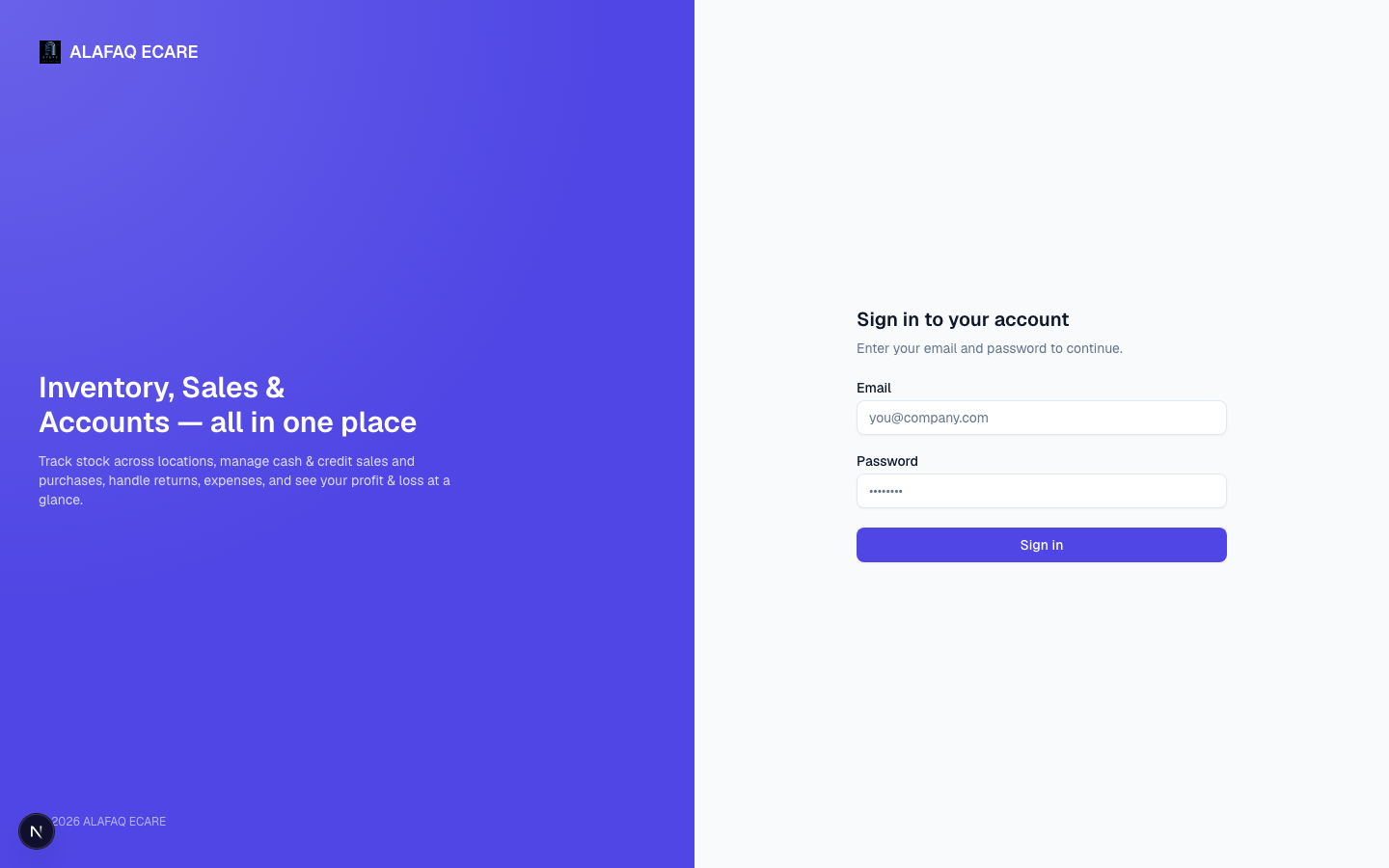
Go to the app's login page, enter your email and password, and sign in. If you don't have an account, ask an Administrator to create one for you (see Users).
Your access after signing in depends on your assigned Role — see Understanding Roles & Permissions.
Note: If your role's permissions were just changed by an Administrator, sign out and sign back in for the change to take effect. Permissions are loaded once at sign-in.
Navigation
The left sidebar is organized into sections:
- Overview — Dashboard
- Sales — Retail Sale, POS, Wholesale, Sales Returns, Customers
- Purchases — LPO, Purchases, Purchase Returns, Suppliers
- Inventory — Products, Categories, Units, Stock, Stock Transfers, Stock Locations
- Finance — Expenses, Expense Categories, Payments & Ledgers
- Reports — Sales Report, Customer-wise Sales, Item-wise Sales, Purchase Report, Supplier-wise Purchases, Stock Report, Profit & Loss
- Administration — Users, Roles & Permissions, Settings
You'll only see the sections and items your role has permission to view. The top bar shows your name and role, and includes a menu to sign out.