
Appearance
Inventory
Sales
Retail Sale
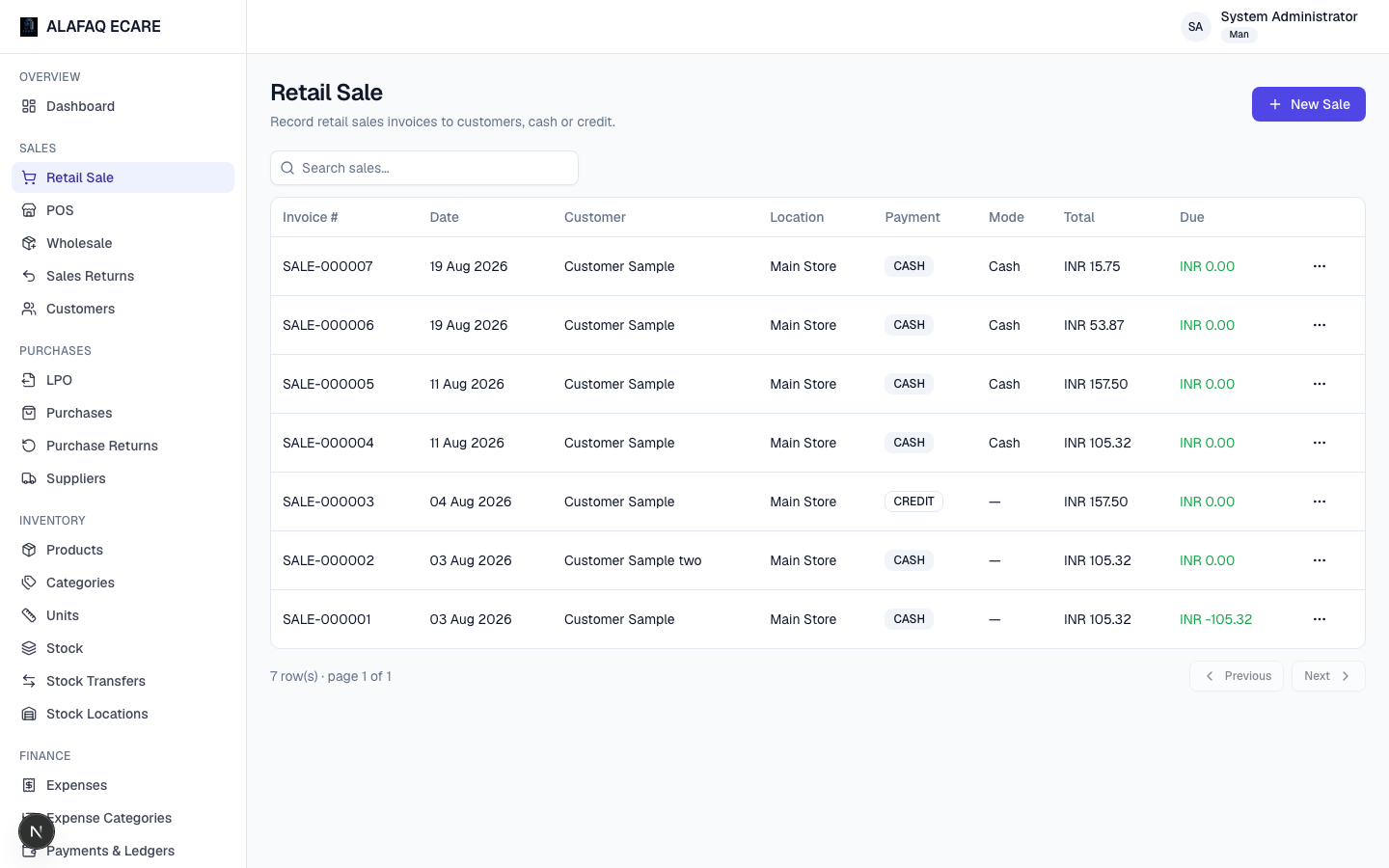
Retail Sale (in the sidebar under Sales) is where you record a standard in-store sale to a customer.
To record a sale:
- Click New Sale.
- Choose the Customer, Location (which store/warehouse the stock is sold from), and Date.
- Add items: scan a barcode or type a SKU and press Enter, or search by product name and press Enter. Each line lets you set the unit (if the product has more than one, e.g. "Box" vs "Pcs"), quantity, unit price, and — if enabled — a line discount %.
- Choose the Payment Type: Cash (paid in full immediately) or Credit (some or all due later). Pick a Payment Mode (Cash, Card, Bank Transfer, etc. — configured in Settings).
- An overall Invoice Discount % is available if your business has that turned on (see Preferences).
- Review the Subtotal, tax, and Total, then click Save Sale.
Saving a sale automatically:
- Deducts the sold quantity from stock at the chosen location.
- Records the amount paid and, for credit sales, adds the balance to the customer's outstanding due (visible on Payments & Ledgers).
- Generates a sequential invoice number (e.g.
SALE-000123).
From the Sales list, use the row menu to View, Print Receipt, or Edit a sale (editing may be restricted once a sale is old or already returned against).
The New Sale form can open as a popup or a full page, depending on your Preferences setting — full-page is better for invoices with many line items.
POS (Point of Sale)
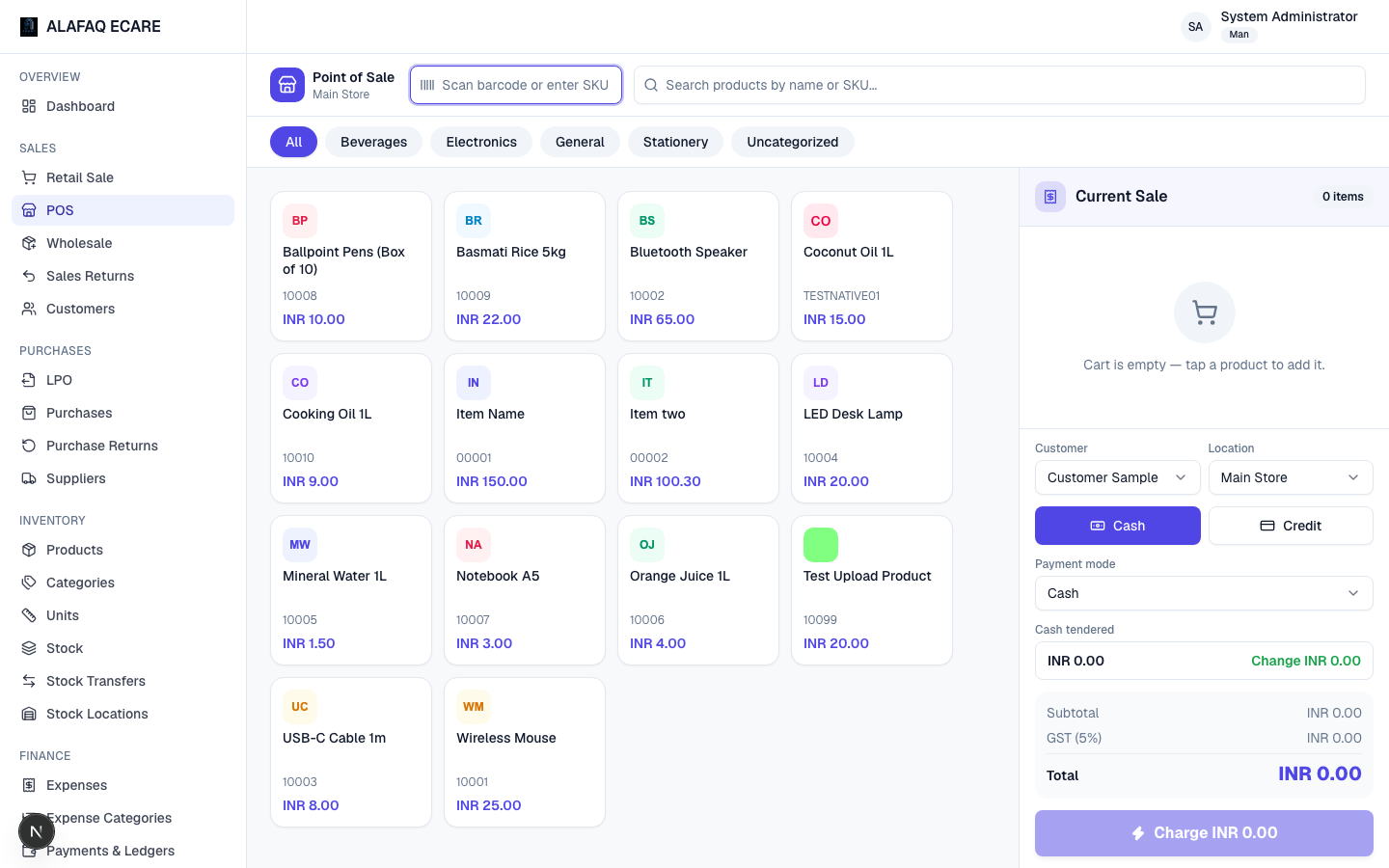
POS is a faster, touch-friendly checkout screen for high-volume, walk-in sales — a tile grid of products instead of a search box.
To make a POS sale:
- Tap product tiles to add them to the cart (or use the search bar).
- Adjust quantity for each cart line using the on-screen keypad.
- Choose the Payment Type and Payment Mode.
- Tap Complete Sale (or similar) to finish — this creates a normal Sale record behind the scenes and opens the printable receipt.
POS uses the same 80mm receipt format as Retail Sale's "Print Receipt."
Wholesale
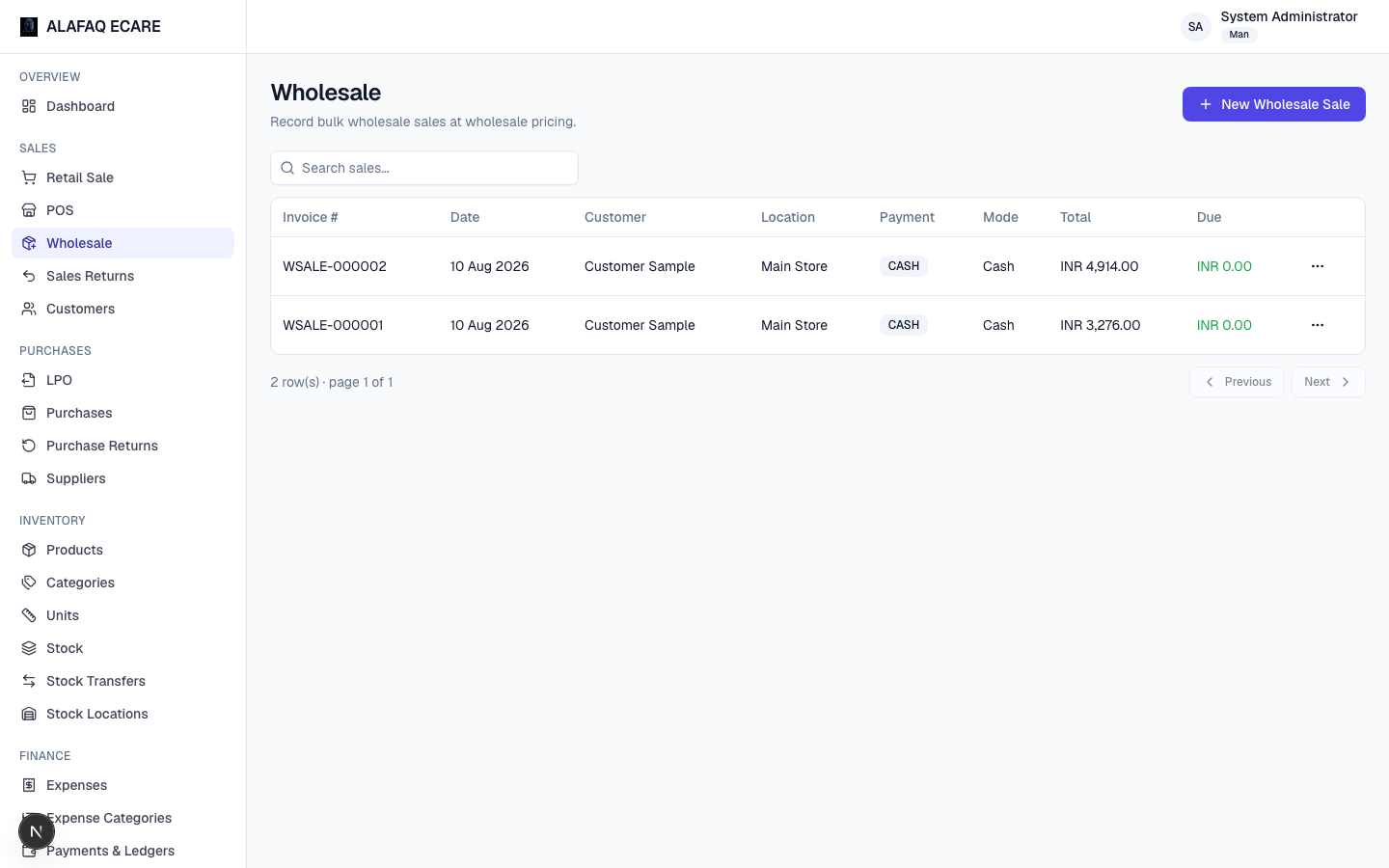
Wholesale records sales at wholesale pricing to business customers, using the same form as Retail Sale but with the Wholesale selling price applied instead of the retail price, and marks the sale with a WHOLESALE INVOICE label instead of SALES RECEIPT on the printed document.
Two settings (in Preferences) control what's available for wholesale sales:
- Wholesale: POS receipt — allow printing the same 80mm receipt.
- Wholesale: A4 PDF invoice — allow exporting a full A4 PDF invoice instead.
Sales Returns
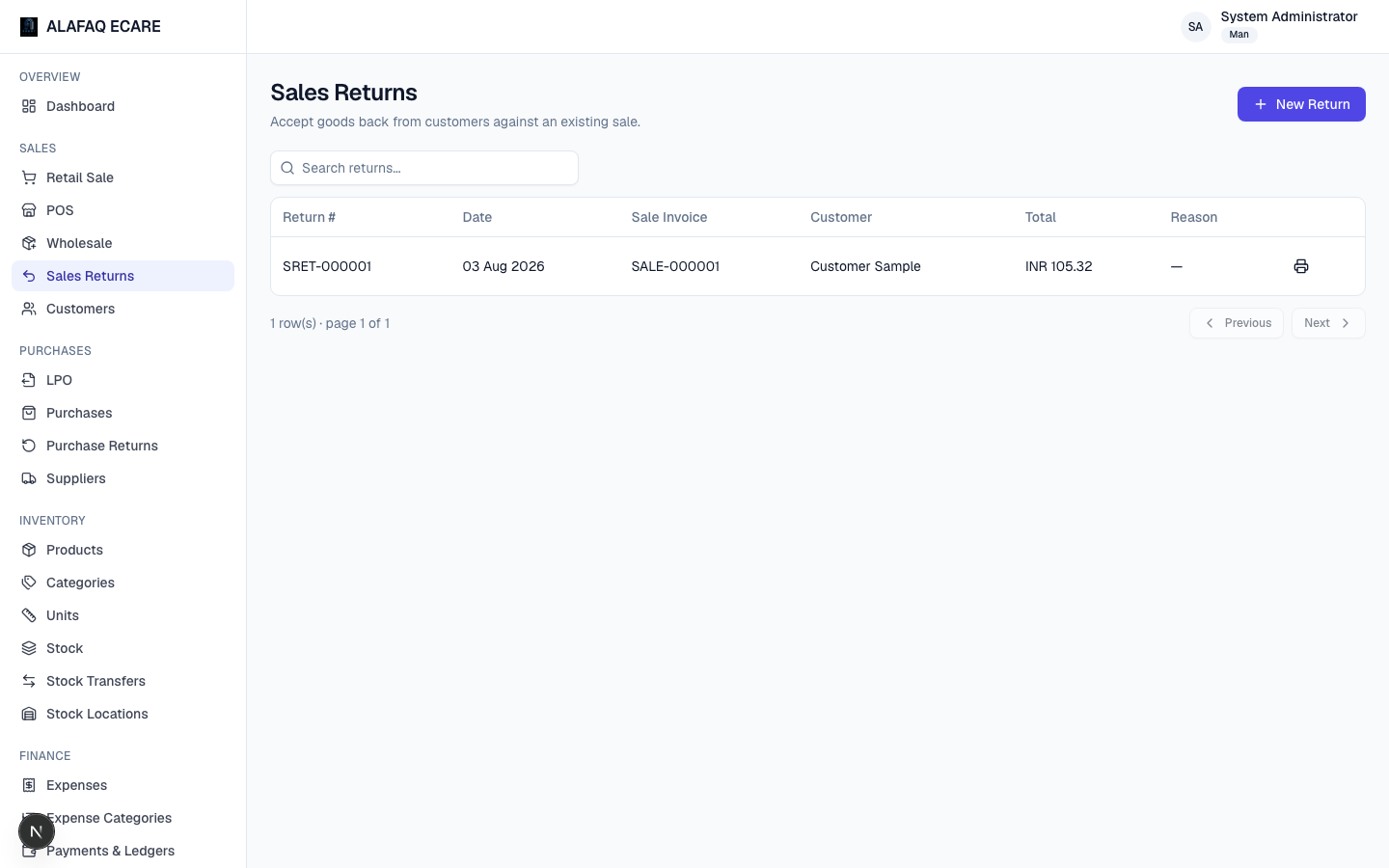
Use Sales Returns to record a customer returning goods from a previous sale.
To record a return:
- Click New Return and select the original Sale (by invoice number/customer).
- Choose which line items and quantities are being returned, and a reason.
- Save.
This automatically adds the returned quantity back to stock and reduces the customer's outstanding due (or records a refund), and generates a return document (e.g. SR-000045) that references the original invoice.
Customers
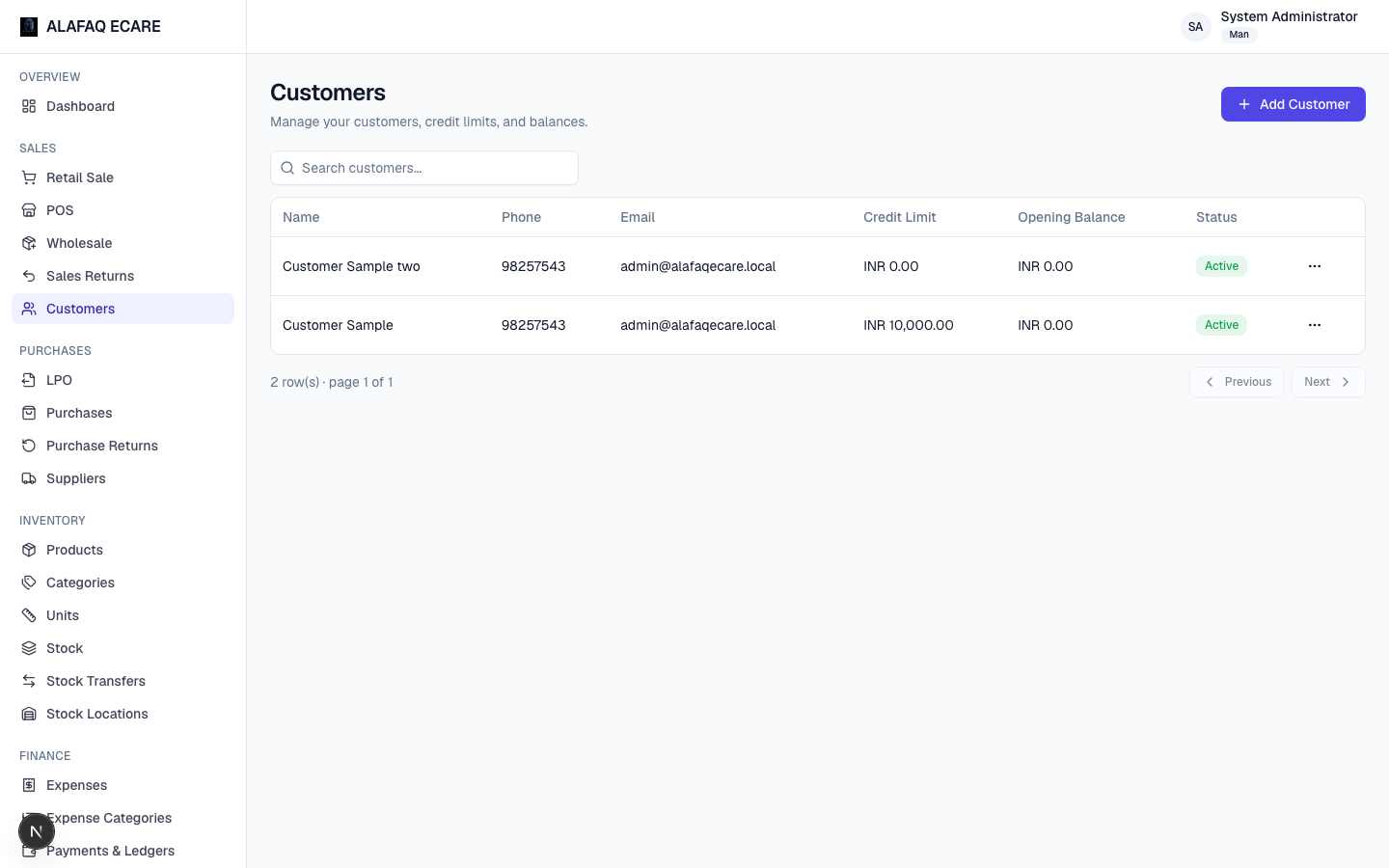
Manage your customer list here: name, phone, email, address, credit limit, and opening balance.
- Add Customer to create a new one.
- Edit or deactivate existing customers from the row menu.
- A customer's running balance (what they owe) is visible from Payments & Ledgers.