
Appearance
Restaurant
Products & Stock
Products
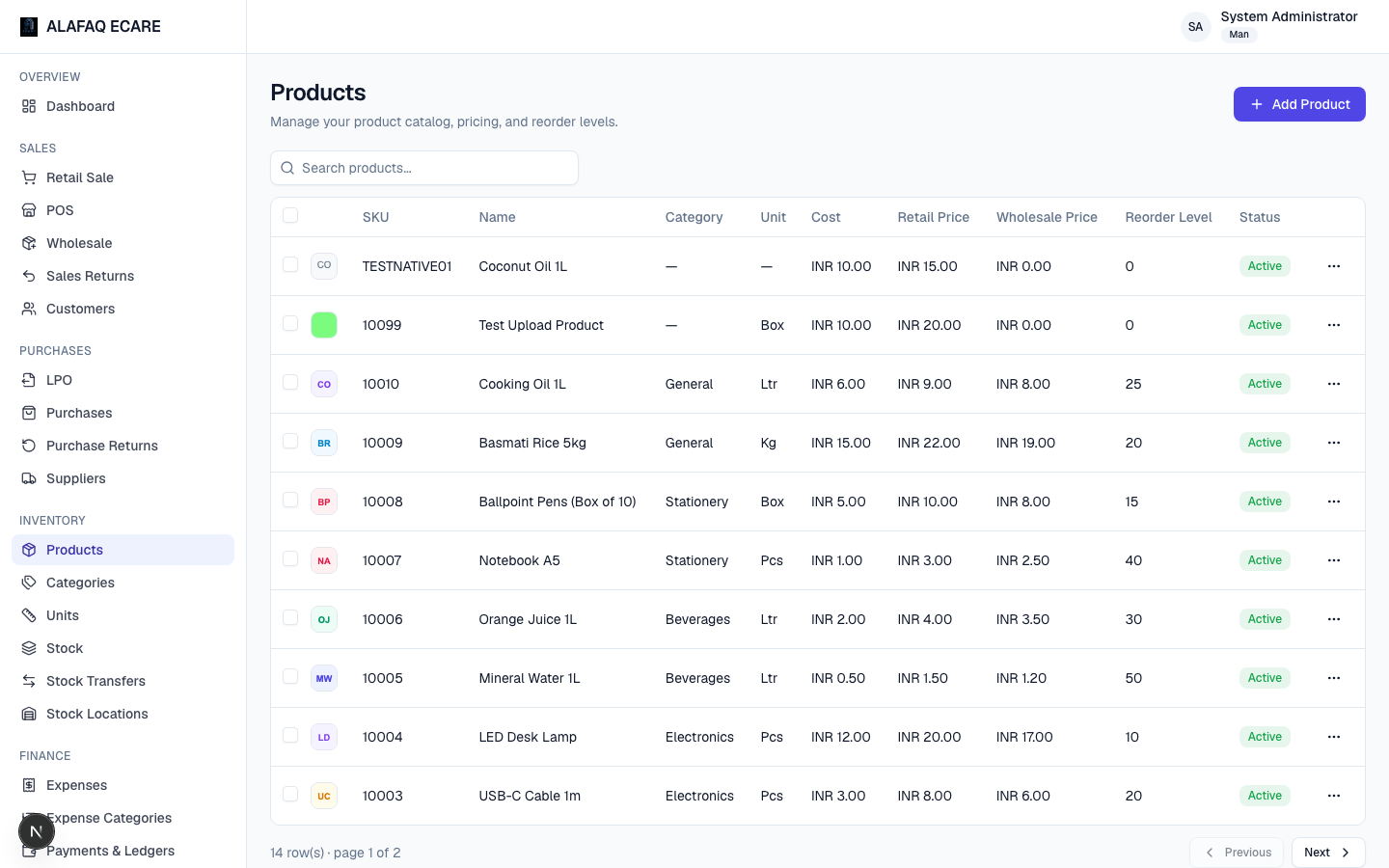
The Products list is your catalog — SKU, name, category, unit, cost price, retail/wholesale selling prices, reorder level, and status.
To add a product, click Add Product and fill in:
- SKU and Name
- Local Name (optional) — a name in your local/native language (e.g. Malayalam). This can be shown on receipts alongside or instead of the English name — see the Product name on receipts setting under Preferences.
- An optional product image
- Category and Unit
- Cost Price, Retail Selling Price, Wholesale Selling Price
- Reorder Level — when stock falls to or below this, the product shows as low-stock
- Sellable at POS toggle — turn this off for a raw ingredient (chicken, rice, oil, vegetables...) that you buy and stock but never sell on its own. It stays fully manageable everywhere else (purchases, stock counts, and as a Recipe ingredient below), it just won't appear as a tile in POS.
- Active toggle — inactive products are hidden from sale/purchase item search
Use the checkboxes in the product list to select multiple products and bulk-print barcode labels for them (see Printing & Documents).
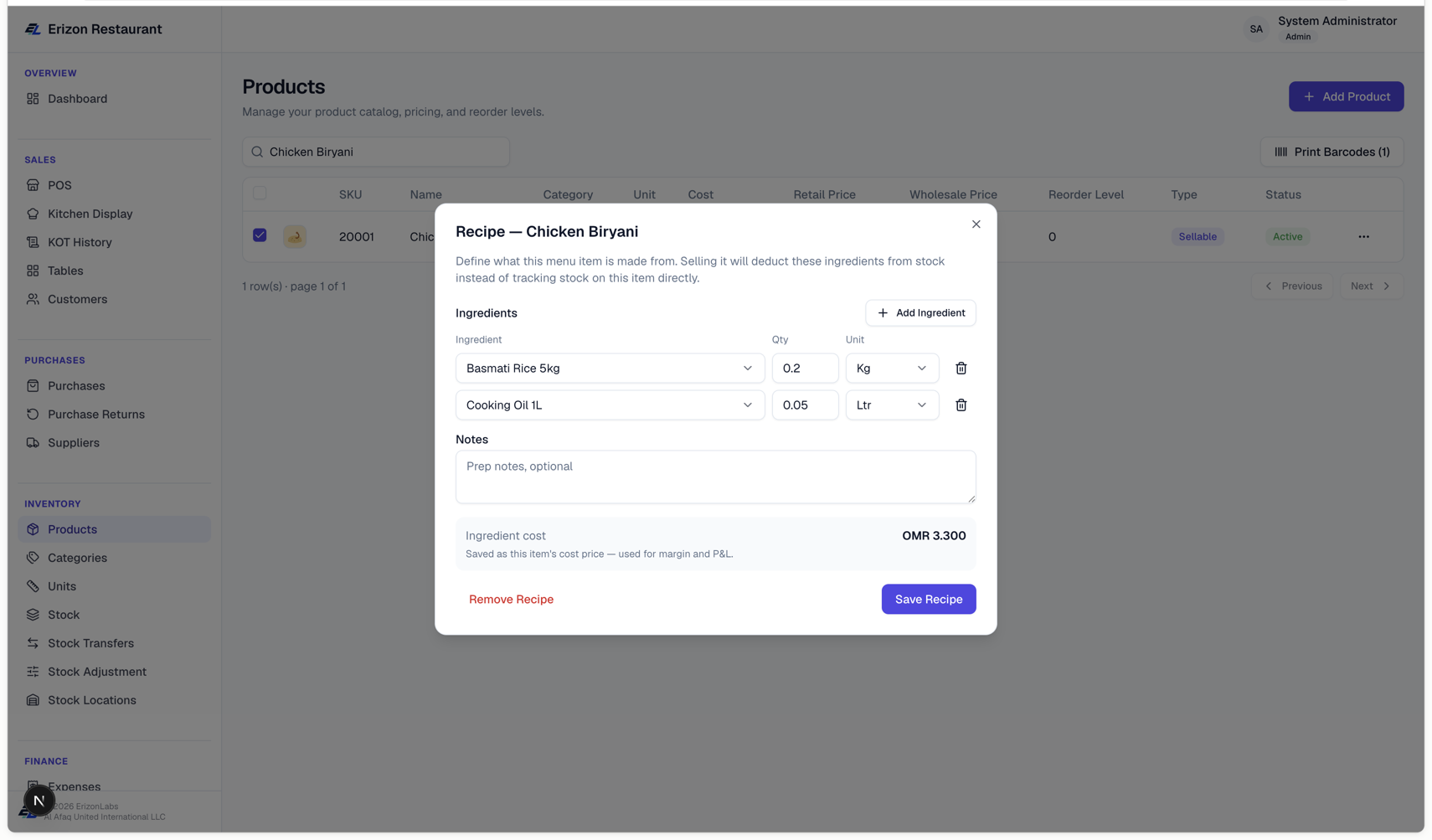
Recipe / BOM — building a dish from ingredients. For a sellable item that's actually a prepared dish (e.g. "Chicken Biryani"), open its row menu and choose Recipe. Add each ingredient (another product in your catalog, marked non-sellable or not) with the quantity and unit it takes to make one serving. As you add lines, the dialog shows a running ingredient cost — this is saved as the dish's own Cost Price the moment you save the recipe, so its margin and P&L are always based on what it actually costs to make, not a manually-guessed number. From then on, selling the dish (through POS, Retail Sale, or a dine-in table) deducts each ingredient's stock by the recipe quantity instead of trying to deduct stock from the dish itself.
Categories
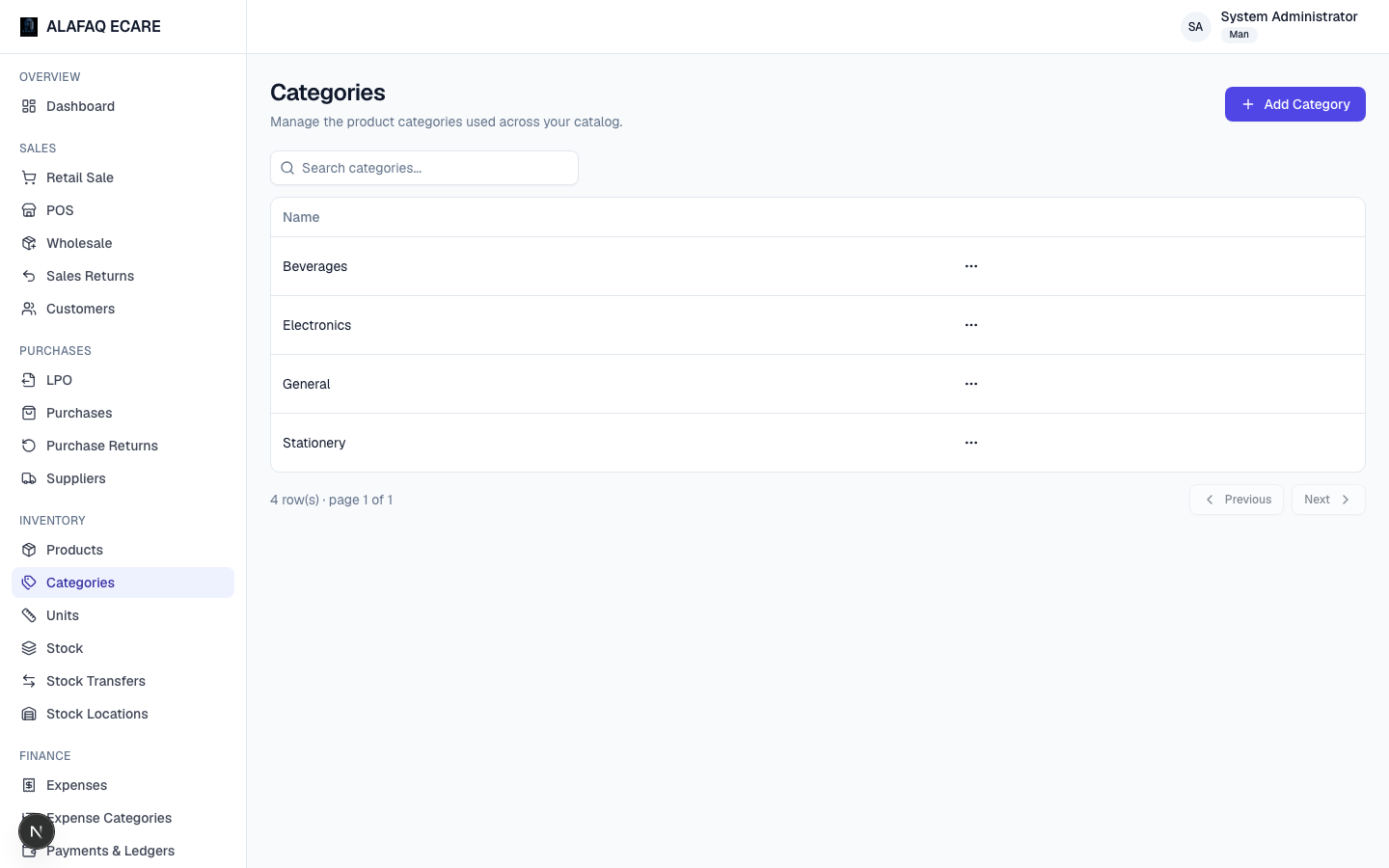
A simple named grouping for products (e.g. "Beverages," "Electronics"), used for organizing the product list and in some reports.
Units
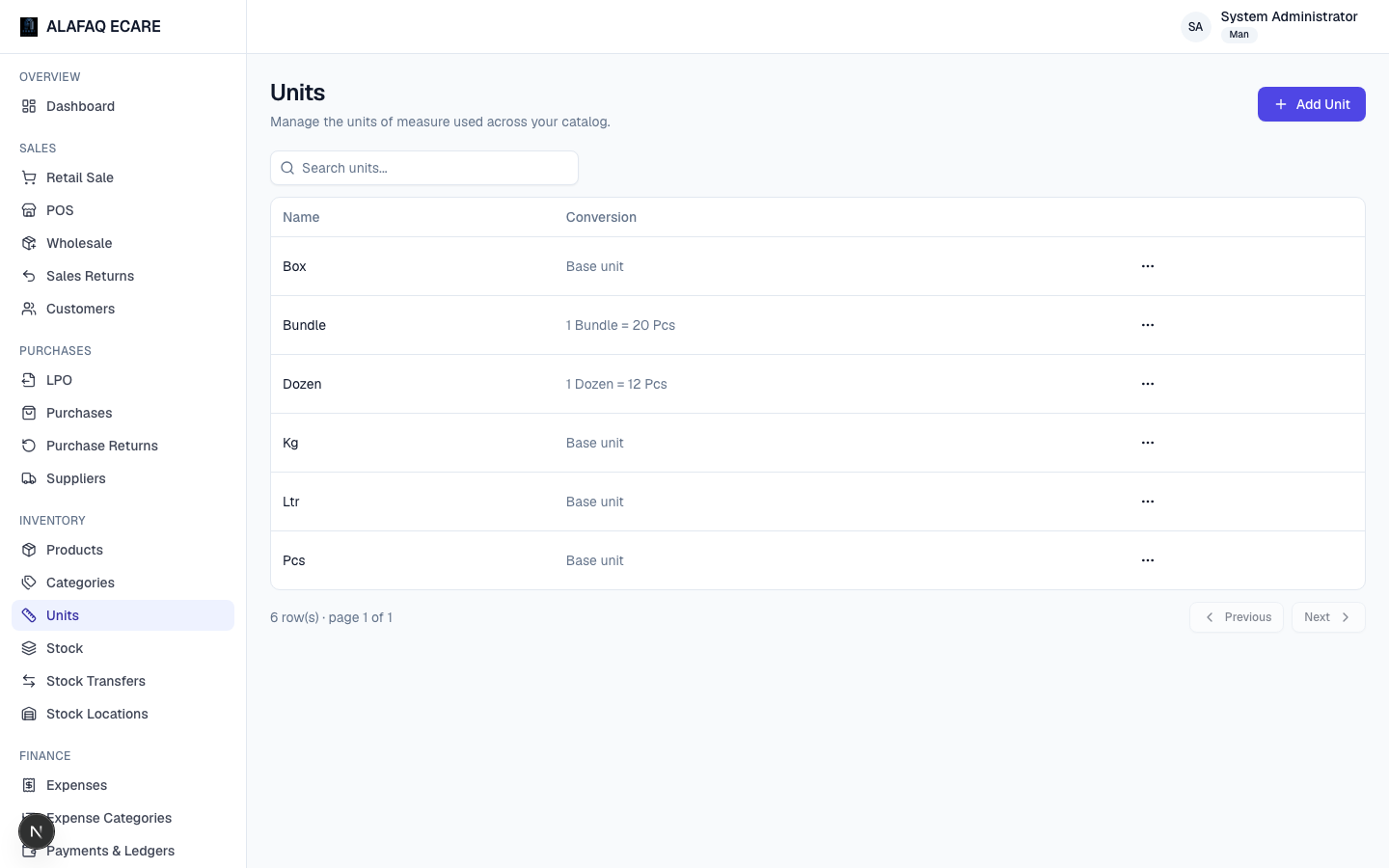
Units define how a product is measured or sold — e.g. "Pcs," "Box," "Kg," "Ltr."
Units can optionally have a Base Unit and Conversion Factor — for example, a "Box" unit with base unit "Pcs" and conversion factor 12 means 1 Box = 12 Pcs. This lets you buy in one unit (e.g. purchase by the Box) and sell in another (e.g. sell individual Pcs), with stock automatically tracked correctly in the base unit behind the scenes.
Stock
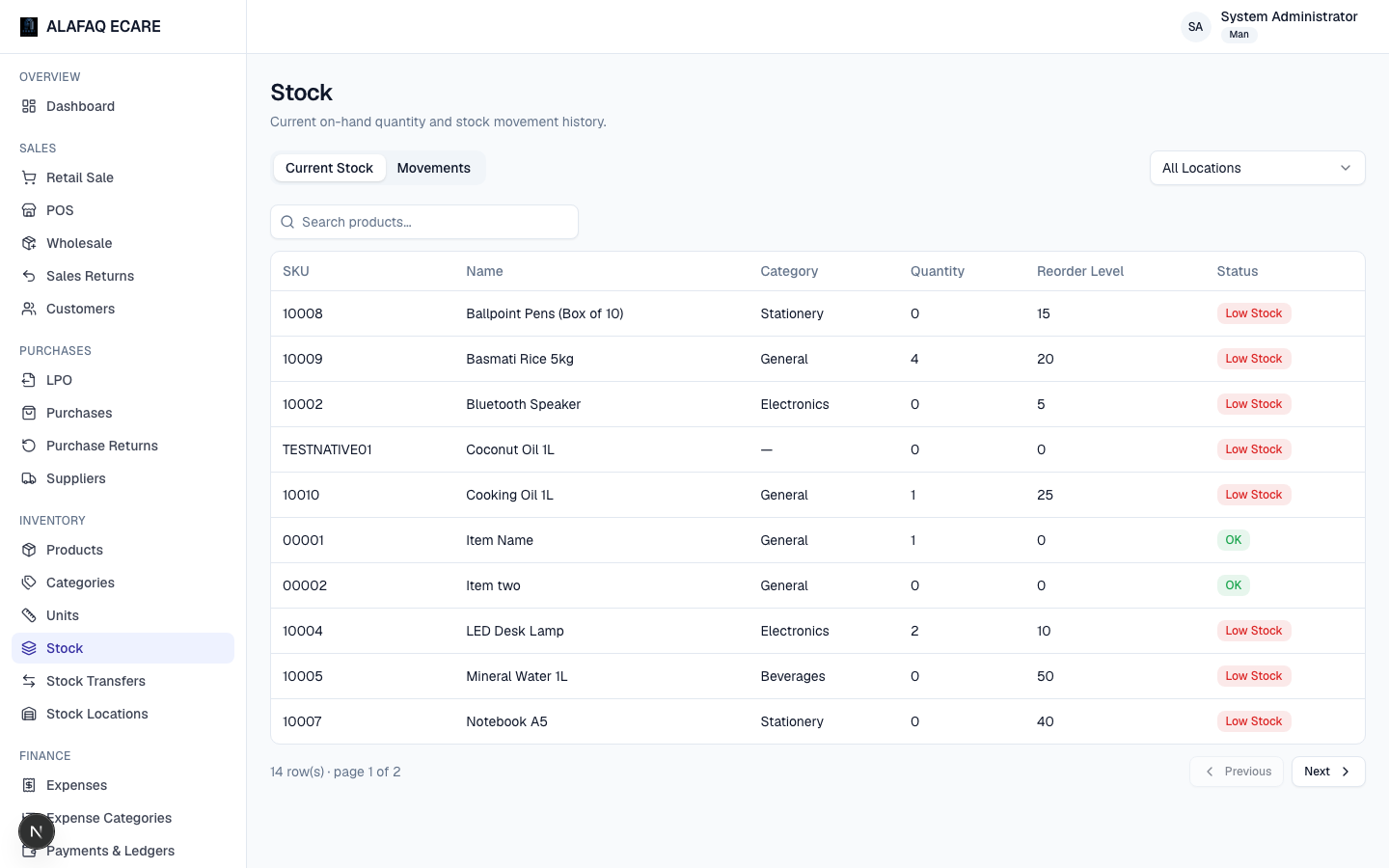
Shows current on-hand quantity for every product at every location. Use this to check availability before selling, or to spot what needs reordering (compare against each product's Reorder Level).
Stock Transfers
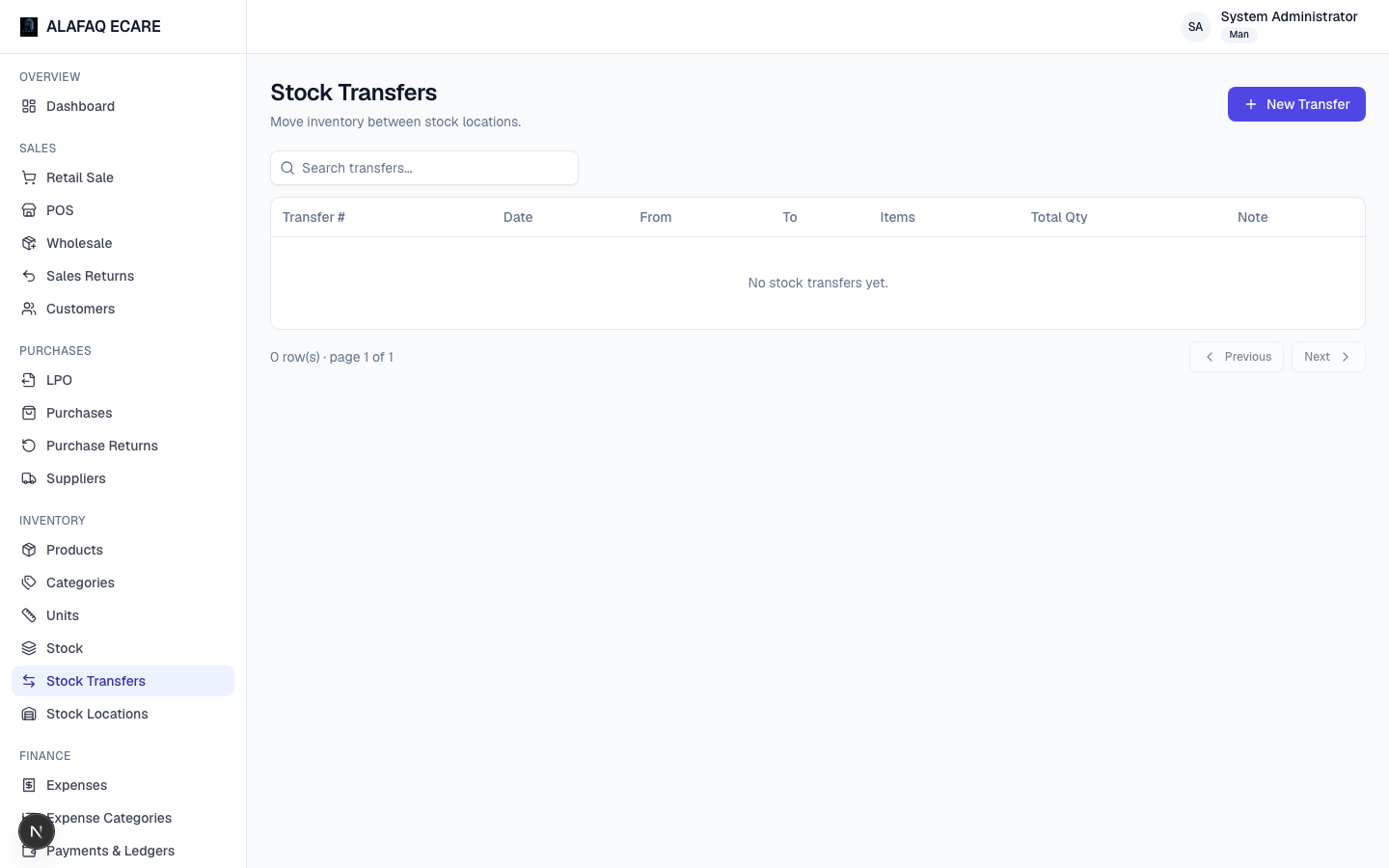
Move stock between two locations (e.g. warehouse → shop) without it being a sale or purchase.
To transfer stock:
- Click New Transfer, choose the From and To locations and a date.
- Add the products and quantities being moved.
- Save — this decreases stock at the source location and increases it at the destination, atomically.
Stock Locations
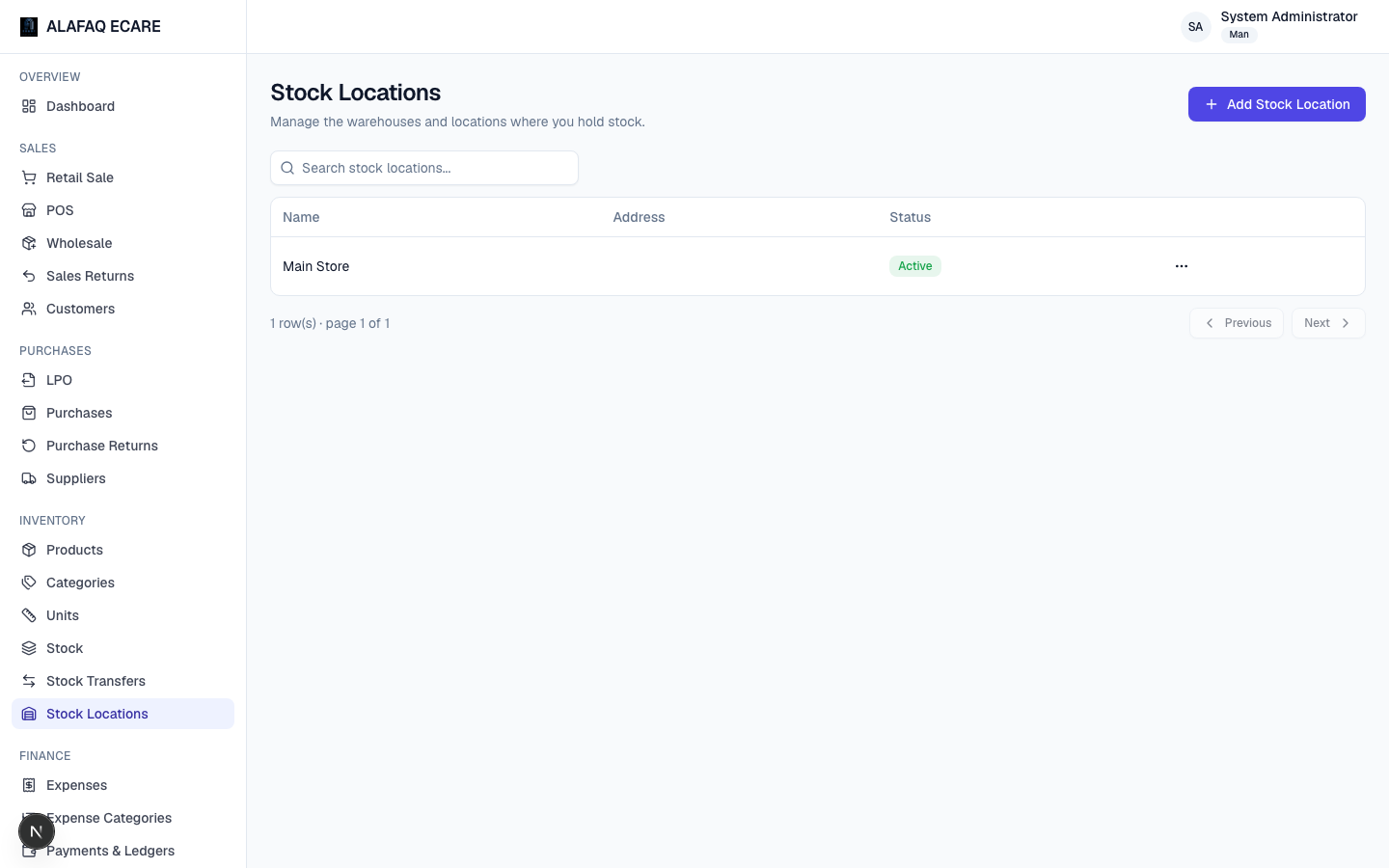
Manage the physical locations your business operates from (stores, warehouses) — name, address, active status. Every sale, purchase, and stock figure is tied to a specific location.