
Appearance
Restaurant
Purchases
LPO (Local Purchase Order)
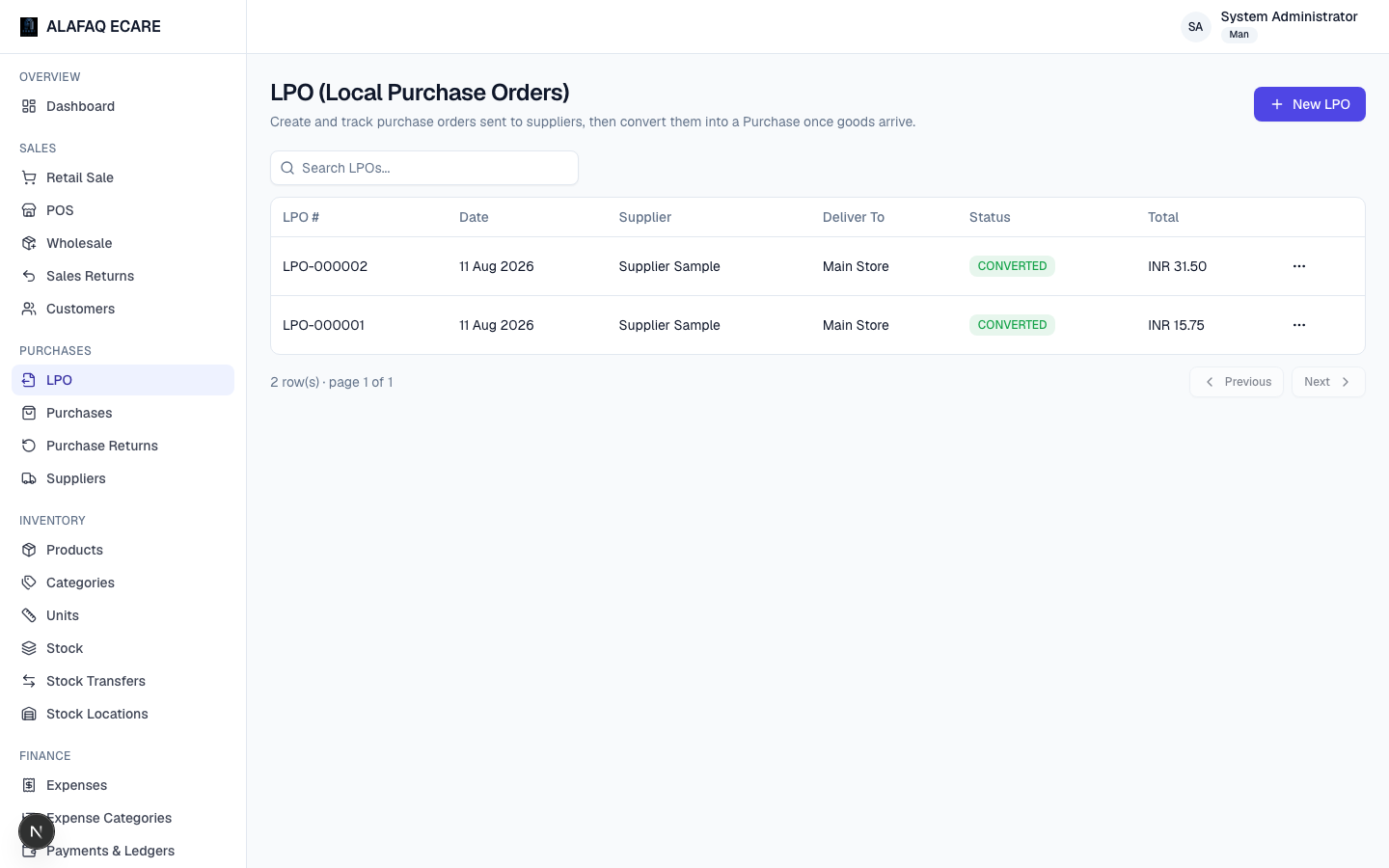
An LPO is a purchase order you send to a supplier before goods and an invoice actually arrive — it doesn't affect stock or accounts by itself. It's a paper trail that later converts into a real Purchase once goods are received.
LPO status flow: DRAFT → SENT → CONVERTED (or CANCELLED at any point before conversion).
To create an LPO:
- Click New LPO, choose the Supplier, Deliver To location, and Date.
- Add the items you're ordering (product, unit, quantity, unit cost) and any notes.
- Save — it starts as a Draft.
Working with an LPO, from the row menu:
- View / Print / Export — opens the printable A4 letterhead document with Download PDF and Download Word buttons.
- Edit — only while still a Draft.
- Mark as Sent — moves it from Draft to Sent, once you've actually sent it to the supplier.
- Convert to Purchase — available once Draft or Sent. This opens a New Purchase form pre-filled with the LPO's supplier, location, and items — you just confirm what actually arrived (quantities/costs can be adjusted if they differ) and save. The LPO is automatically marked Converted and linked to the resulting Purchase.
- Cancel — available while Draft or Sent, if the order is no longer going ahead.
- Delete — only while still a Draft.
Purchases
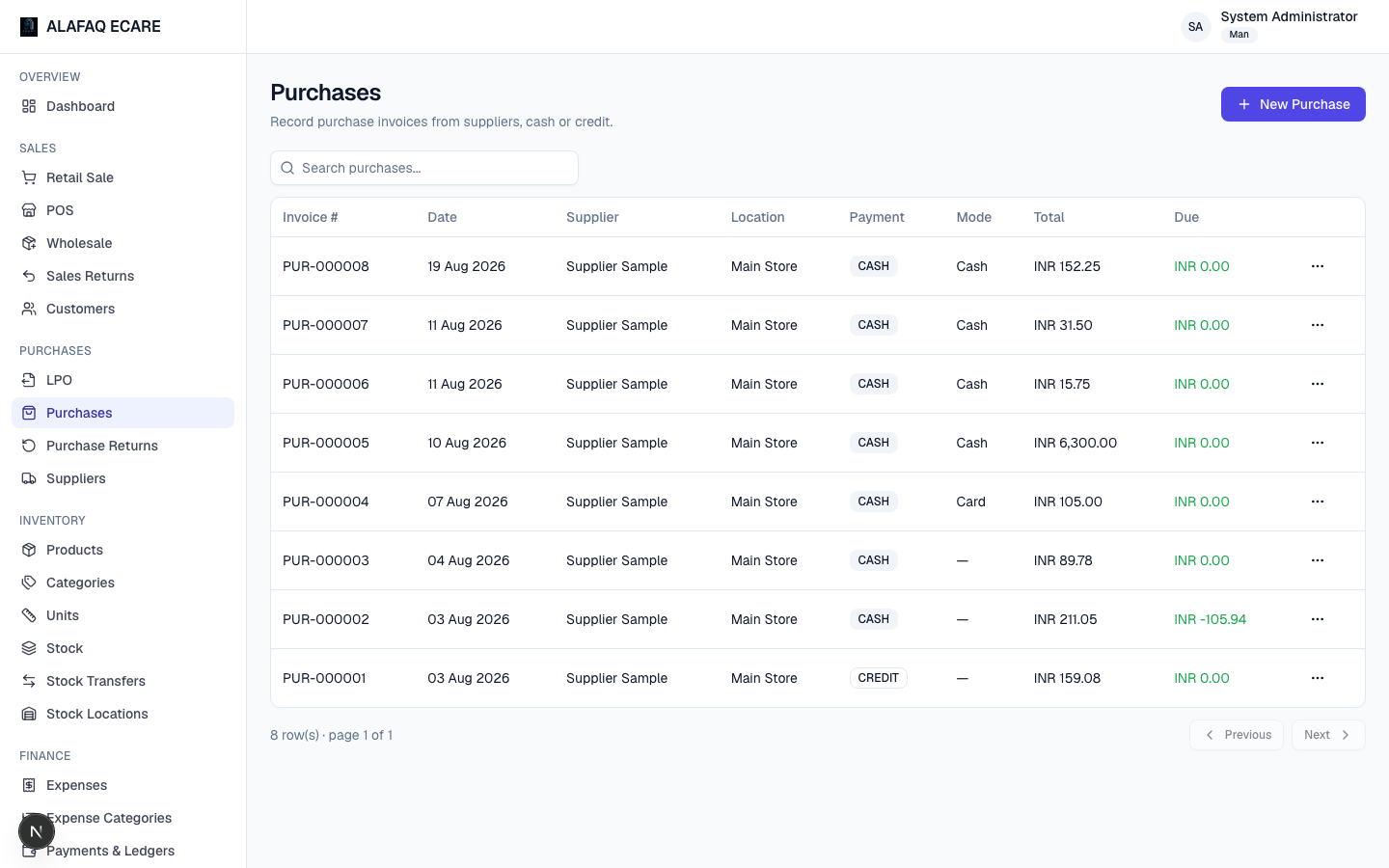
Purchases records goods actually received from a supplier — this is what affects stock and accounts (unlike an LPO).
To record a purchase:
- Click New Purchase (or arrive here via Convert to Purchase from an LPO).
- Choose the Supplier, Location, and Date.
- Add items (product, unit, quantity, unit cost, and a line discount % if enabled).
- Choose Payment Type (Cash/Credit) and Payment Mode, and review totals.
- Save.
Saving a purchase automatically increases stock at the chosen location and, for credit purchases, adds to the amount you owe the supplier.
Purchase Returns
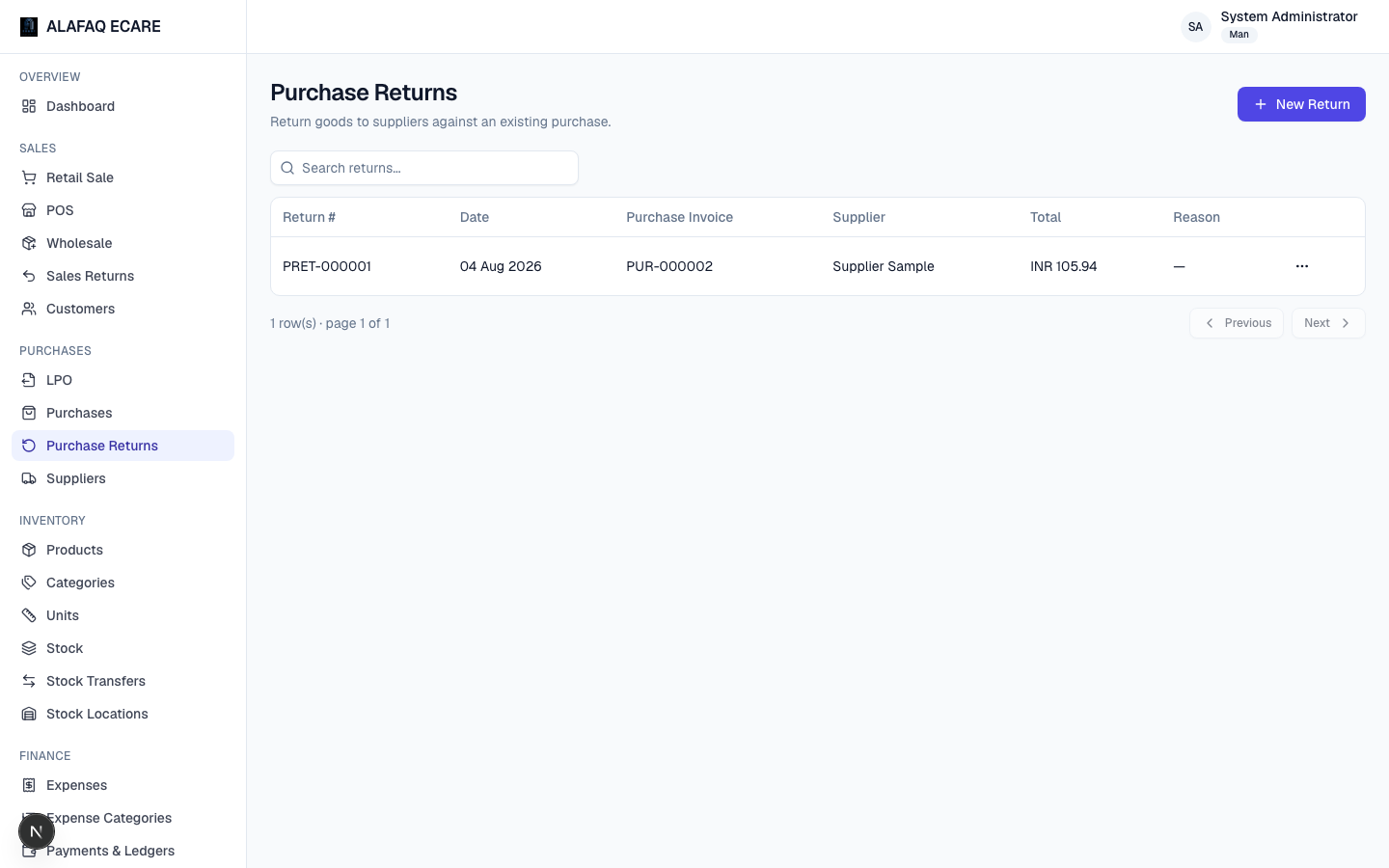
Records goods you're sending back to a supplier from a previous purchase — mirrors Sales Returns. Select the original purchase, the items/quantities being returned, and a reason. This reduces stock and reduces what you owe the supplier.
Suppliers
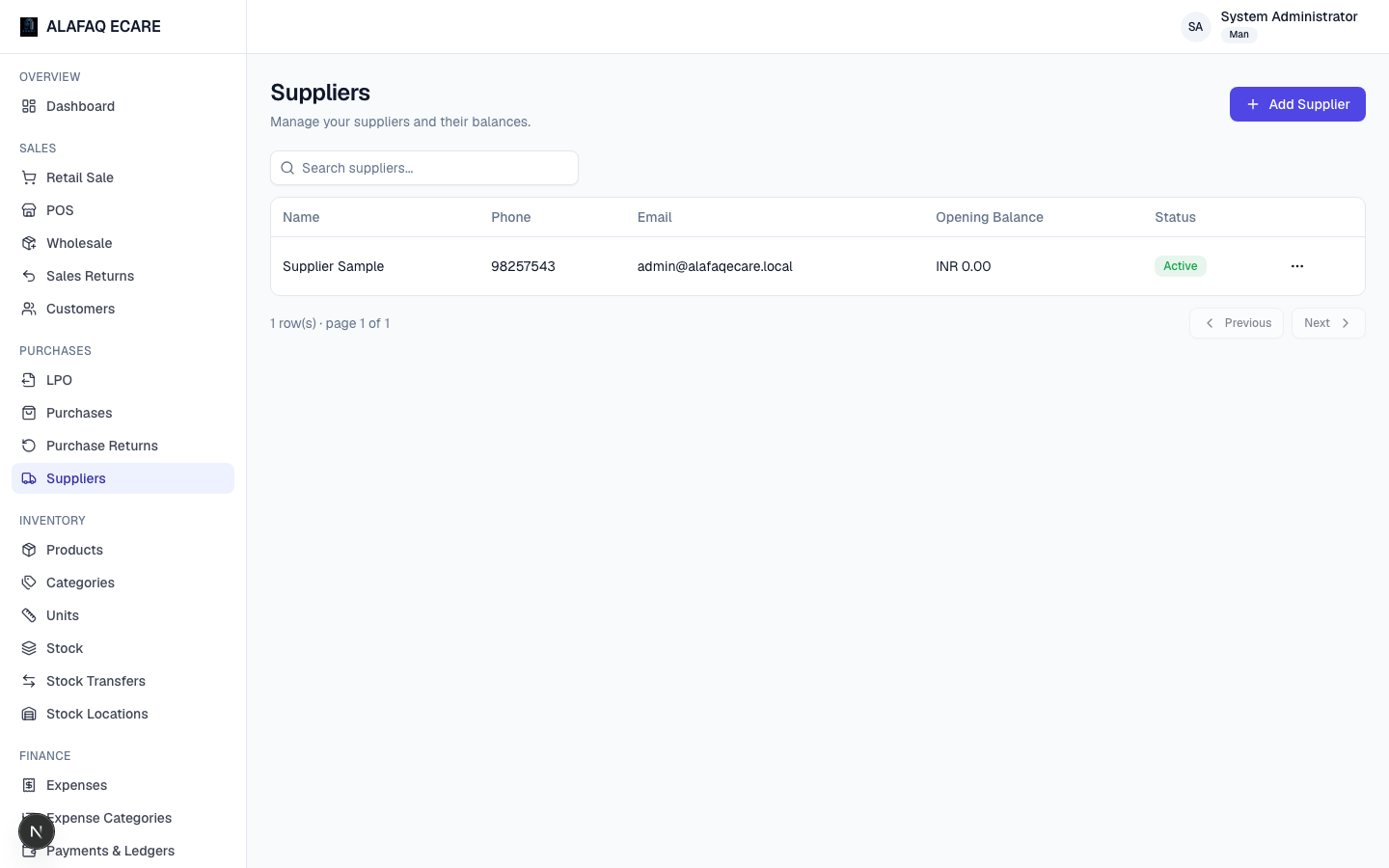
Manage your supplier list: name, phone, email, address, and opening balance. A supplier's running balance (what you owe them) is visible from Payments & Ledgers.