
Appearance
Restaurant
Sales
Retail Sale
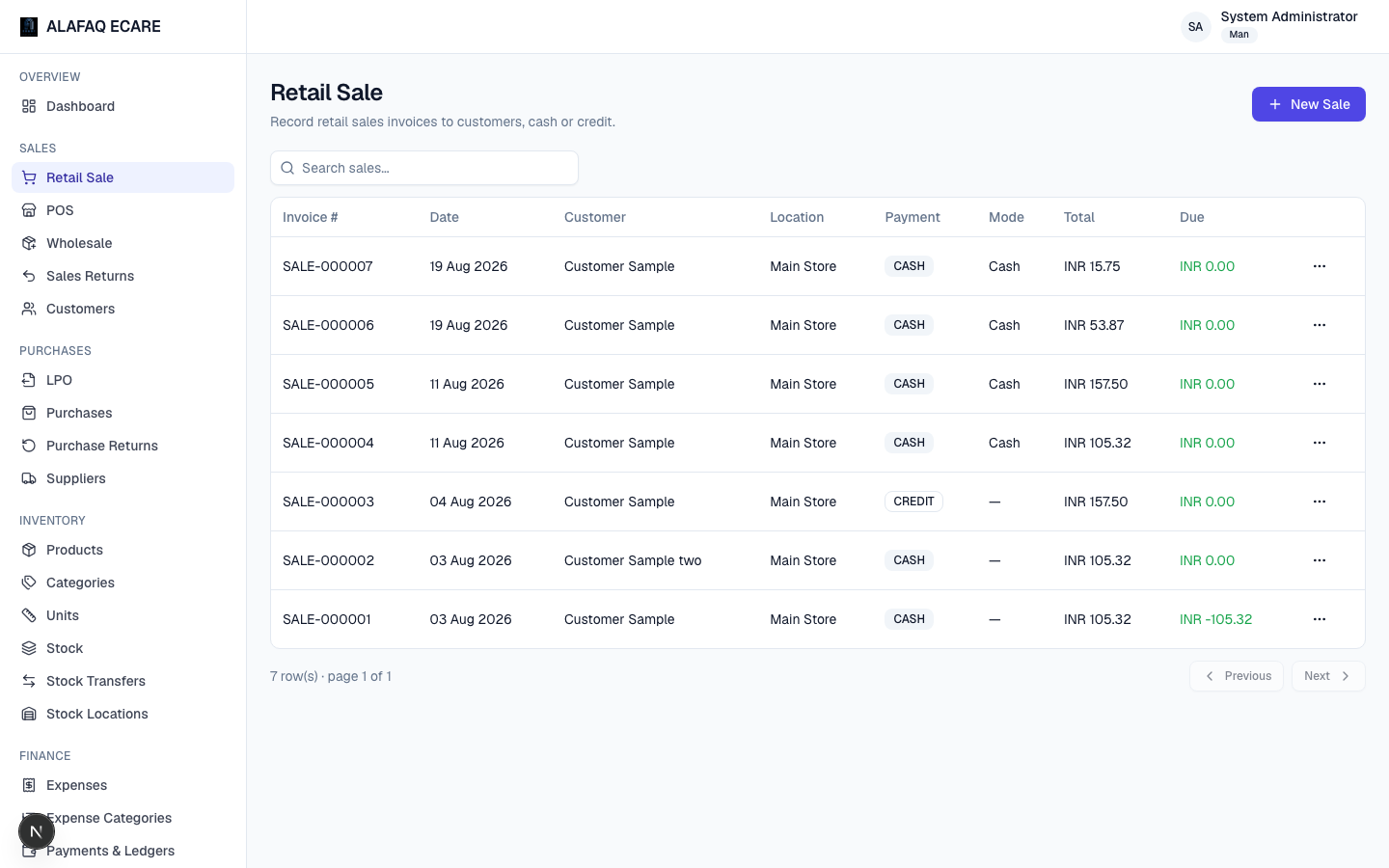
Retail Sale (in the sidebar under Sales) is where you record a standard in-store sale to a customer.
To record a sale:
- Click New Sale.
- Choose the Customer, Location (which store/warehouse the stock is sold from), and Date.
- Add items: scan a barcode or type a SKU and press Enter, or search by product name and press Enter. Each line lets you set the unit (if the product has more than one, e.g. "Box" vs "Pcs"), quantity, unit price, and — if enabled — a line discount %.
- Choose the Payment Type: Cash (paid in full immediately) or Credit (some or all due later). Pick a Payment Mode (Cash, Card, Bank Transfer, etc. — configured in Settings).
- An overall Invoice Discount % is available if your business has that turned on (see Preferences).
- Review the Subtotal, tax, and Total, then click Save Sale.
Saving a sale automatically:
- Deducts the sold quantity from stock at the chosen location.
- Records the amount paid and, for credit sales, adds the balance to the customer's outstanding due (visible on Payments & Ledgers).
- Generates a sequential invoice number (e.g.
SALE-000123).
From the Sales list, use the row menu to View, Print Receipt, or Edit a sale (editing may be restricted once a sale is old or already returned against).
The New Sale form can open as a popup or a full page, depending on your Preferences setting — full-page is better for invoices with many line items.
POS (Point of Sale)
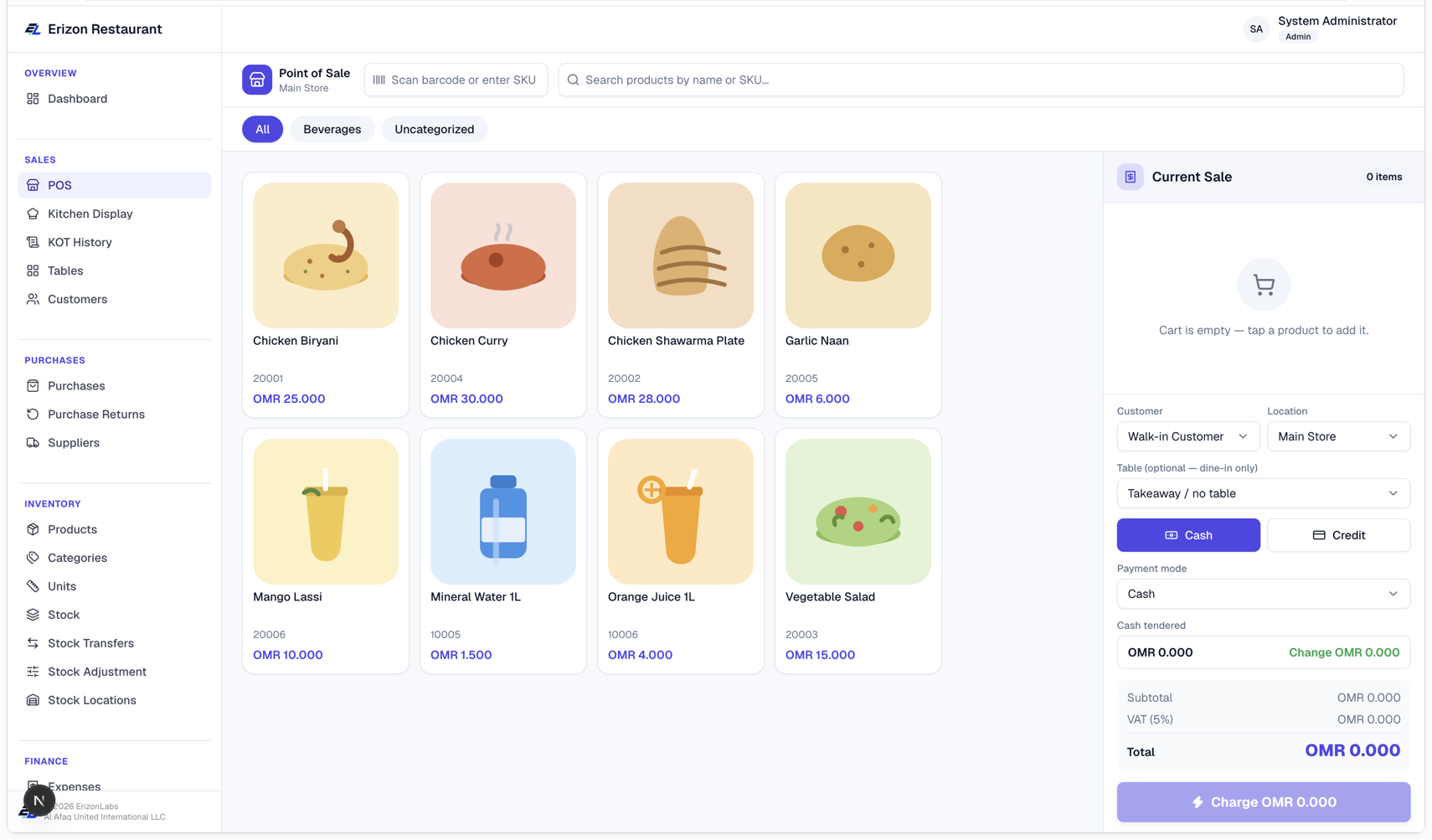
POS is a faster, touch-friendly checkout screen for high-volume, walk-in sales — a tile grid of products instead of a search box.
To make a POS sale:
- Tap product tiles to add them to the cart (or use the search bar).
- Adjust quantity for each cart line using the on-screen keypad.
- Choose the Payment Type and Payment Mode.
- Tap Complete Sale (or similar) to finish — this creates a normal Sale record behind the scenes and opens the printable receipt.
POS uses the same 80mm receipt format as Retail Sale's "Print Receipt."
Wholesale
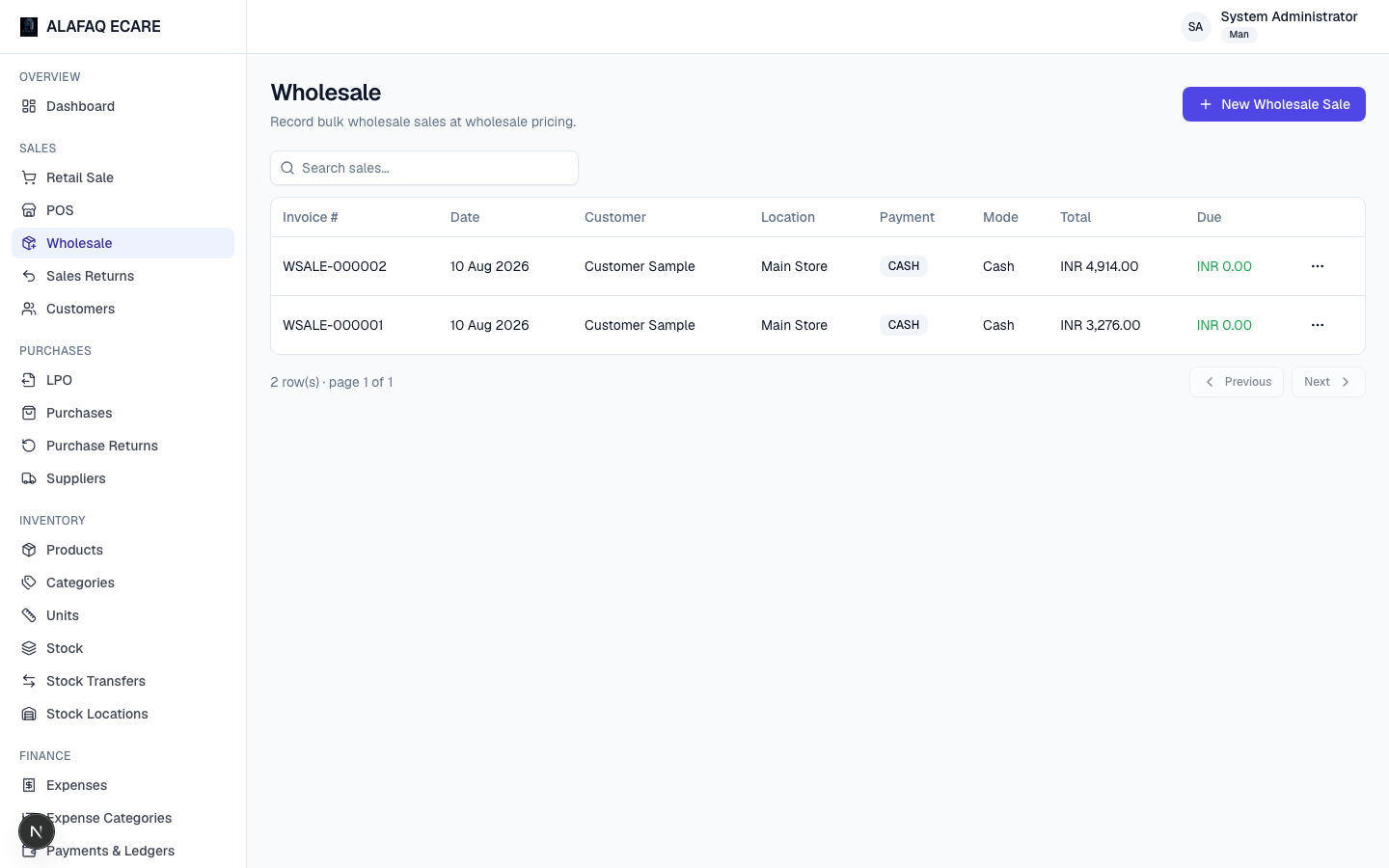
Wholesale records sales at wholesale pricing to business customers, using the same form as Retail Sale but with the Wholesale selling price applied instead of the retail price, and marks the sale with a WHOLESALE INVOICE label instead of SALES RECEIPT on the printed document.
Two settings (in Preferences) control what's available for wholesale sales:
- Wholesale: POS receipt — allow printing the same 80mm receipt.
- Wholesale: A4 PDF invoice — allow exporting a full A4 PDF invoice instead.
Sales Returns
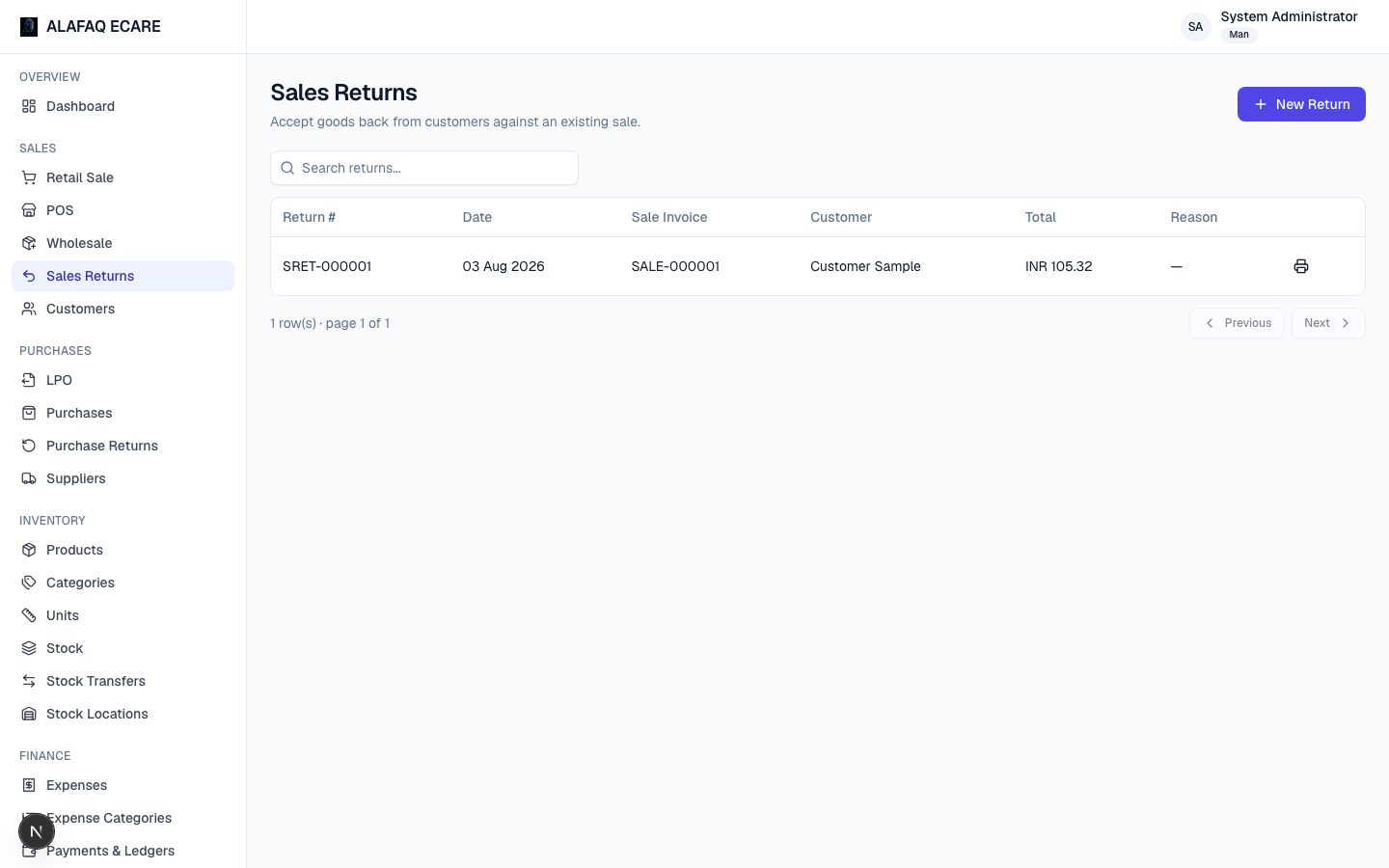
Use Sales Returns to record a customer returning goods from a previous sale.
To record a return:
- Click New Return and select the original Sale (by invoice number/customer).
- Choose which line items and quantities are being returned, and a reason.
- Save.
This automatically adds the returned quantity back to stock and reduces the customer's outstanding due (or records a refund), and generates a return document (e.g. SR-000045) that references the original invoice.
Customers
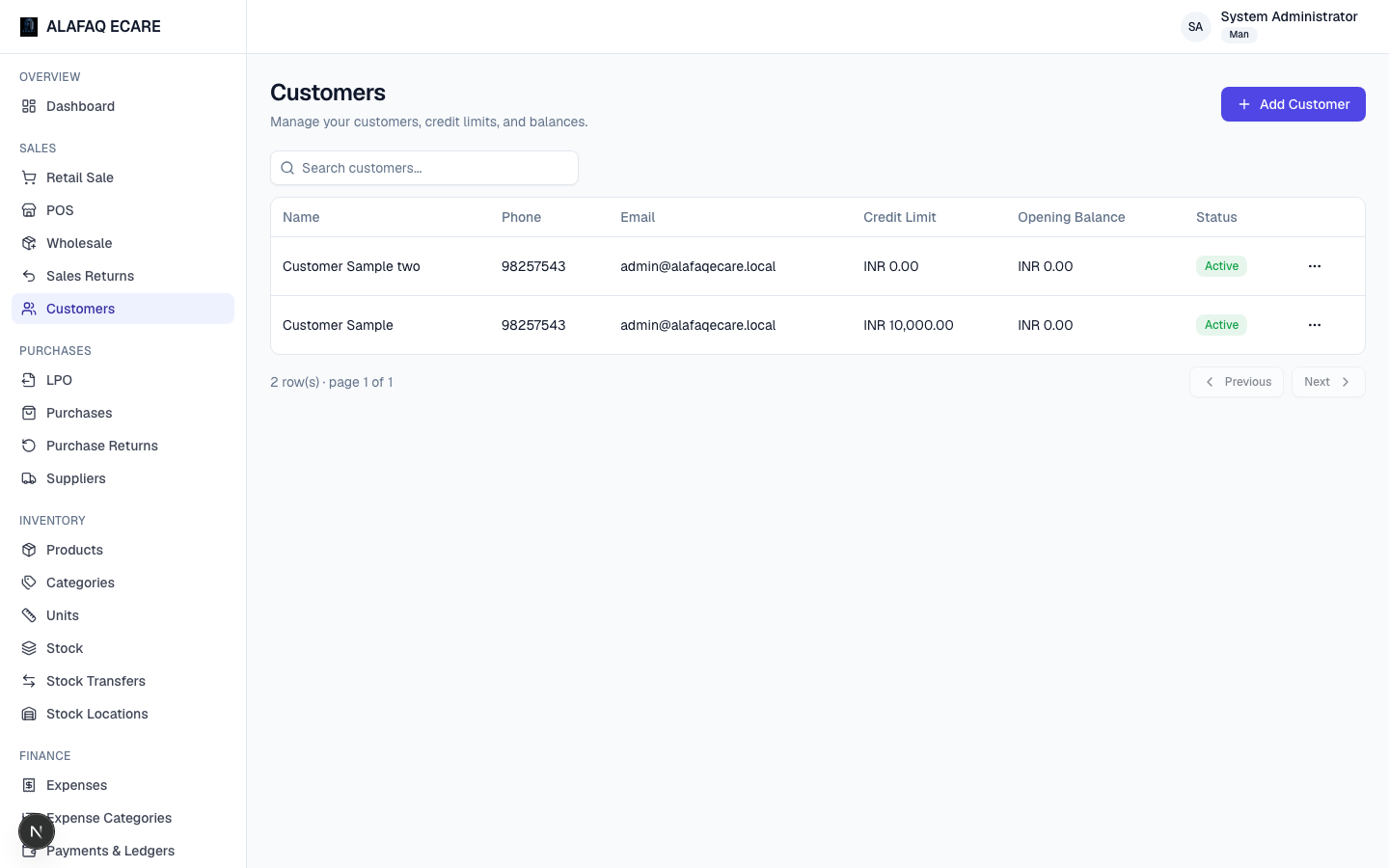
Manage your customer list here: name, phone, email, address, credit limit, and opening balance.
- Add Customer to create a new one.
- Edit or deactivate existing customers from the row menu.
- A customer's running balance (what they owe) is visible from Payments & Ledgers.
Kitchen Display & KOT History
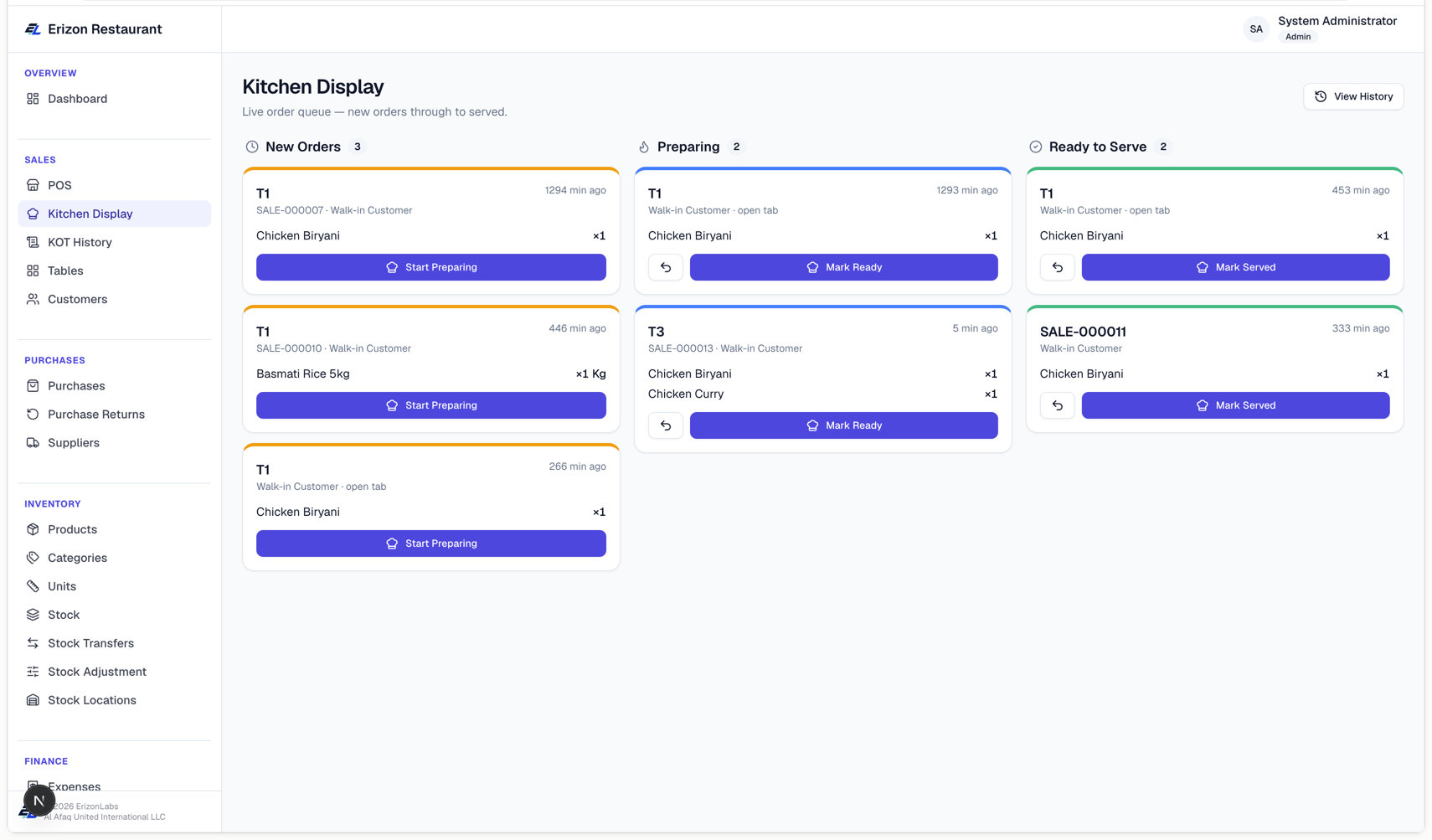
Kitchen Display is a live order board for kitchen staff — every order placed (from POS, Retail Sale, or a dine-in table — see Tables) shows up here as a ticket kitchen staff work through.
The board has three columns:
- New Orders — just placed, not started yet.
- Preparing — kitchen has started on it.
- Ready to Serve — done, waiting to go out.
Tap Start Preparing / Mark Ready / Mark Served on a ticket to move it forward. A served ticket disappears from the live board (it's done). If you tap the wrong button by mistake, use the small Undo icon next to the advance button to step it back one stage — this works on any ticket that isn't already served.
Each ticket shows the table name (for dine-in) or invoice number (for a direct sale), the customer, how long ago it was placed, and its items with quantities.
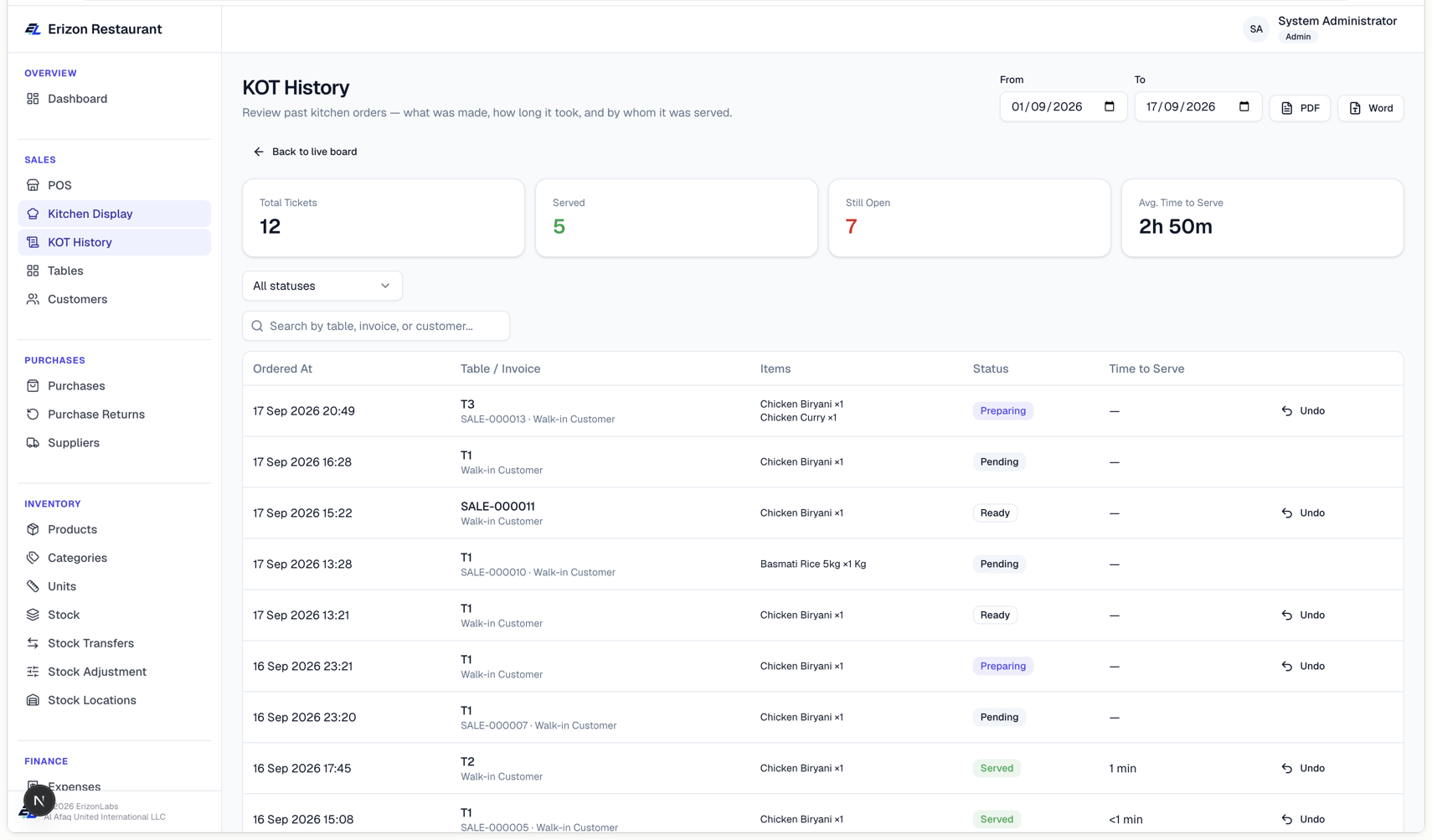
KOT History (a link at the top of Kitchen Display, or its own sidebar item) is a searchable log of every ticket ever raised — including served ones, which don't show on the live board anymore. Filter by date range and status, see how long each order took to prepare and serve, and export the list. If a ticket was mistakenly marked Served, this is where you fix it: open the ticket's row and use Undo — it reappears on the live Kitchen Display board at the stage before it was marked done.
Tables (Dine-in)
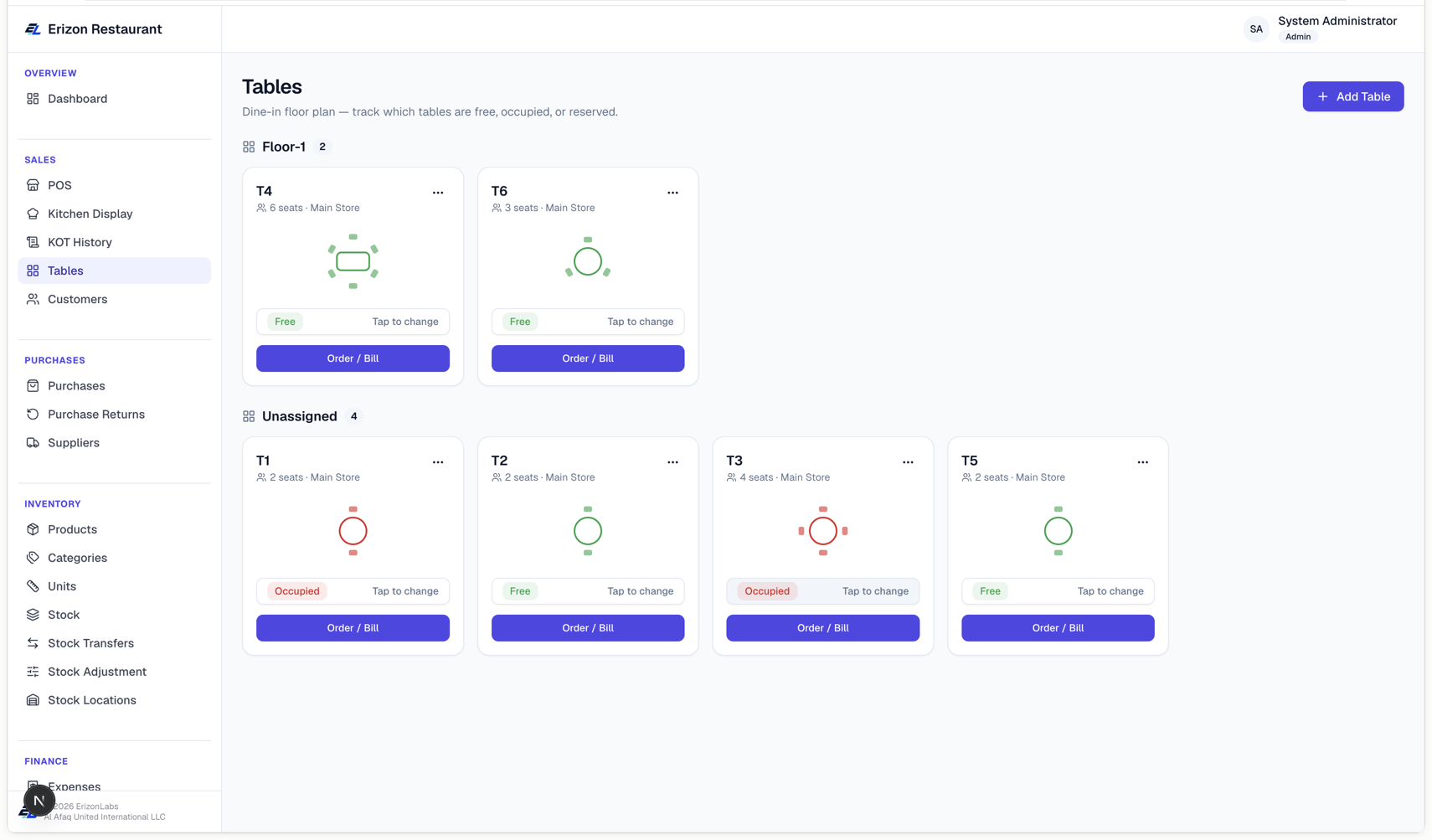
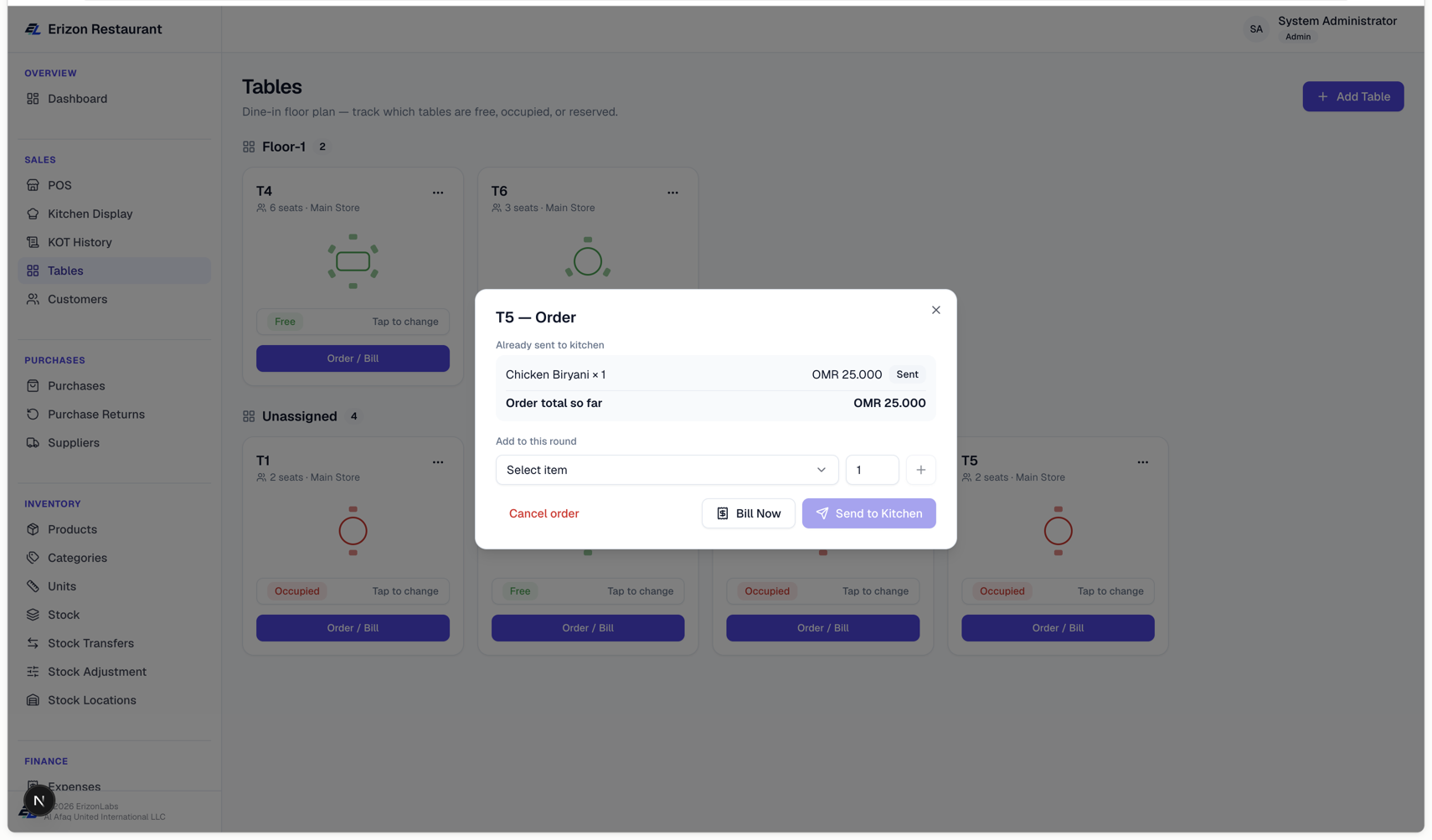
The Tables page is your restaurant floor plan — a grid of tables showing which are Free, Occupied, or Reserved, drawn as a small table-and-chairs icon matching each table's seating capacity.
Tap a table's status badge to cycle it manually: Free → Reserved → Occupied → Free. (A table also turns Occupied automatically the moment a sale is charged against it — you don't have to remember to do this yourself for that case.)
If you've grouped your tables by floor or section (see Add Table below), the page shows a heading and count for each floor instead of one long flat grid.
Two ways to take a dine-in order — both are fully supported, use whichever fits how your service actually works:
- Bill first — from POS or Retail Sale, pick a table before charging. The sale is charged immediately, the table turns Occupied, and one kitchen ticket is created for everything on it.
- Bill last (open a tab) — tap Order / Bill on a table to open it. Send the first round of items to the kitchen without charging anything yet (Send to Kitchen) — a table can be sent multiple rounds over the course of a meal, each one becoming its own kitchen ticket, and stock is deducted the moment each round is sent (that's when the kitchen actually starts cooking it), not when the bill is eventually settled. When the table is ready to pay, tap Bill Now to turn everything ordered across all rounds into one invoice, or Cancel order if the table leaves without ordering. You can also bill an open table directly from the cart panel in POS via its View / Bill button, without leaving the checkout screen.
To add or edit a table, click Add Table (or use a table's ⋯ menu → Edit) and set its Name (e.g. "T1", "Patio 3"), Seating capacity, Location, and an optional Floor / section label — leave Floor blank if you don't need to group tables; the page only shows floor groupings once at least one table has one set.