
Appearance
Telemedicine
Doctor guide
Everything a doctor can do on the web app. There's no doctor mobile app — doctors work from the web app on desktop or a tablet browser.
Signing in
Sign in with the email and password your clinic admin created for you. Doctor accounts don't self-register.
Dashboard
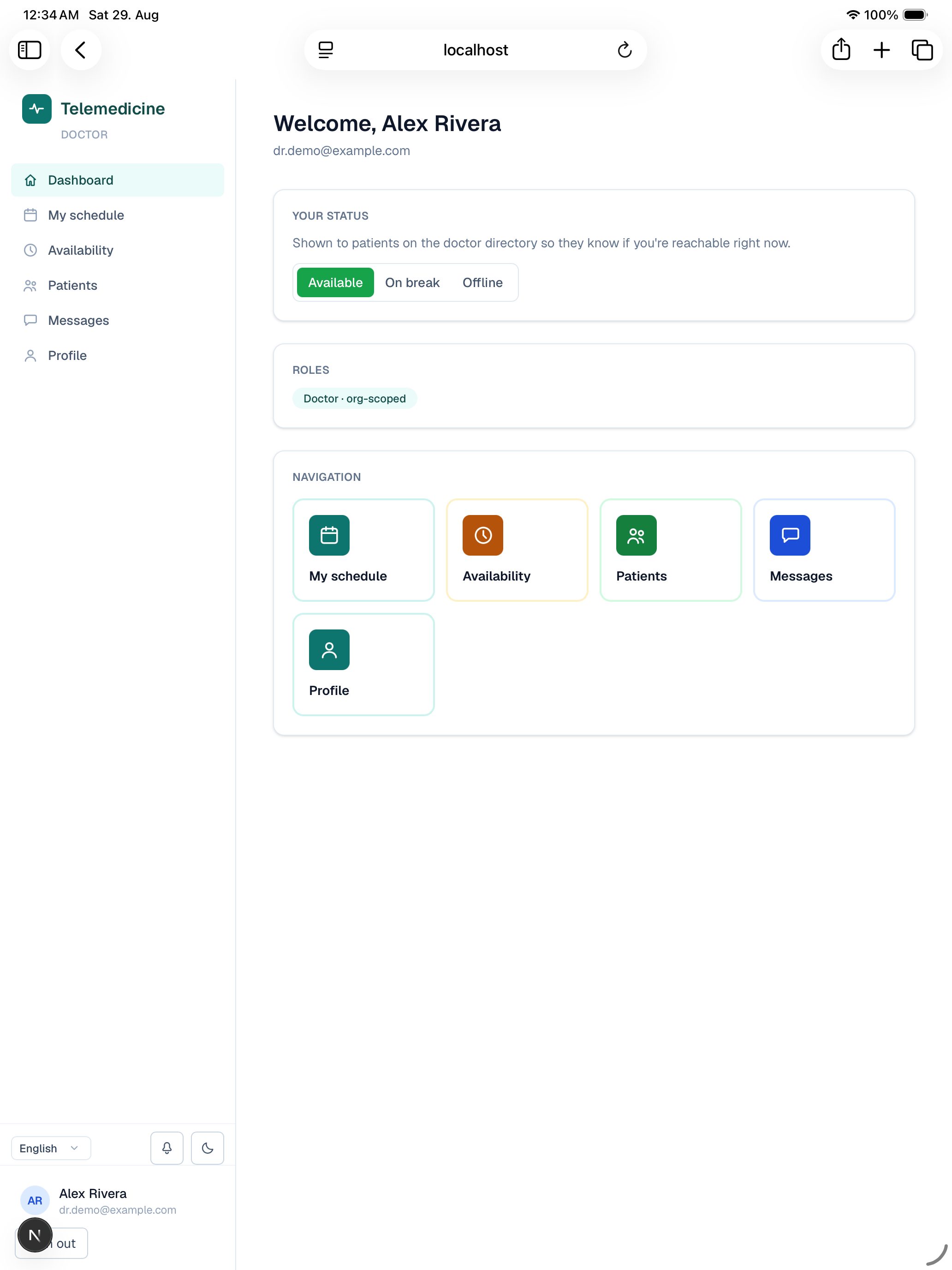
Your home screen with quick links to My schedule, Availability, Patients, Messages, and Profile.
Availability
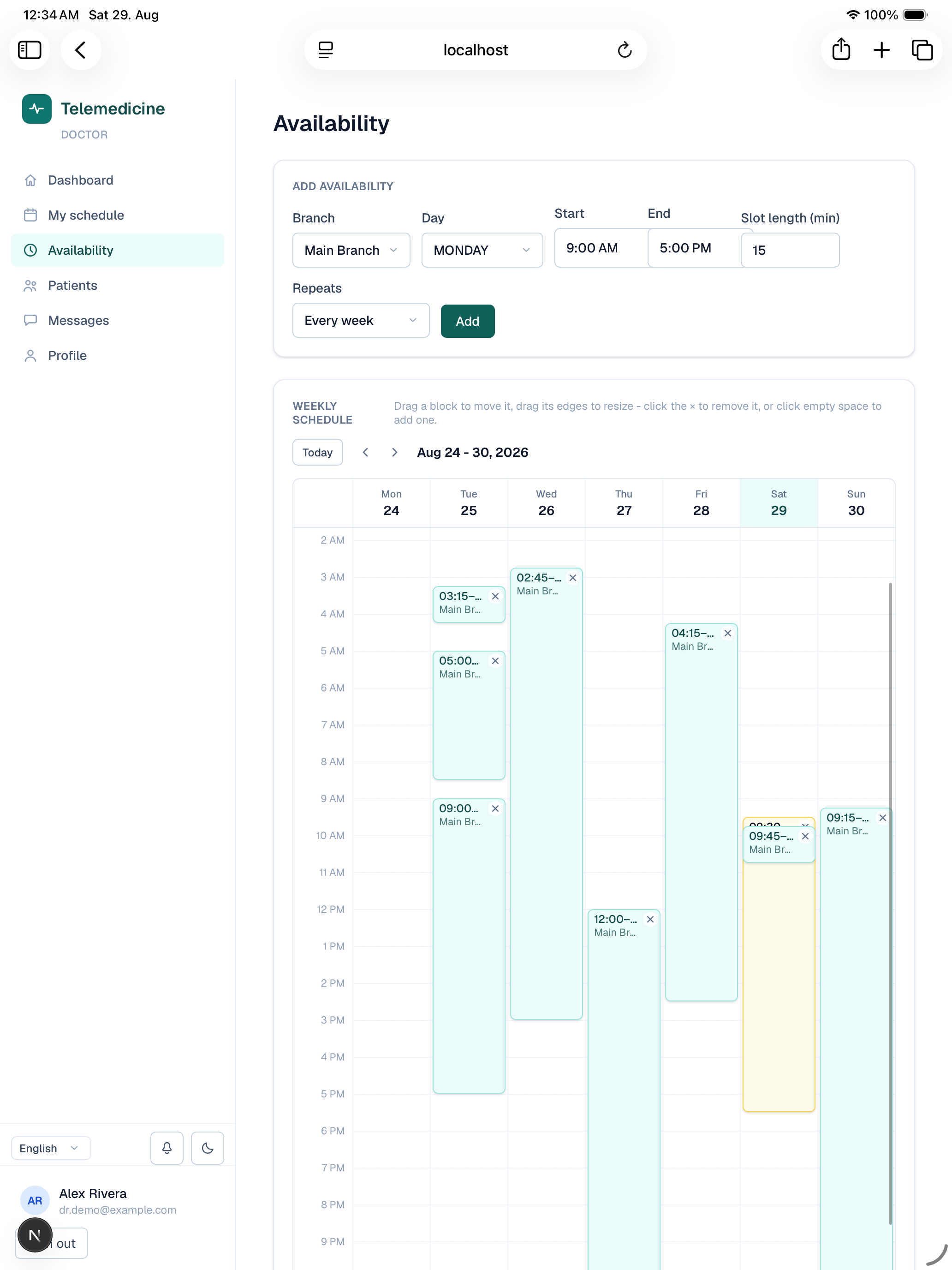
Before patients can book you, set up a weekly availability template on the Availability page: pick the days and hours you consult (per branch, in that branch's timezone) and a slot duration. The system turns this into individual bookable time slots on a rolling window automatically — you don't create slots one at a time. Editing or turning off a rule cancels only its future open (not-yet-booked) slots; anything already booked by a patient is left alone.
My schedule
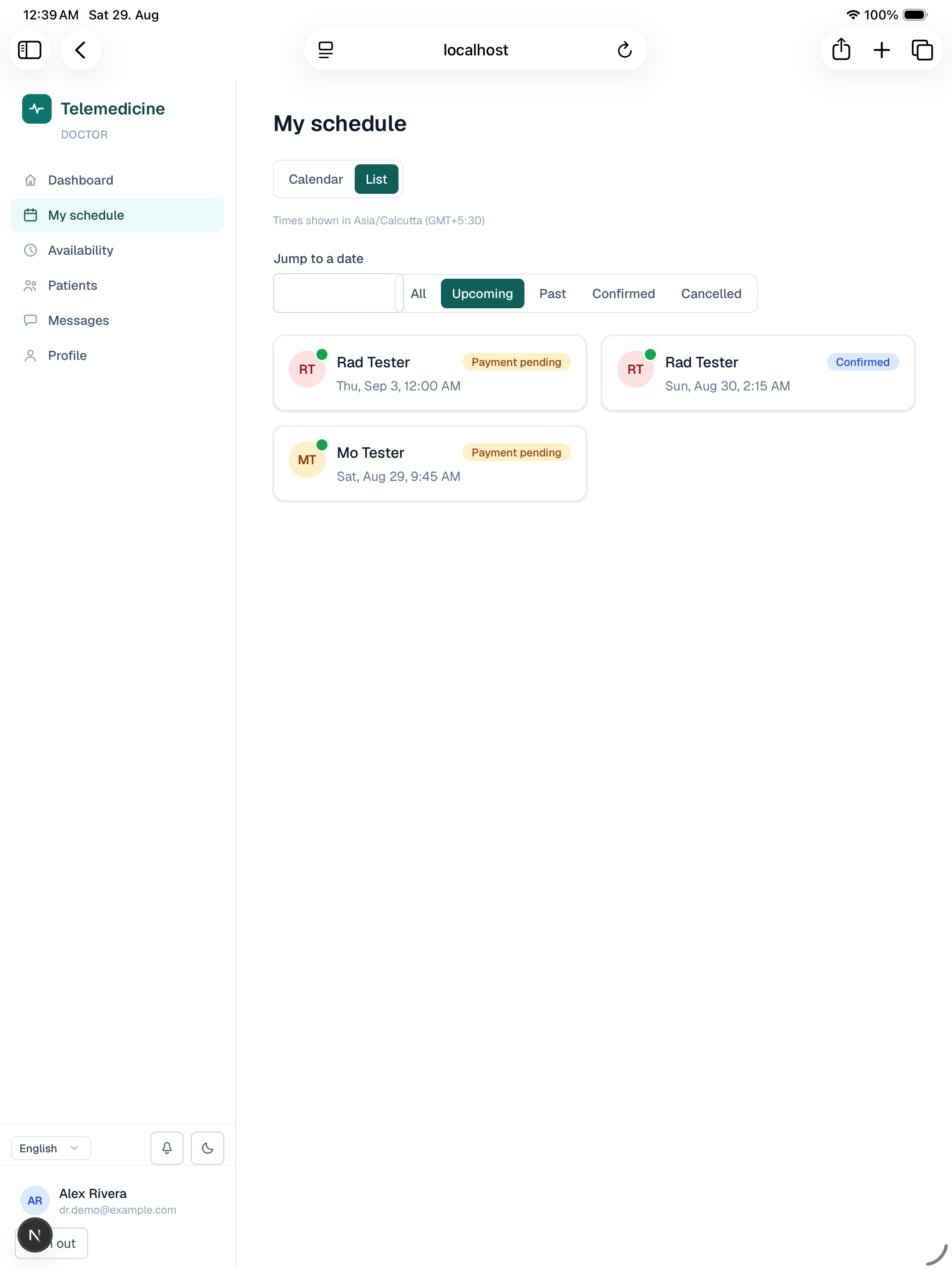
My schedule is your calendar of booked appointments (day/week/month views), each with the patient, time, and status. Open any appointment to see its details, or to check in / join when it's time for the visit.
Running a consultation
When a patient has checked into the waiting room and it's time for the visit, joining from your side is what actually starts the consultation — a patient sitting alone in the waiting room doesn't start it. The consultation room gives you live video/audio and a text chat panel. Leaving the call as the doctor ends the visit and moves it to documentation pending, so you can finish your notes before it's marked complete.
Clinical documentation and prescriptions
After a visit, open it to write up the encounter: diagnoses, vitals, notes, and a follow-up plan. Finalizing the encounter locks it — the patient can then see the summary, and a prescription is issued at the same time if you've added one. A finalized encounter can't be edited directly; any later correction is added as a visible addendum rather than silently changing the original record.
Ordering labs and imaging
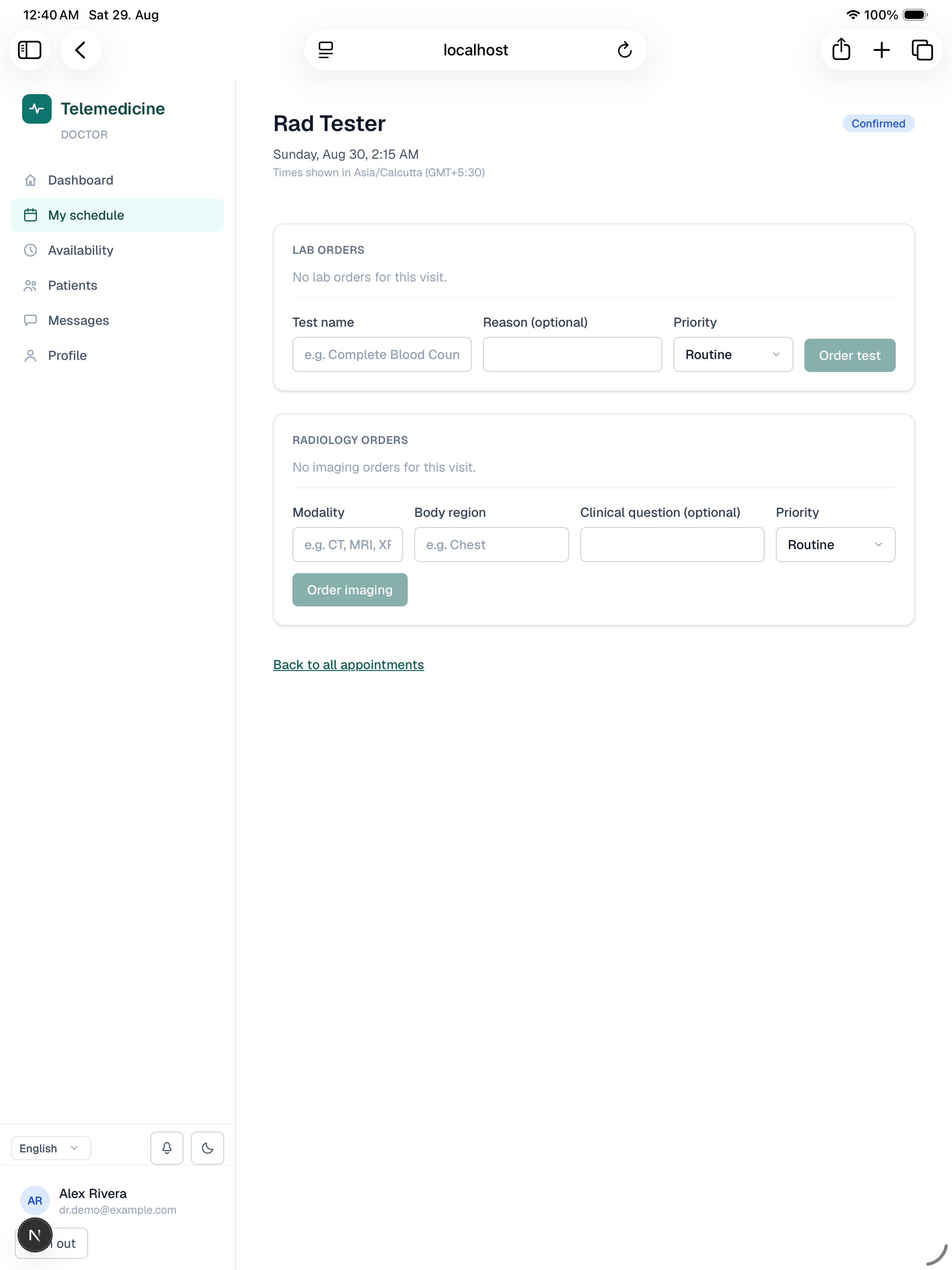
From an appointment's or visit's detail page you can order a lab test or a radiology study for that patient. Orders move through your clinic's lab/radiology staff for processing (sample collection, result upload, verification) — see the staff guide for that side. Once a result is verified, it comes back to you to review and acknowledge before it's published to the patient; if something needs correcting after that, you can amend a published result, which sends it back through your review before it re-publishes.
Patients
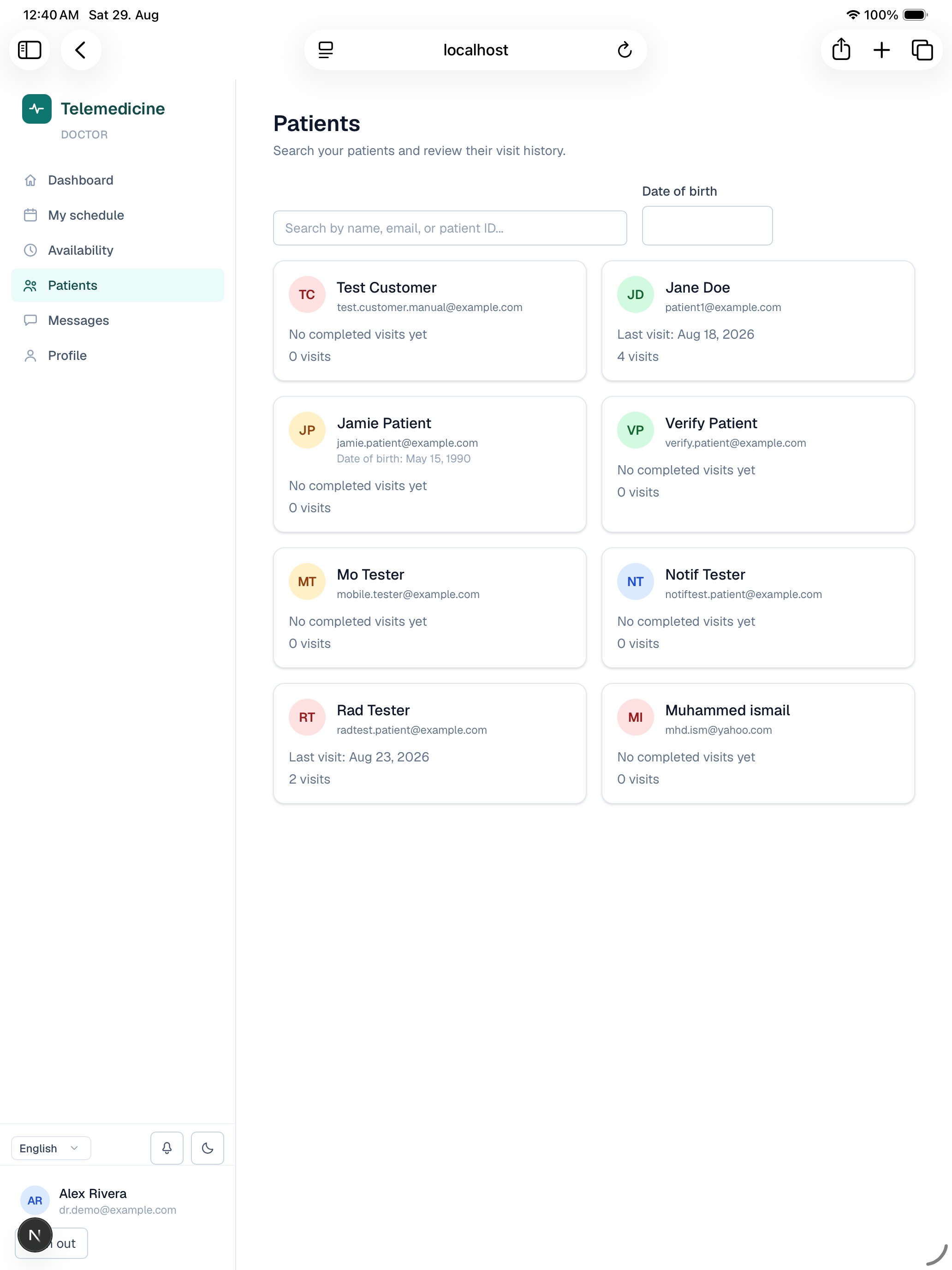
Patients lists everyone you've had an appointment with, with quick access to their appointment history, documents, and clinical record from your side of the relationship.
Messages
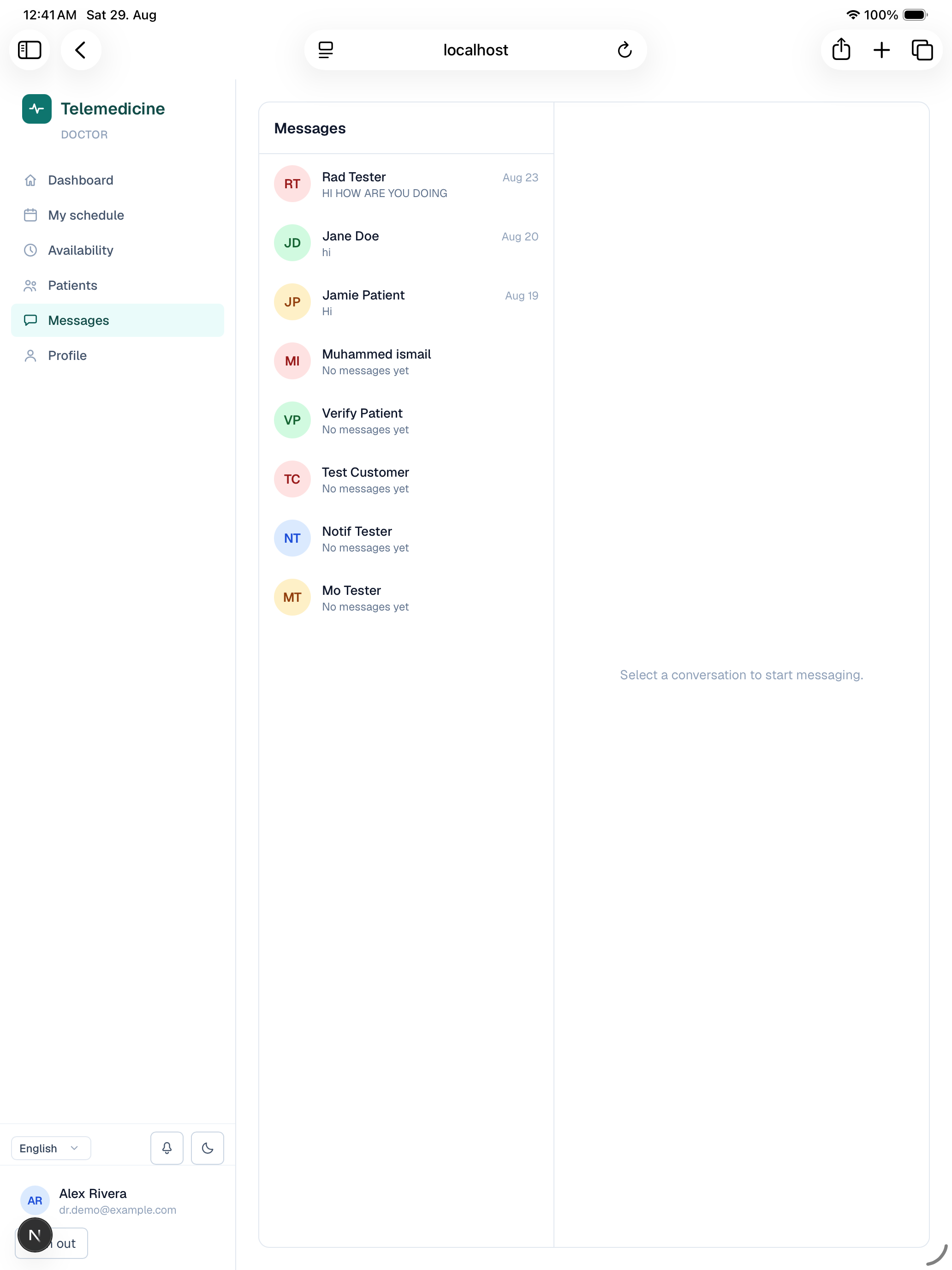
A persistent inbox with any patient you've had a real (confirmed or completed) appointment with — useful for follow-up questions that don't need a full visit. Unread messages are badged in the navigation.
Profile
Update your name, photo, bio, and qualifications, change your password, and turn on two-factor authentication from Profile.