Appearance
Telemedicine
Patient guide
Everything a patient can do on the web app (see the mobile app guide for the phone version — booking, appointments, and health records also work there).
Signing in
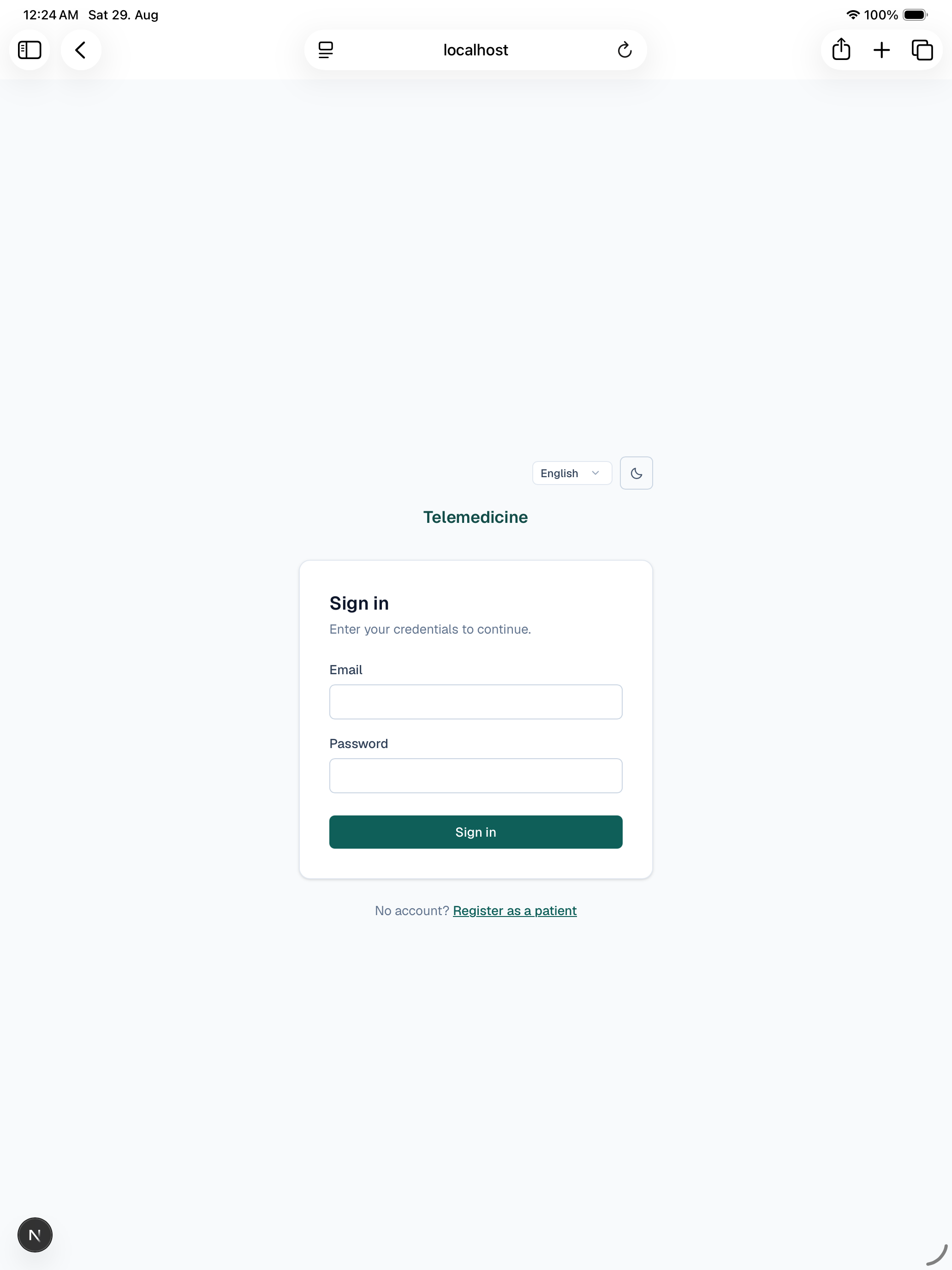
Go to the sign-in page and enter your email and password. Don't have an account yet? Use Register as a patient on the same page — registration just needs your name, email, and a password.
If your account has two-factor authentication turned on, you'll be asked for a 6-digit code from your authenticator app after your password.
Dashboard
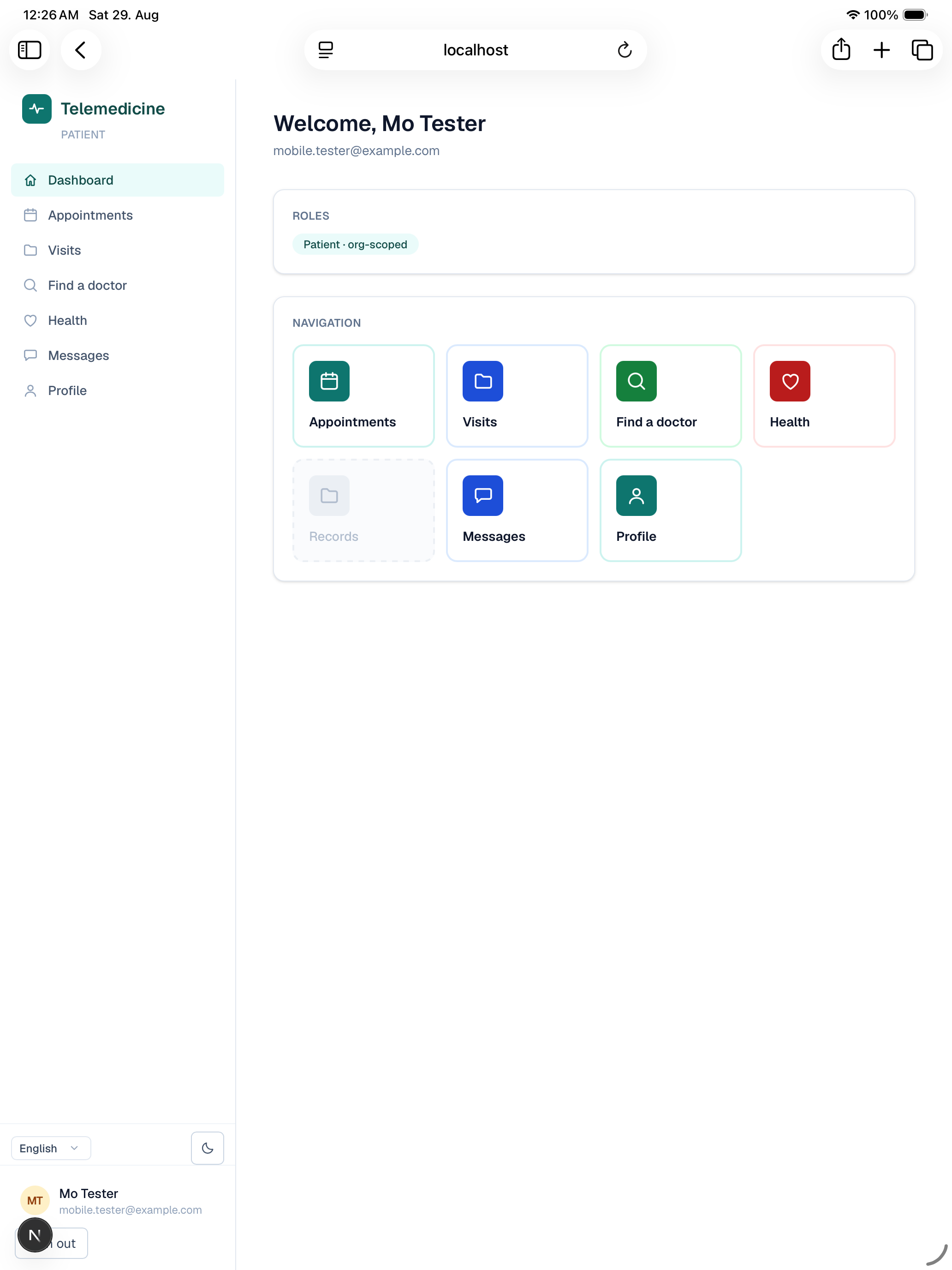
Your home screen after signing in. It shows a welcome header and a set of navigation tiles to the areas below: Appointments, Find a doctor, Health records, Messages, and Profile.
Finding and booking a doctor
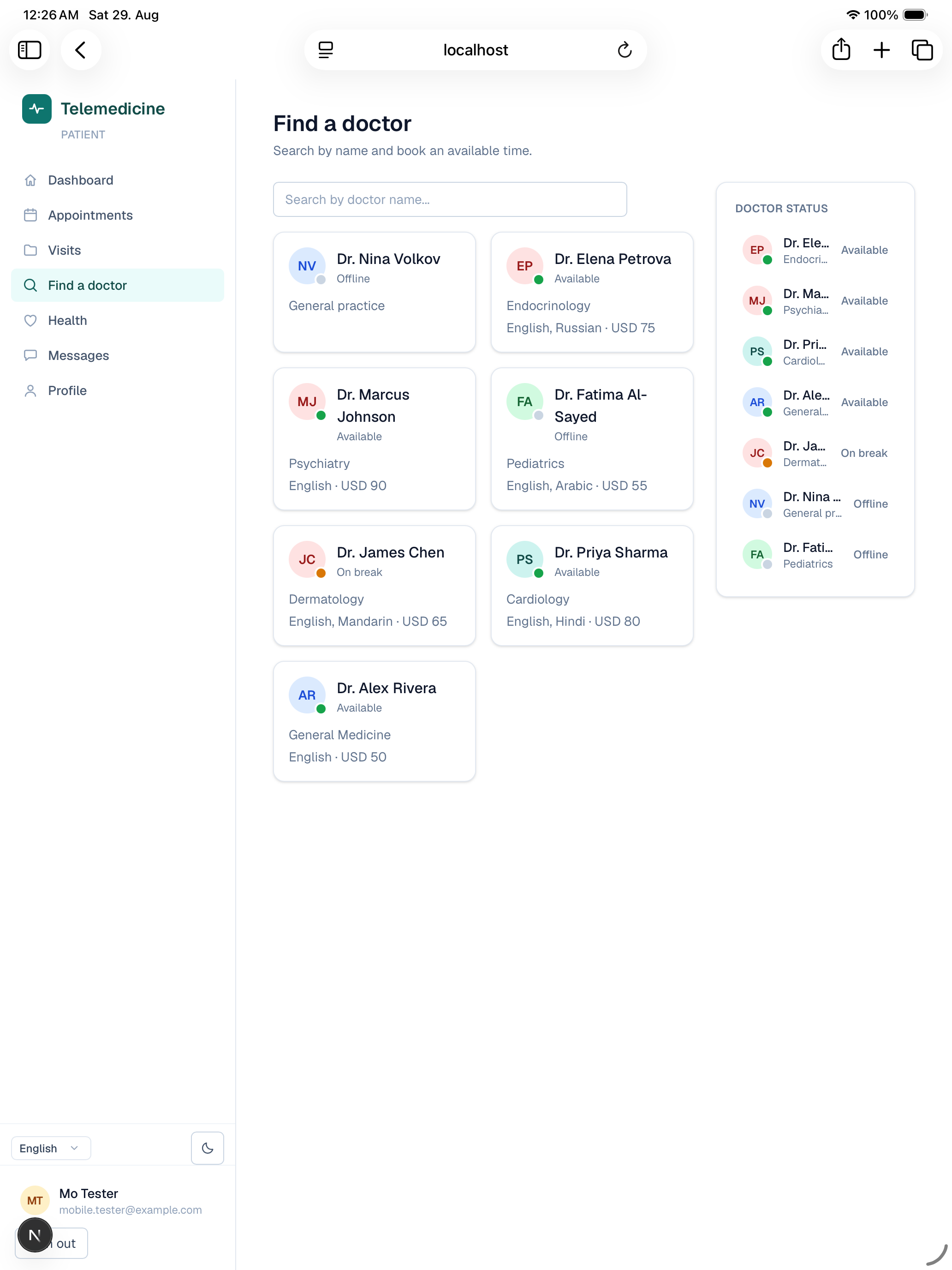
Open Find a doctor and search by name, or browse the full list. Each doctor card shows their specialty, branch, and whether they're currently Available, Busy, or Offline.
Open a doctor's profile to see their bio, qualifications, consultation fee, and a calendar of open time slots (shown in the clinic branch's own timezone, labelled on the page so there's no ambiguity about your local time).
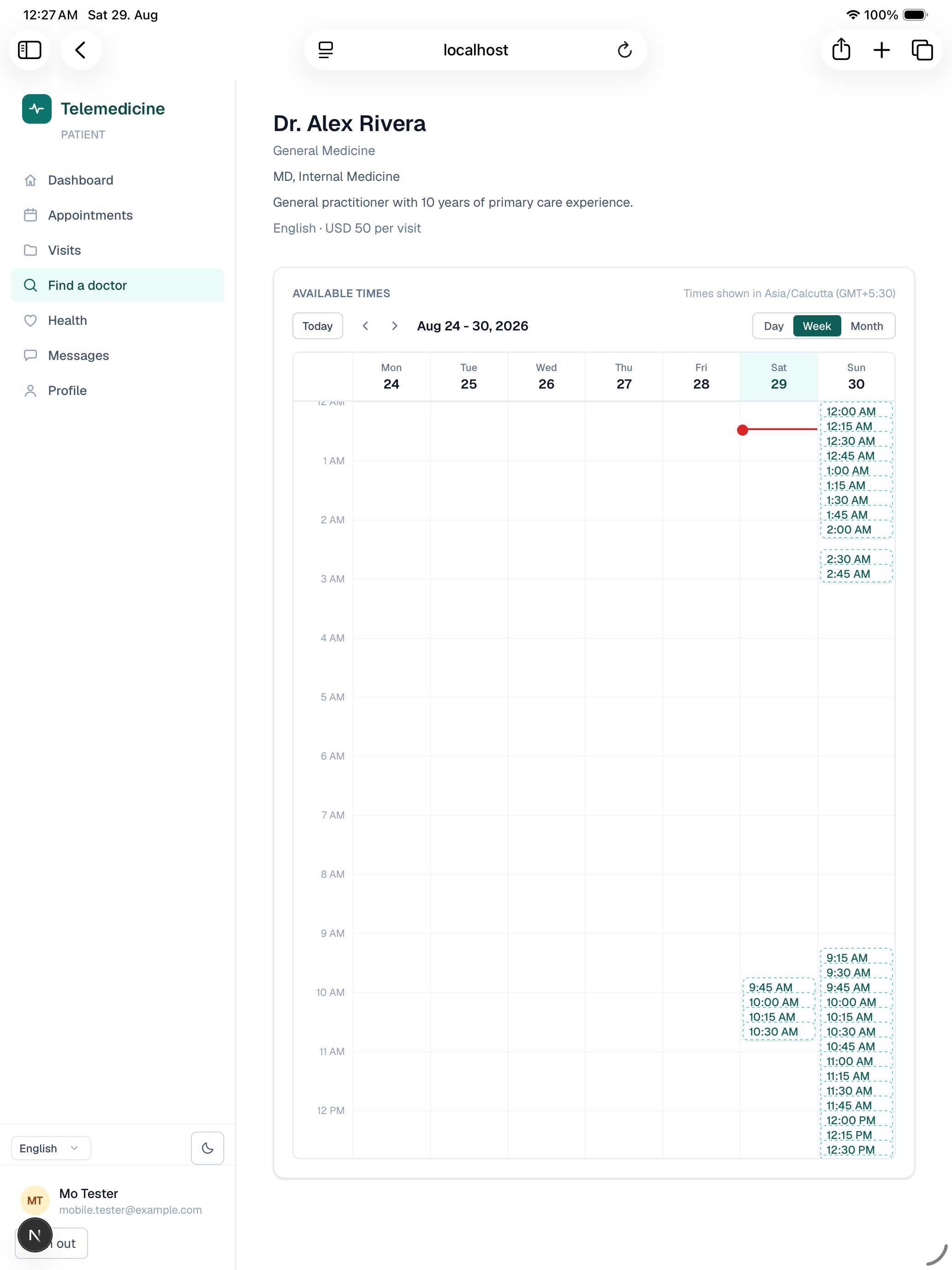
Pick an open slot and confirm. If the doctor's consultations are free, your appointment is booked immediately and shows as confirmed. If there's a consultation fee, the appointment is created as pending payment until you complete checkout.
Paying for a visit
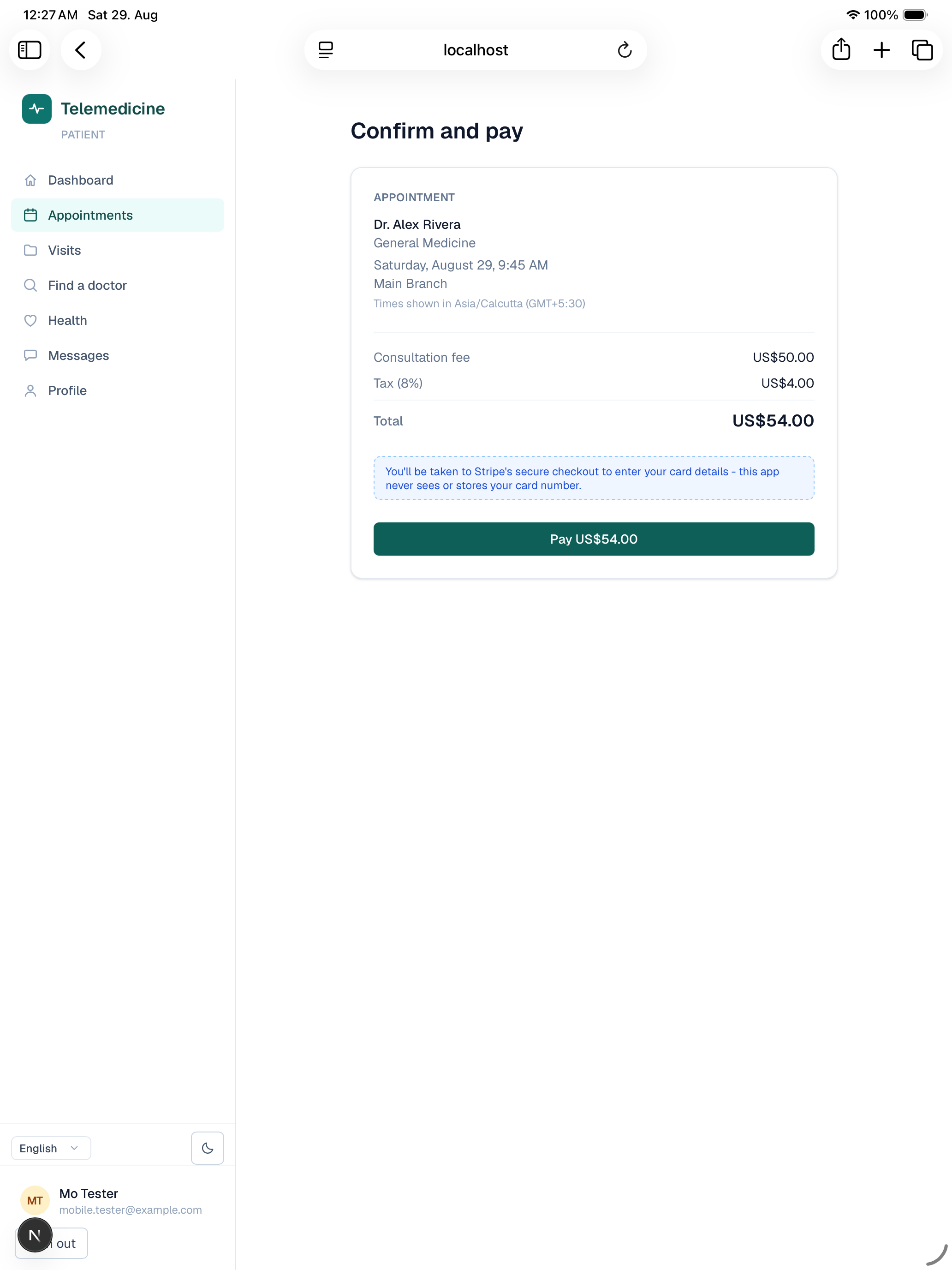
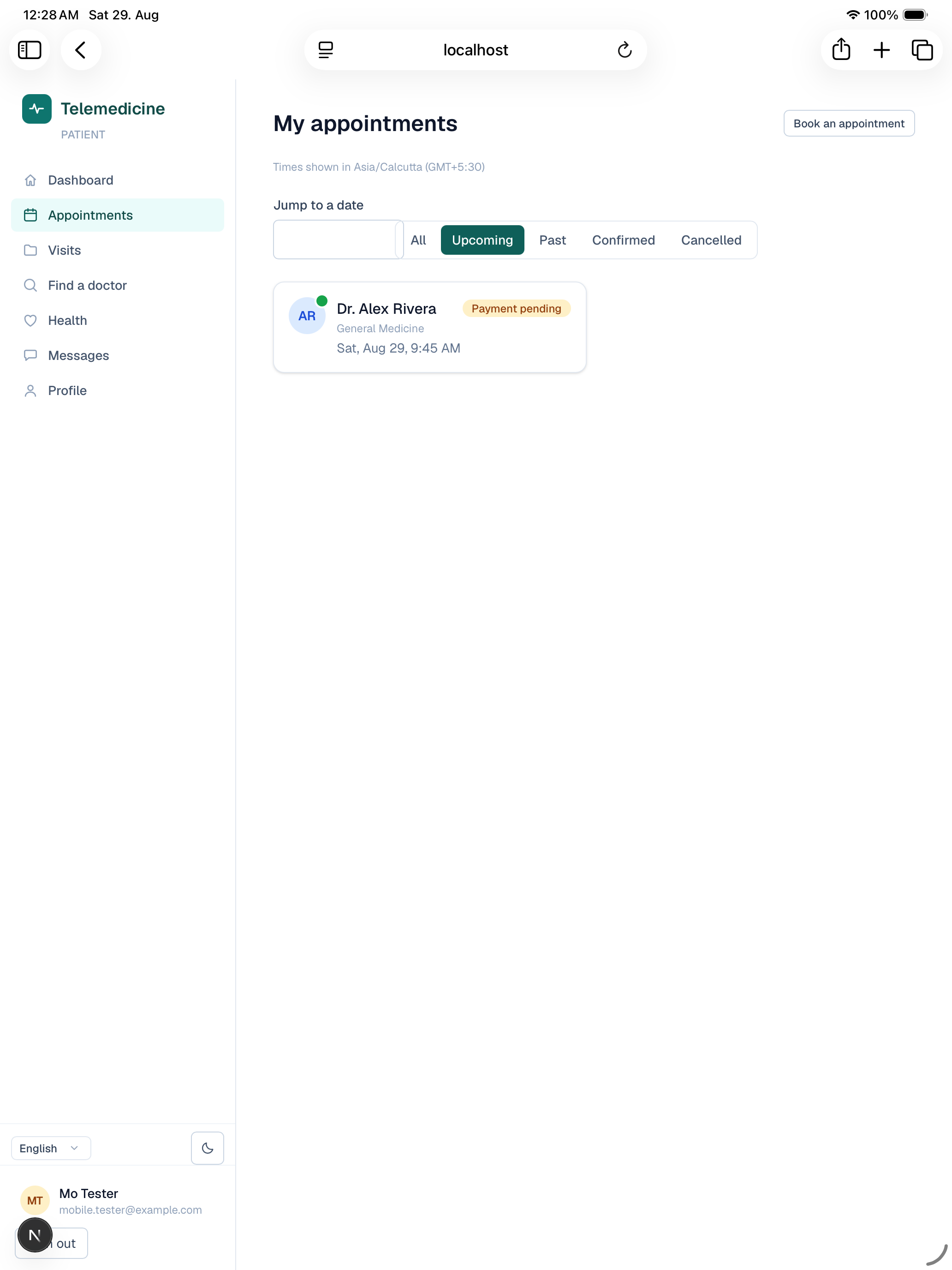
When a visit needs payment, you'll be taken to a secure checkout page (Stripe) showing the consultation fee, any applicable tax, and the total. After paying, you're brought back to a receipt page confirming the charge, and the appointment moves to Confirmed. If you leave checkout without paying, the appointment stays pending — reopen it from My appointments to finish paying, or it can be cancelled from there instead.
Your appointments
Appointments lists everything you've booked — upcoming and past — with each visit's status (Confirmed, Waiting, In consultation, Completed, Cancelled, etc.) and the doctor, date, and time.
- Check in: becomes available starting 15 minutes before your appointment time. Checking in moves you into the virtual waiting room.
- Join the visit: once the doctor also joins, the consultation starts.
- Cancel: available any time before the visit is completed.
- Open any past, completed visit to see its visit summary — the doctor's finalized notes, diagnoses, and any prescription issued.
Video consultation
The consultation room gives you live video and audio with your doctor plus a text chat panel for the duration of the visit — camera and microphone permission is requested by your browser the first time you join. The visit ends when the doctor leaves; your doctor then finalizes their notes and the appointment is marked completed.
Health records
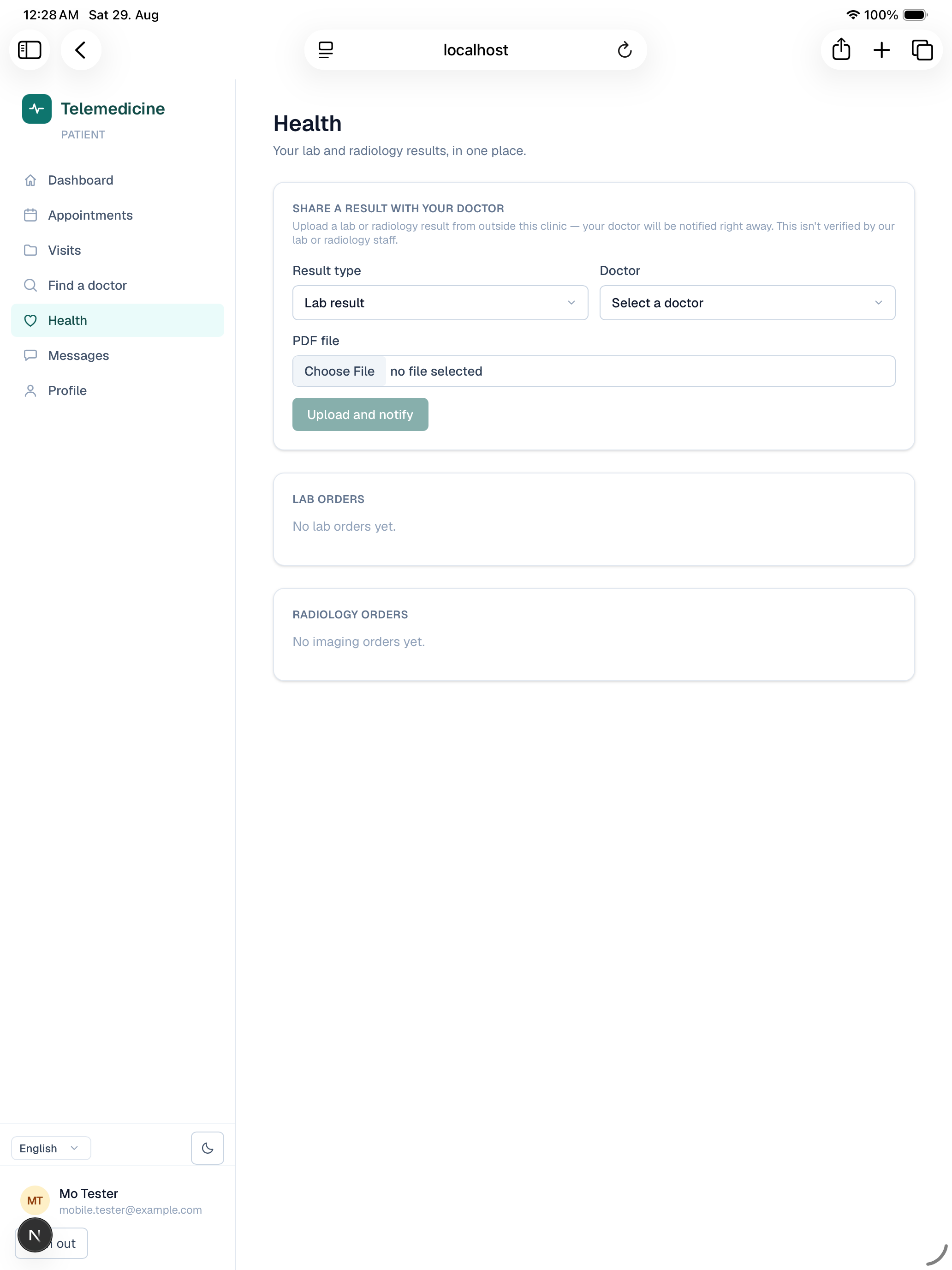
The Health records page (also reachable from Health) is your direct view of test results and files, independent of any single appointment:
- Lab results — each ordered test with its status; results only appear here once your doctor has published them, showing each measured value and whether it's flagged normal, high/low, or critical.
- Radiology results — imaging studies (X-ray, CT, MRI, etc.) with status; published studies note that the actual images are viewed through the web patient portal's imaging viewer.
- Documents — files your doctor has shared with you, or that you've uploaded yourself (e.g. results from outside the clinic) — open any to view or download it.
Messaging
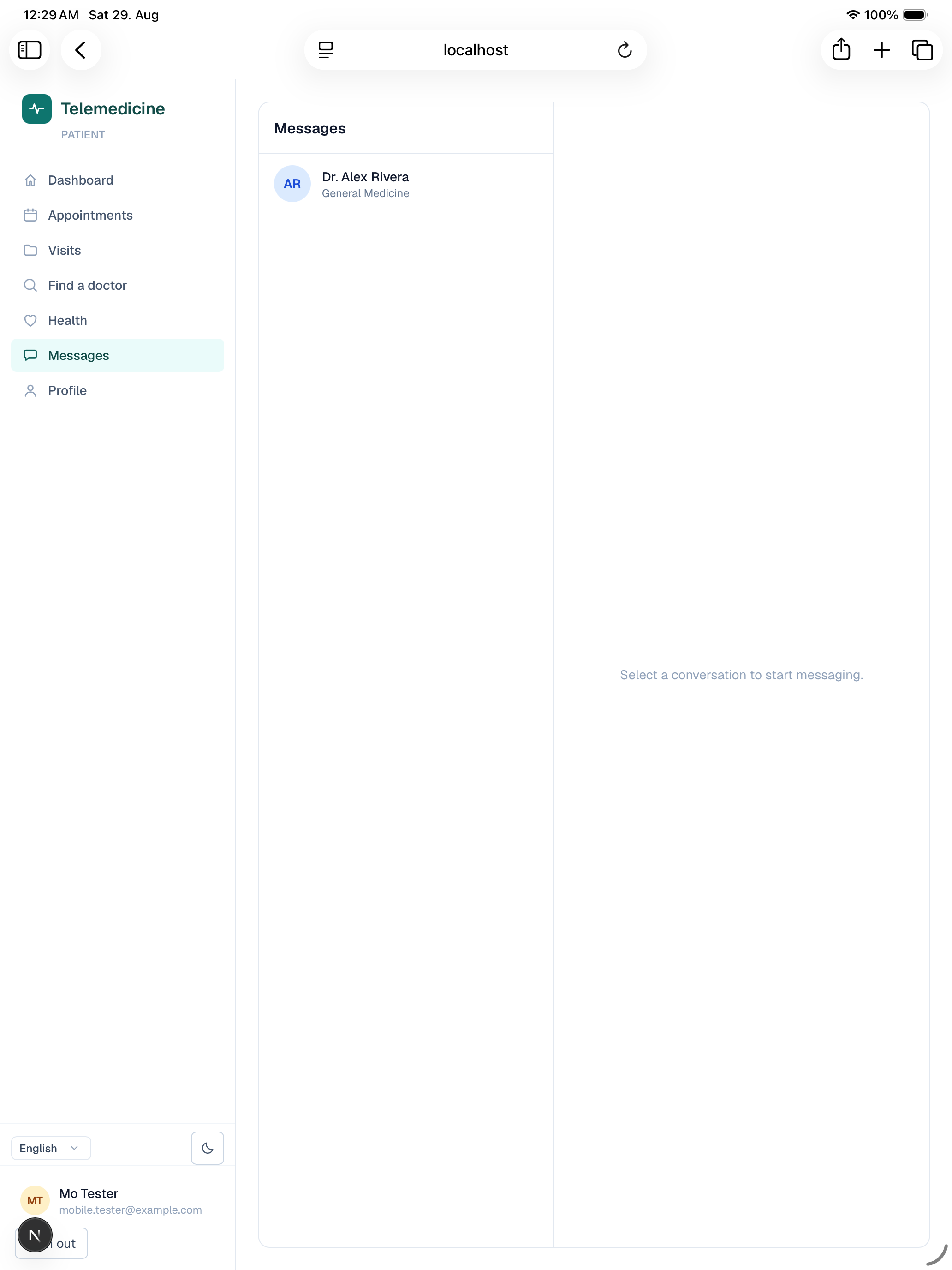
Messages is a private inbox between you and a doctor you've had a real appointment with (a booking that was actually confirmed or completed — not one that never got past payment). Conversations persist across visits, so you can keep in touch with a doctor beyond a single appointment, and unread messages are badged in the navigation.
Your profile
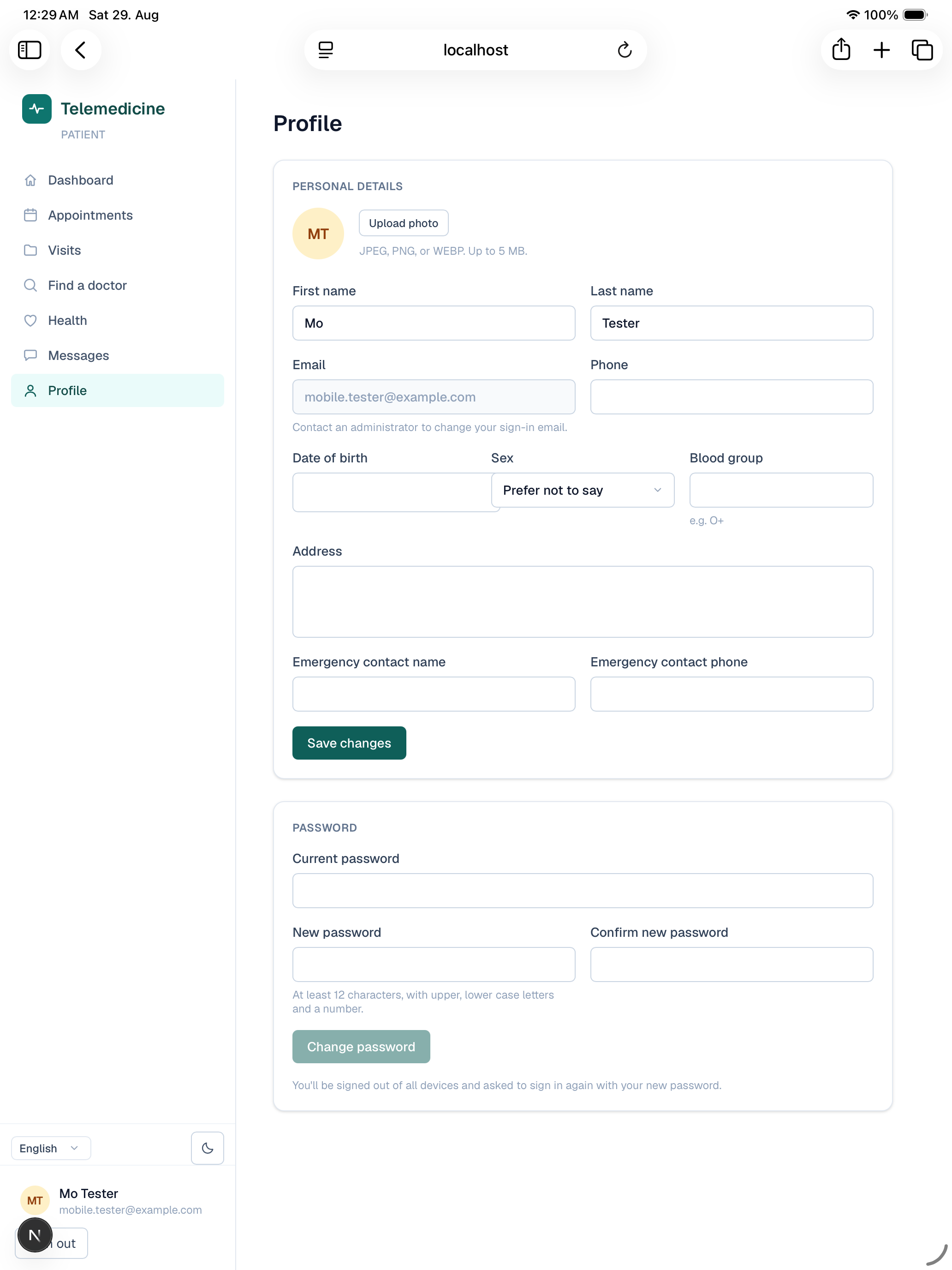
From Profile you can update your name, address, date of birth, bio, and profile photo, and change your password. This is also where you turn on two-factor authentication.