
Appearance
Accounts
How Documents Move Through the System
Every financial document in the app — Journals, Sales Invoices, Supplier Bills, Credit Notes, Debit Notes, Bad Debt Write-offs, Inventory Transactions, Payments, Cash & Bank Transactions — follows the same underlying idea, even though the exact steps differ a little by document type.
The full lifecycle (Journals, Invoices, Bills, Credit/Debit Notes)
Draft → Submitted → Approved → Posted → Reversed
              ↓          ↓
          Cancelled  Cancelled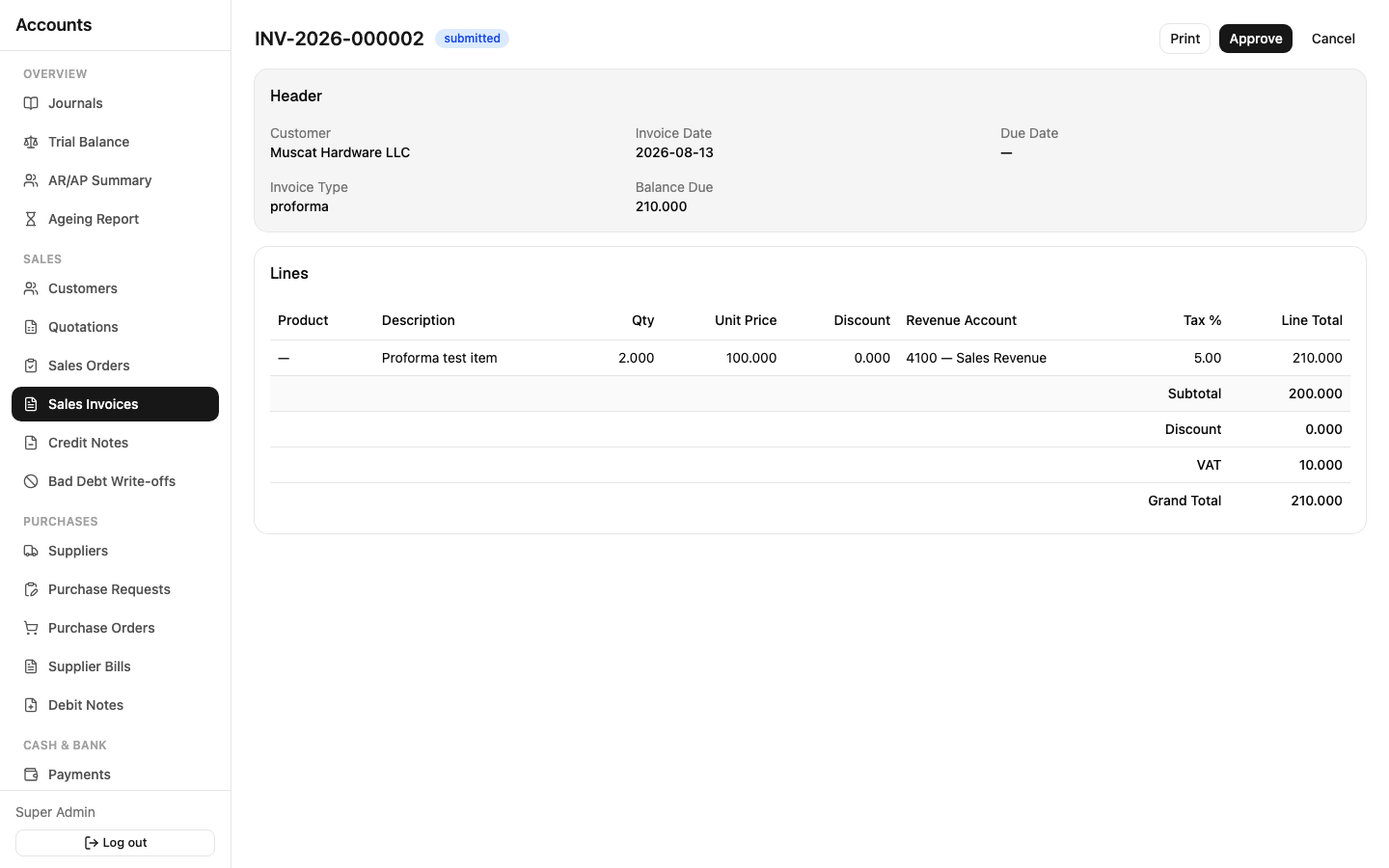
- Draft — fully editable. Nothing here counts toward any report yet.
- Submitted — locked from further editing. Waiting on someone with Approve permission.
- Approved — waiting to be posted.
- Posted — permanent. This is the only status that shows up in financial reports (Trial Balance, GL, P&L, Balance Sheet, AR/AP). A posted document's figures can never change.
- Cancelled — only possible before posting. Once something is Posted, "cancel" isn't an option any more — you Reverse it instead.
- Reversed — a brand-new, opposite journal entry is created that offsets the original. The original stays exactly as it was, marked Reversed, permanently linked to the reversal that cancels it out. This is how corrections work in accounting — you never edit or delete history, you add an offsetting entry.
Payments, Cash & Bank Transactions, and Inventory Transactions use shorter versions of this same idea — see the relevant guide chapter for the exact steps on each.
Why the same person usually can't submit and approve their own document — "maker-checker"
This is a deliberate control, not a bug: the person who submitted a document normally cannot be the one who approves it, even if their role technically has both permissions. It's a standard segregation-of-duties check — one pair of eyes creates it, a different pair confirms it before it becomes real.
There are two switches that control whether this applies, and both have to line up for self-approval to be allowed:
- Company Settings → "Enforce Maker-Checker" — a company-wide switch (on by default). While it's on, nobody can approve their own submission, full stop, regardless of any other permission they hold.
- A role-level
self_approvepermission — even with the company switch turned off, a user can only approve their own document if their specific role has been explicitly granted self-approve for that module (Journals, Sales, Purchasing, or Inventory each have their own separate self-approve permission).
In other words: turning off the company-wide switch alone doesn't let anyone self-approve — a role also has to be opted in individually. This is meant for small teams or specific trusted roles where requiring a second person genuinely isn't practical, without weakening the control for everyone else.
If you try to approve something you submitted yourself and get rejected, that's this rule working as intended — ask a colleague with Approve permission to review it instead, or ask your administrator whether your role should have self-approve for that module.
What "Posted" actually means
Posting a document creates its journal entry — the actual debit/credit lines in the General Ledger. Before that point, nothing you've done shows up in Trial Balance, P&L, Balance Sheet, or any AR/AP figure. This is why a document sitting in Draft or Submitted doesn't affect your reported numbers, and why posting is treated as a separate, deliberate step from approval — approving says "this is correct," posting says "make it real."
Locked periods
You can't post into an Accounting Period that's Closed or Locked, or a Tax Period that's Locked (for VAT-affecting lines). If posting fails with a period-related error, check Administration — an administrator may need to reopen the period, or the entry needs to be dated into the current open period instead.