
Appearance
Accounts
Administration
This chapter is for Super Admins and Finance Managers — the people who configure the system rather than just use it day to day. Everything here lives under Settings in the sidebar.
Company Settings
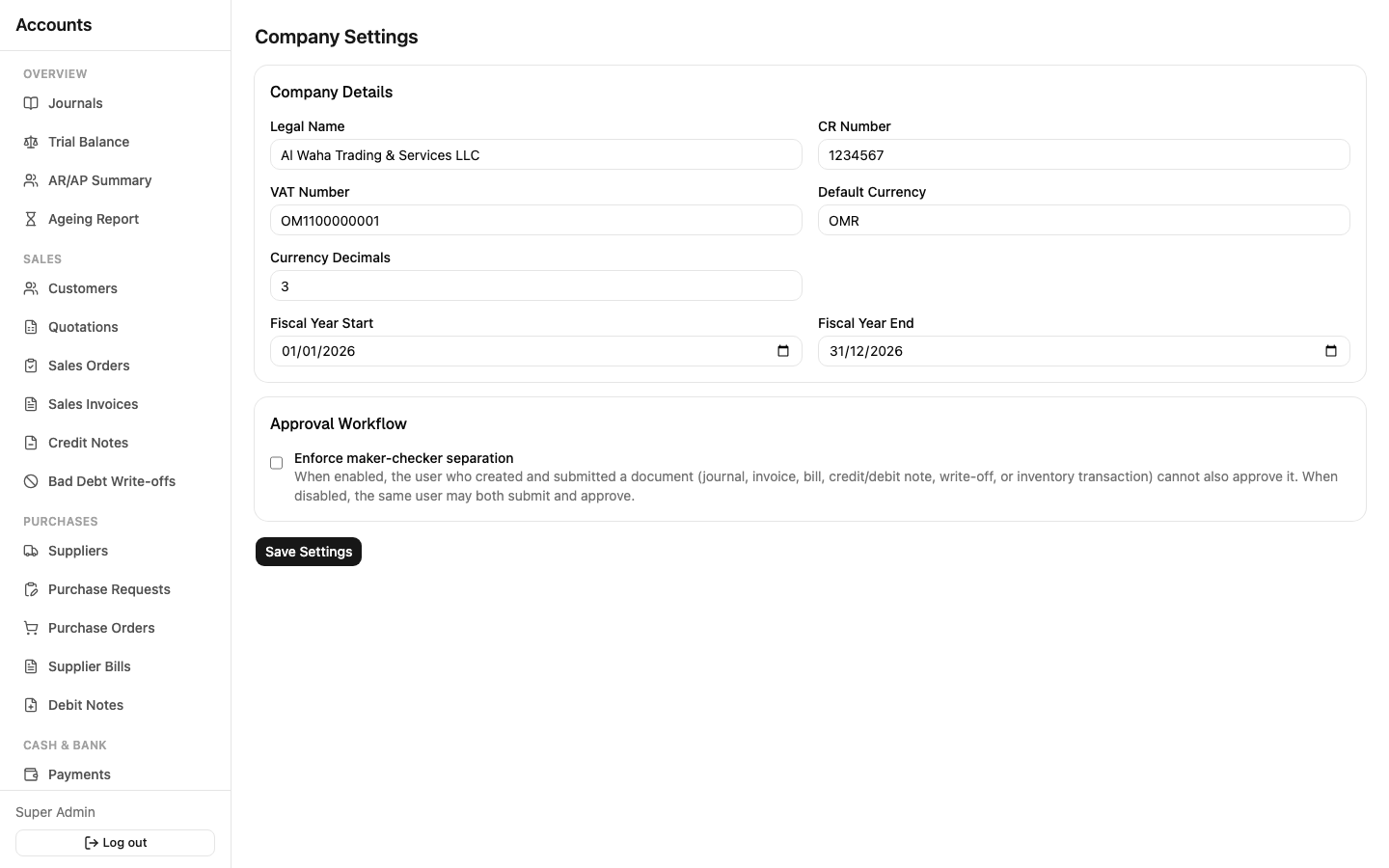
Legal name, CR number, VAT number, default currency and decimal places (3 for OMR), financial year start/end, VAT rounding mode (per-line or per-invoice), and the Enforce Maker-Checker toggle covered in Approvals & Workflow. This screen also covers Branches, Fiscal Years, Accounting Periods, and Numbering Formats.
- Fiscal Years & Accounting Periods — a fiscal year is automatically broken into 12 monthly periods. Each period can be Closed (locks it from new postings) and Reopened if something genuinely needs to post into it after the fact — reopening is logged in the audit trail and, if a later period is already closed, warns you that reopening cascades.
- Numbering Formats — controls how document numbers are generated (prefix, zero-padding, reset cadence — never/yearly/monthly) per document type, and optionally per branch. You'll rarely need to touch these after initial setup; the system uses them automatically every time a document is created.
Chart of Accounts
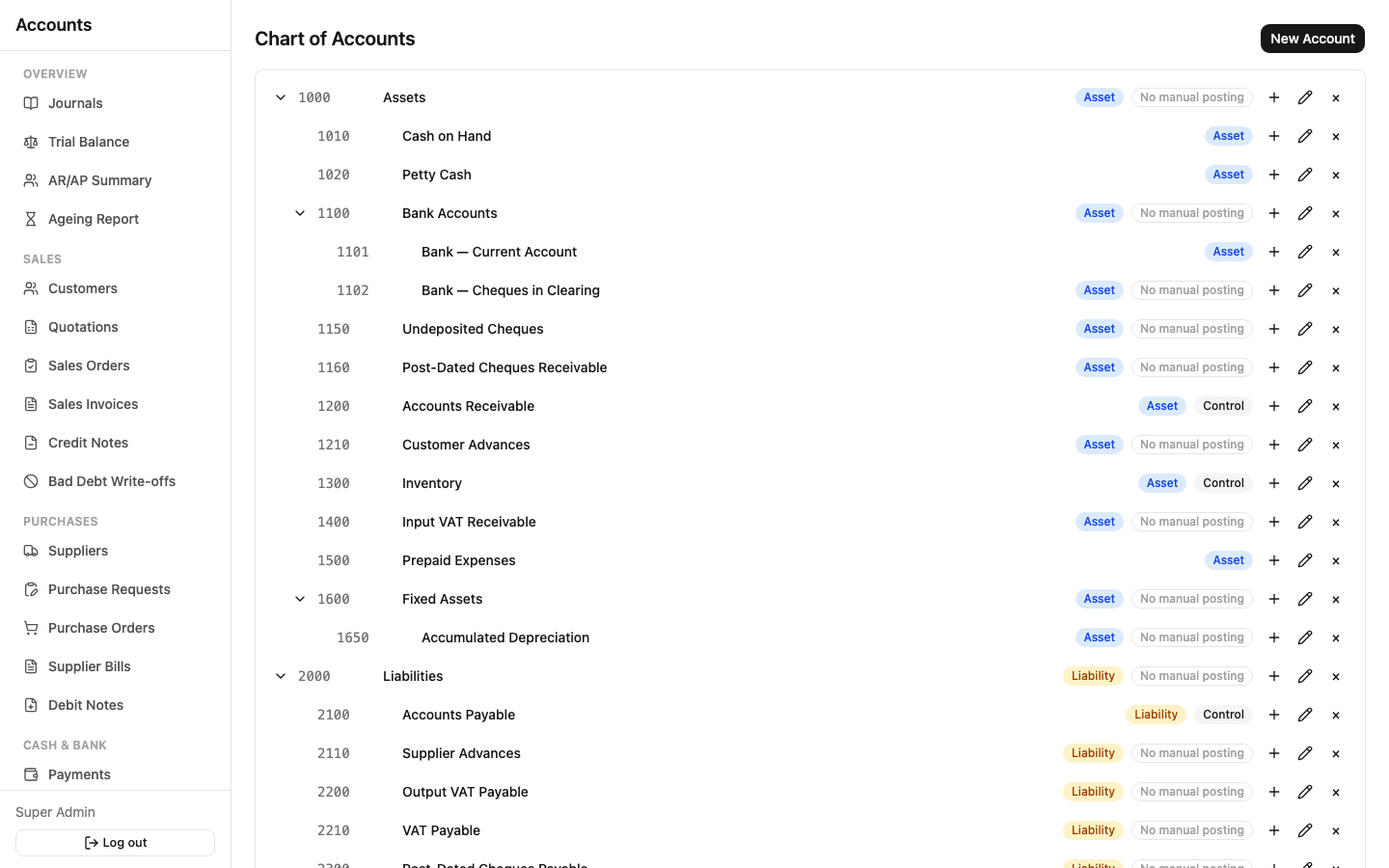
Sidebar: Settings → Chart of Accounts. A tree view of every GL account, color-coded by type (the same colors used on the Trial Balance). Expand/collapse the hierarchy, edit an account's details, or add a new child account under an existing one. Accounts marked Control are system-managed — the posting engine writes to them automatically (e.g. Accounts Receivable, Accounts Payable, Inventory) and they reject manual journal entries by default, to keep automated totals from being thrown off by a stray manual entry.
The mapping of which account is "Accounts Receivable," "Output VAT," etc. — the accounts every other module posts to automatically — is configurable, not hard-coded. If you ever need to change which account plays a given role, that's done through the control-account mapping, not by renaming an account.
Users
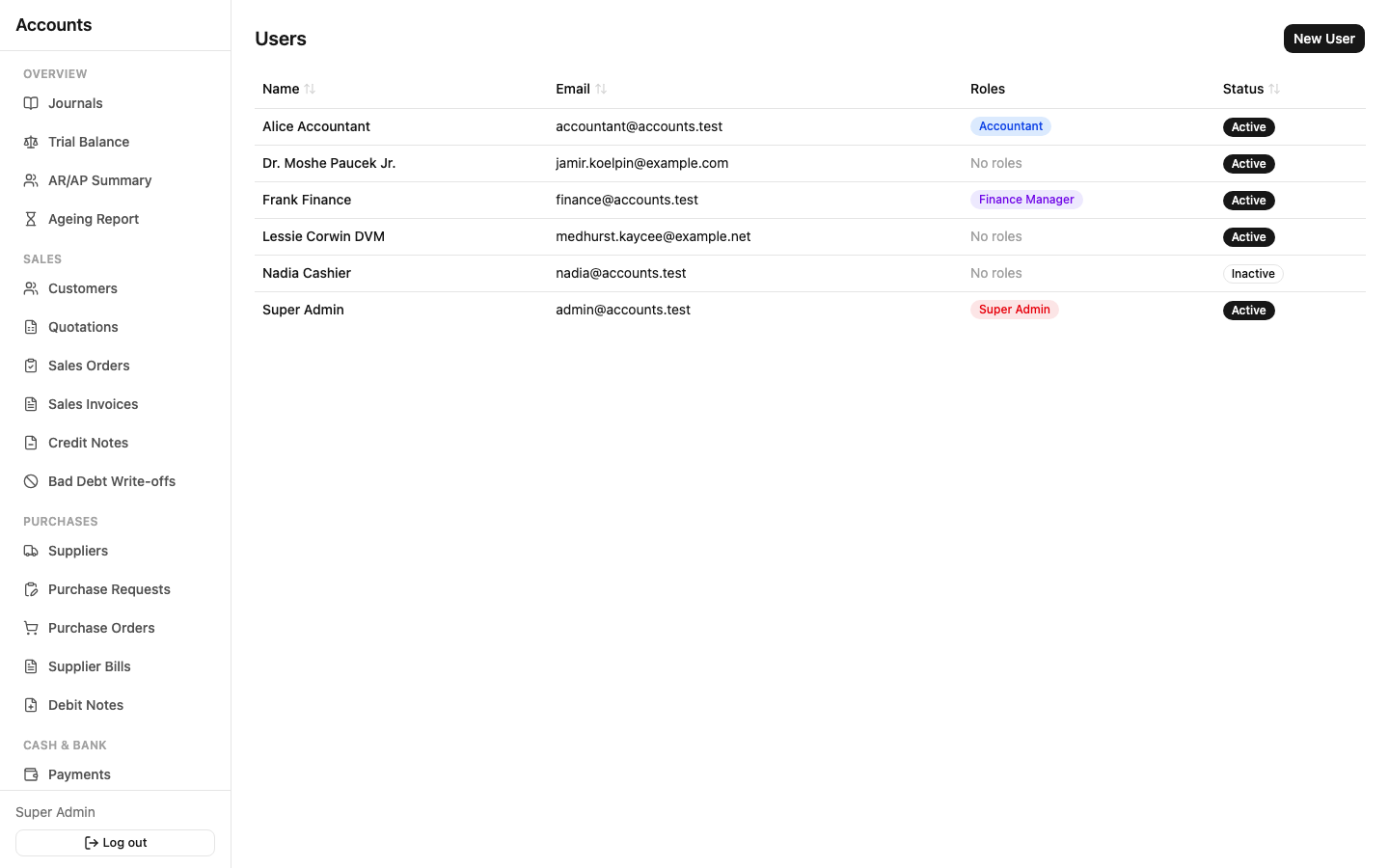
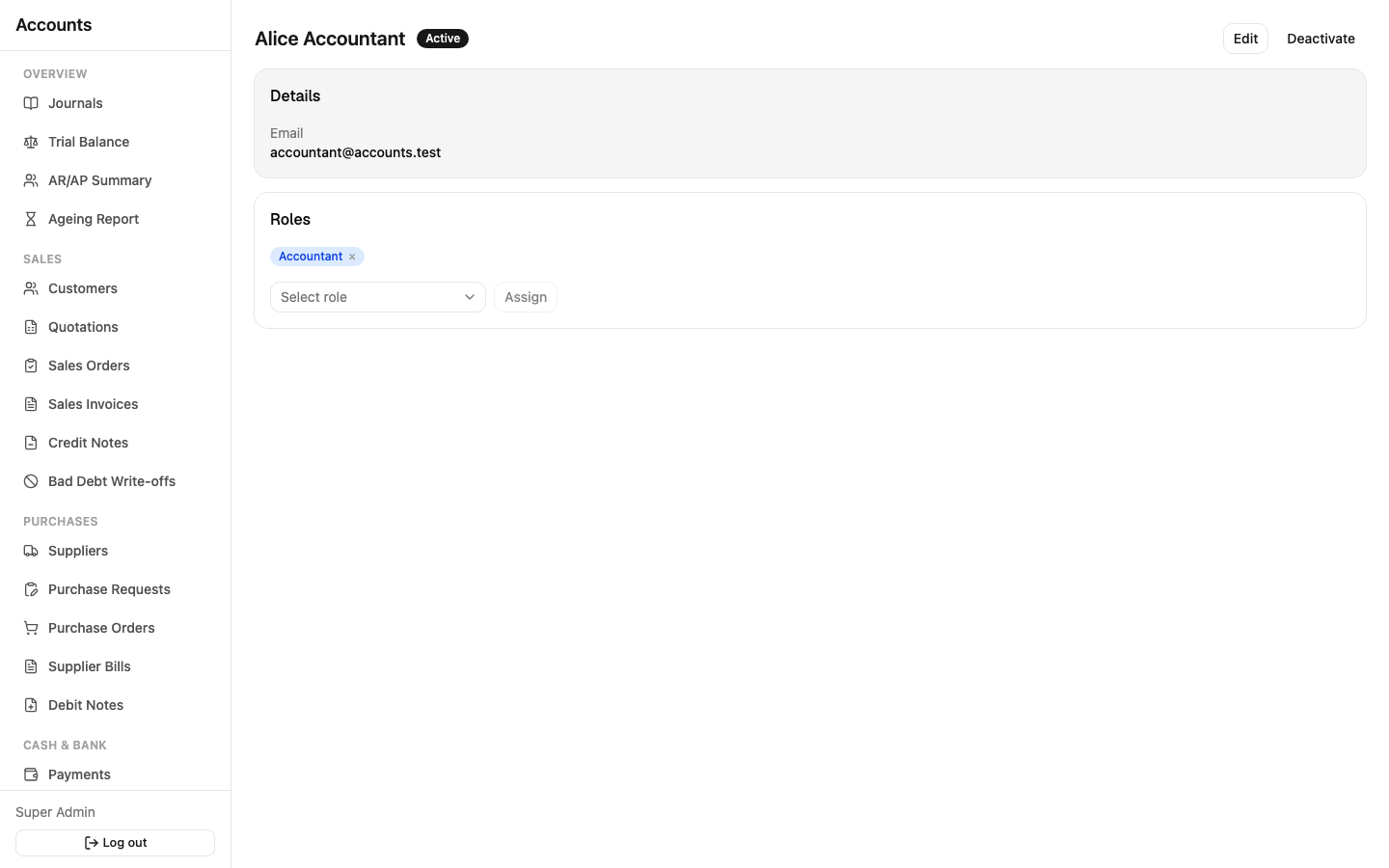
Sidebar: Settings → Users. Create a user, assign one or more roles, and deactivate/reactivate accounts as people join or leave (deactivating blocks login without deleting their history — you never delete a user who has created or approved any document, for audit reasons). Each user's detail page shows their current roles as color-coded badges and lets you assign or remove a role.
Roles
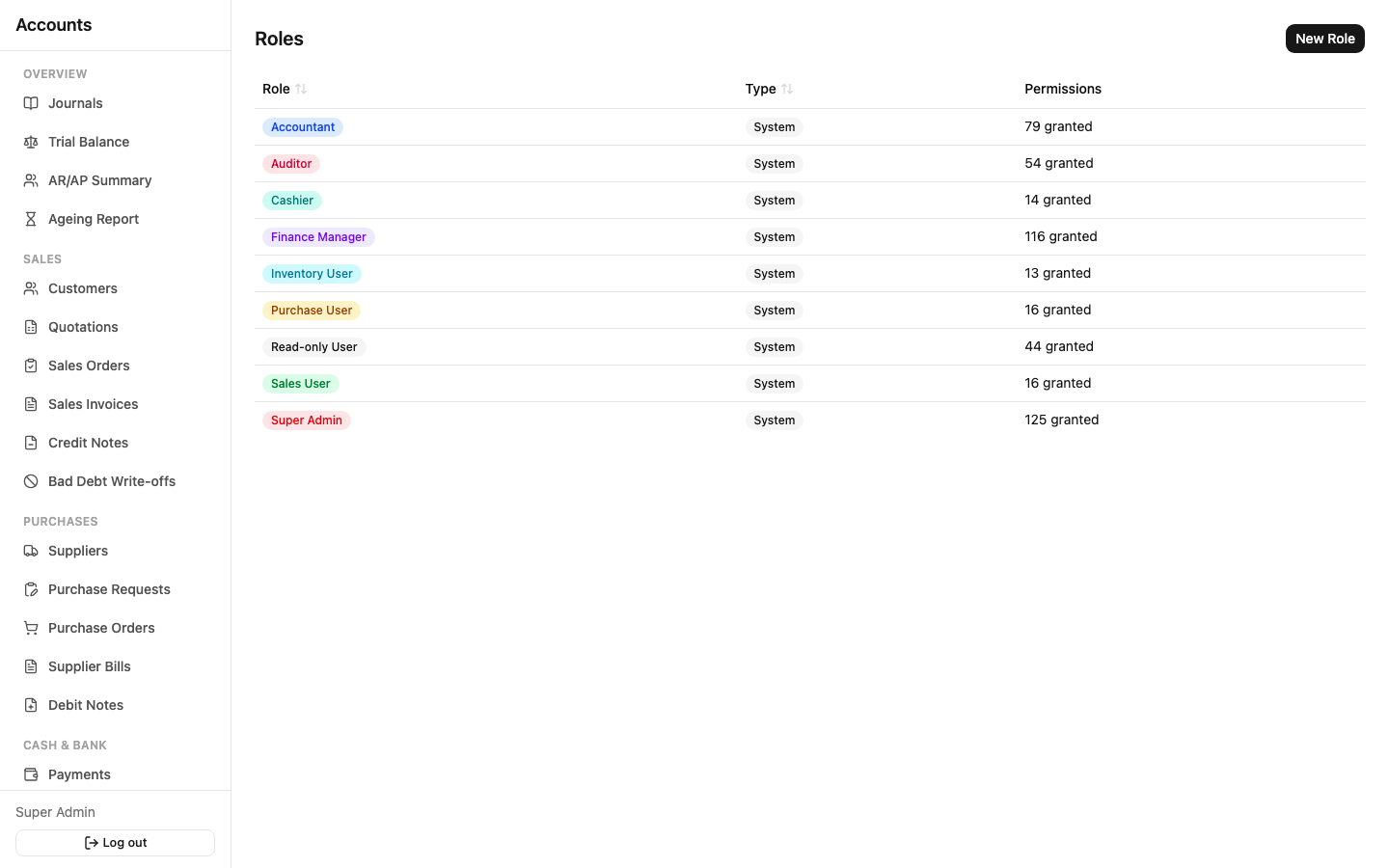
Sidebar: Settings → Roles. Nine roles come pre-configured, each with a distinct color badge so they're recognizable at a glance across the whole app:
| Role | Typical scope |
|---|---|
| Super Admin | Everything, including Users/Roles and Company Settings |
| Finance Manager | Full operational access across every module, approves and posts |
| Accountant | Day-to-day bookkeeping, submits and operates most modules |
| Sales User | Creates and submits sales documents, cannot approve/post |
| Purchase User | Creates and submits purchasing documents, cannot approve/post |
| Cashier | Records and prints receipts/payments only |
| Inventory User | Creates and submits stock transactions |
| Auditor | View and export everything, including the Audit Log — never creates or edits |
| Read-only User | View/print/export only, most restricted |
The 9 built-in roles' names can't be renamed or deleted (they're protected so the rest of the system can rely on them existing), but their permissions can be edited freely — if Sales User should be able to do more or less in your organization, change it here. You can also create entirely new custom roles from scratch, with any combination of permissions, and delete a custom role once no user is assigned to it.
Editing a role's permissions is also where you'd grant a role the self_approve permission described in Approvals & Workflow, if you want that role to be able to approve its own submissions when the company-wide maker-checker switch is off.
Integration (Integration Admin only)
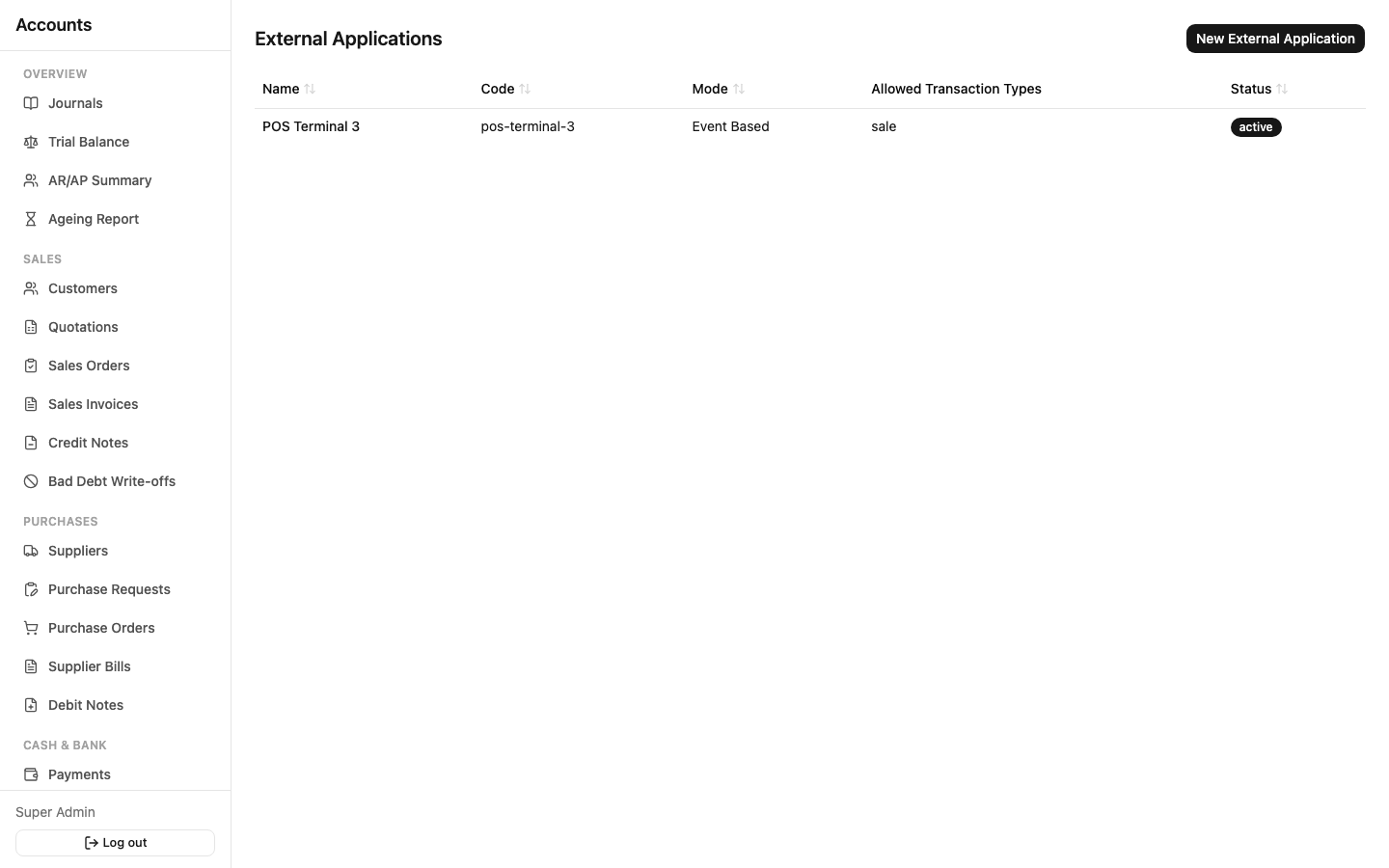
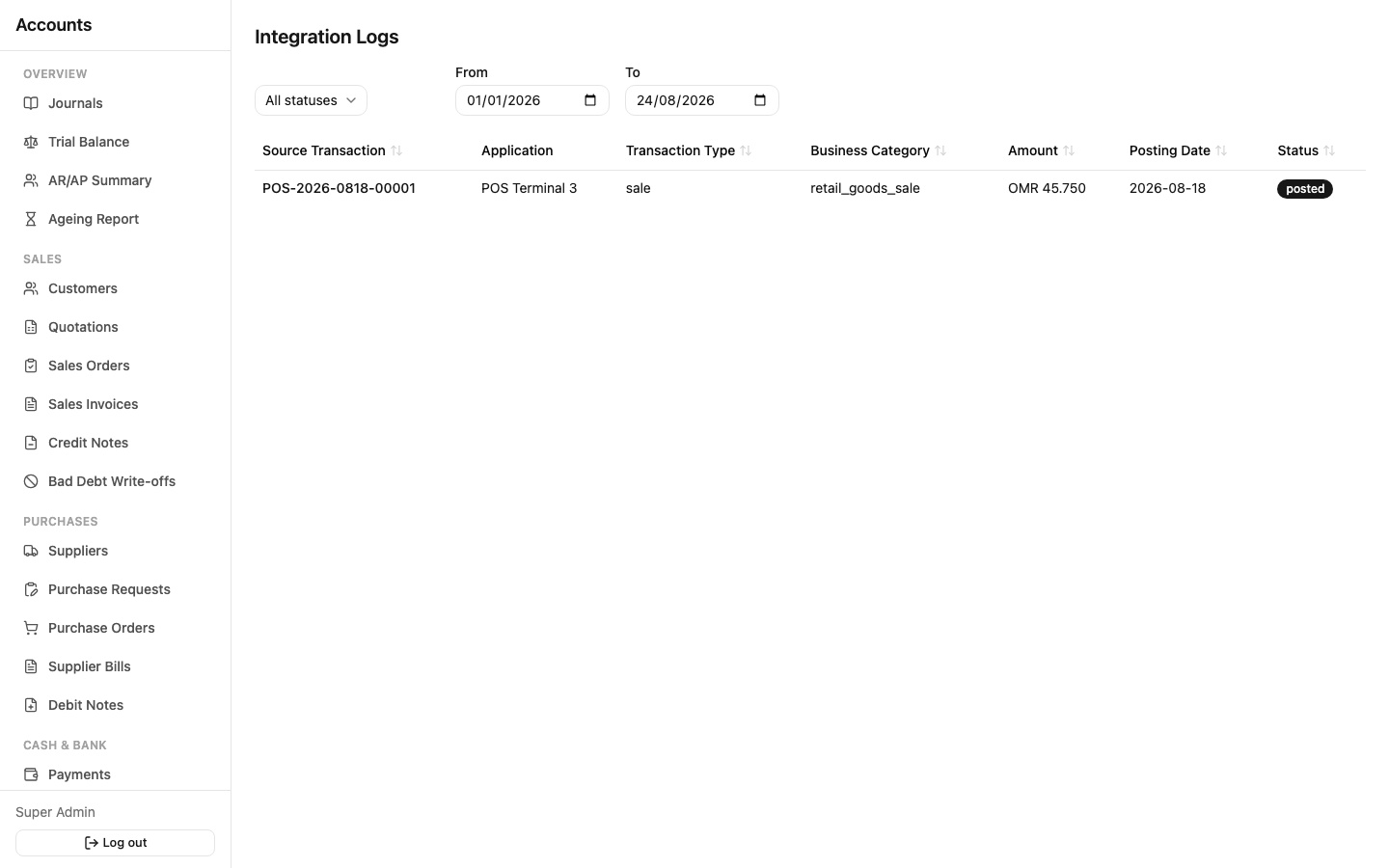
Sidebar: Integration → External Applications, Integration Logs. This is where an external system (like a point-of-sale terminal) that posts transactions into Accounts automatically is registered and managed:
- External Applications — register a new external system, issue/rotate its access credentials, and suspend/reactivate it if it needs to be temporarily cut off. Each one has a list of account mappings that tell the system which GL accounts to post to for each type of transaction it sends.
- Integration Logs — every posting attempt from a connected external system, with its status (Received/Validated/Posted/Failed/ Reversed). A failed posting shows its validation error and can be retried once the underlying issue (e.g. a missing account mapping) is fixed, or reversed if it posted something that needs correcting.
Most people in the organization will never see this section — it only appears for roles with Integration Admin access, and it's only relevant once an external system has actually been connected.