
Appearance
Accounts
Inventory
Sidebar: Inventory.
Setup — Categories & Warehouses
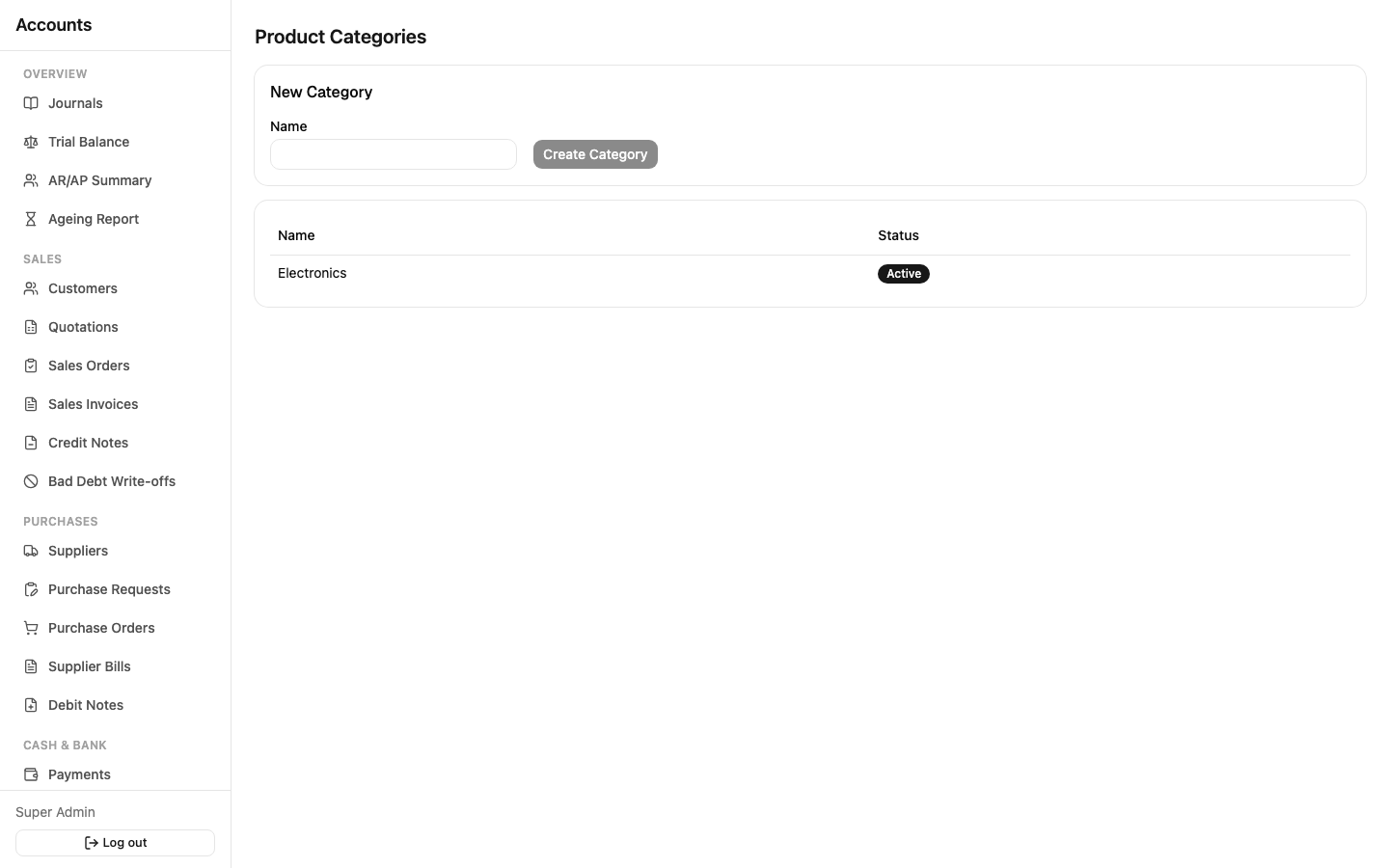
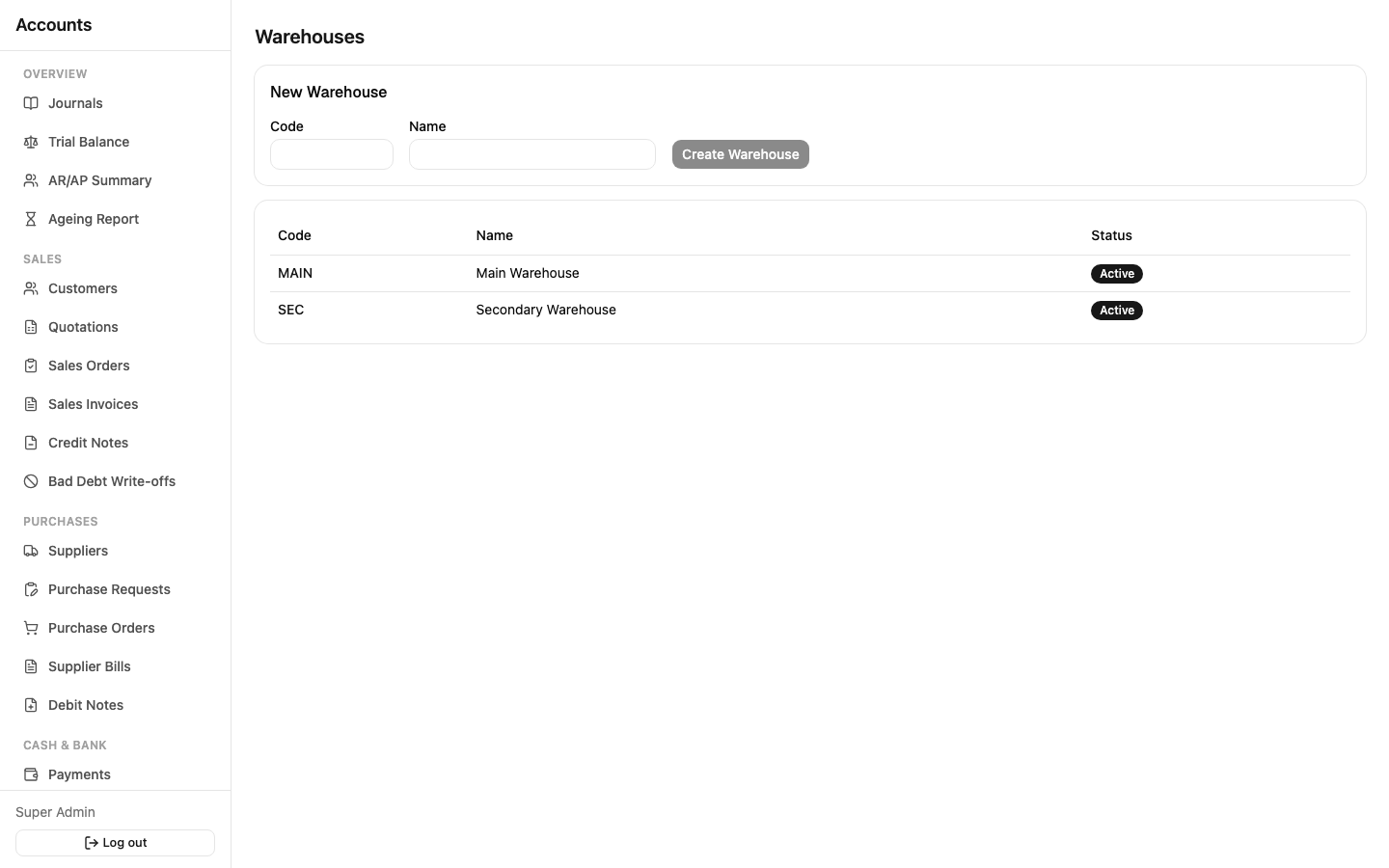
Set these up before adding products: Categories group similar products together (optional, supports sub-categories); Warehouses are the physical locations stock moves between.
Products
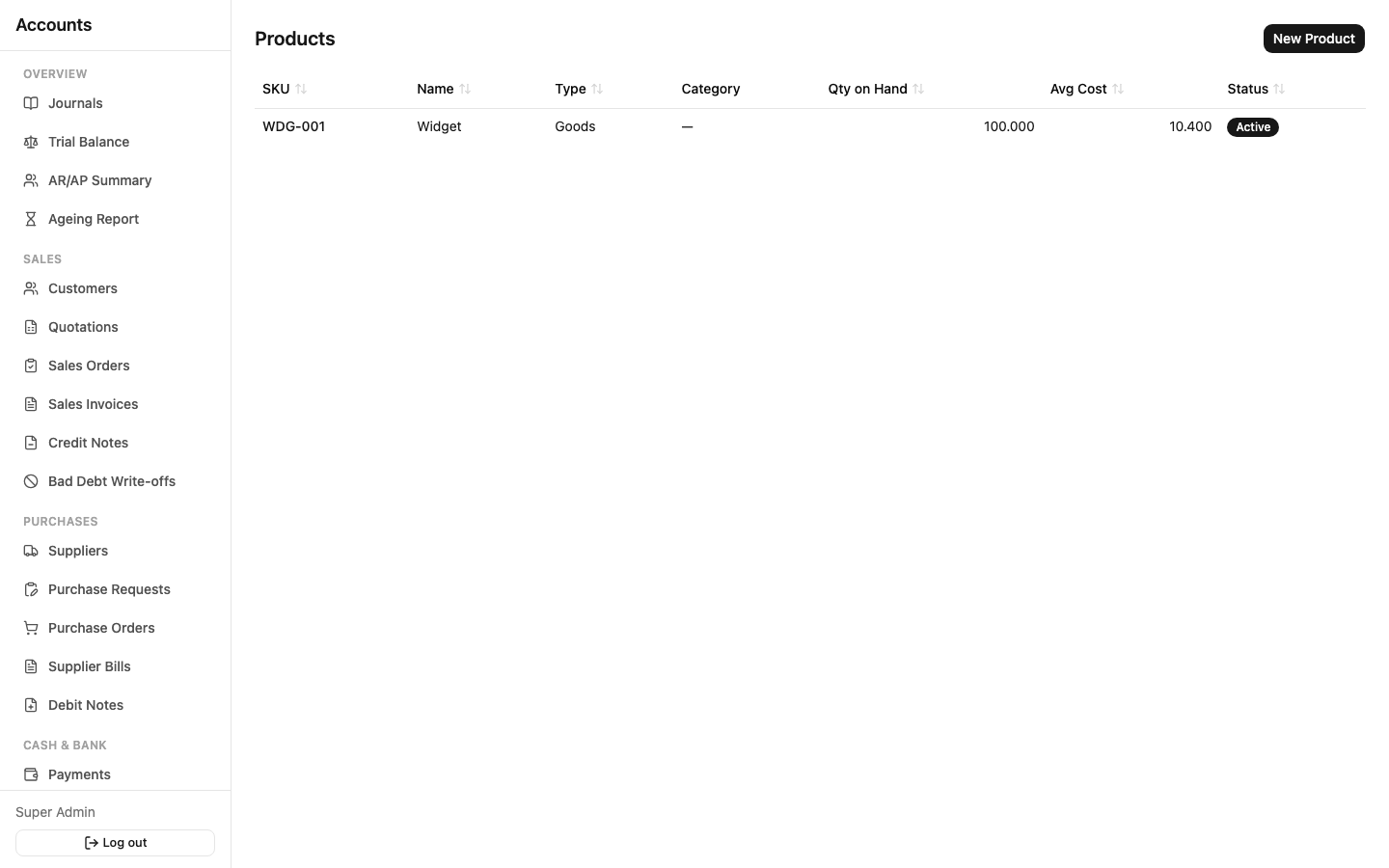
Sidebar: Inventory → Products. Each product has a SKU, a type (Goods or Service), a unit of measure, and three GL account links: Inventory Account, COGS Account, and Revenue Account — these are what let the system post the right accounting entries automatically whenever the product appears on a sale or purchase.
Two fields on every product are read-only, calculated by the system as transactions happen:
- Weighted Average Cost — recalculated on every receipt, so it always reflects the true average cost of what's on hand
- Quantity on Hand — the running stock level
Service items never touch these two fields or the Inventory account — they have no stock impact by design.
Stock Transactions
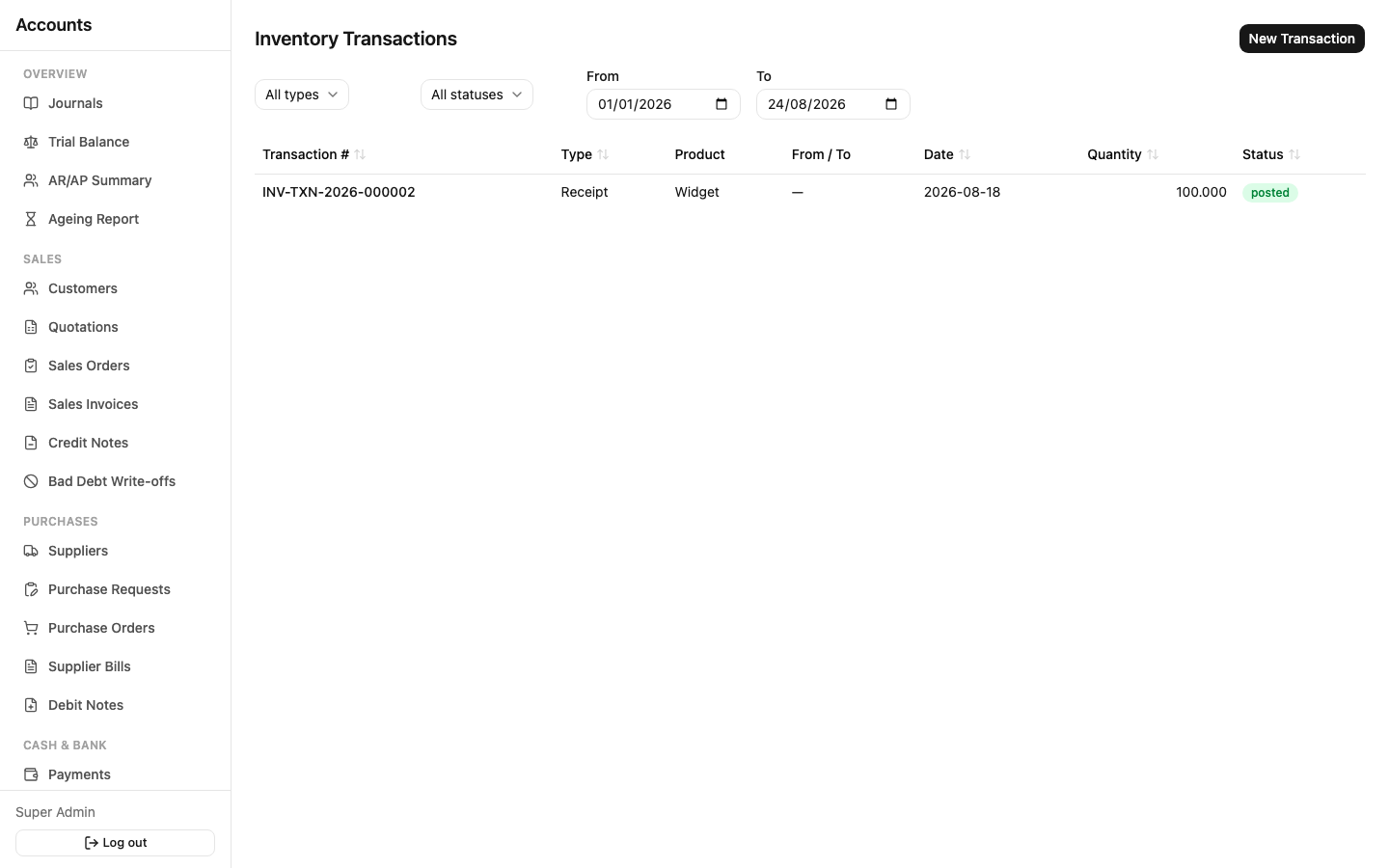
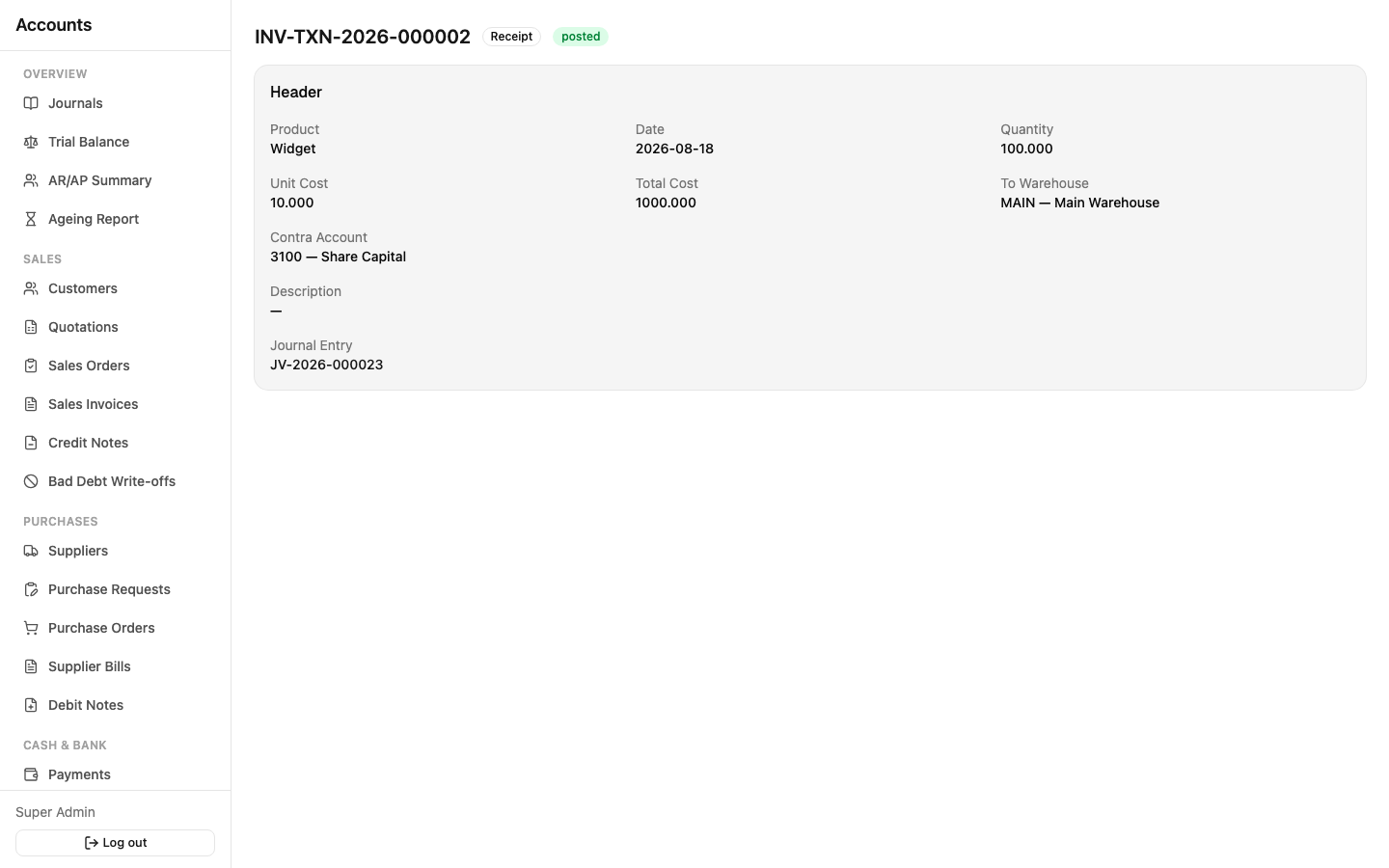
Sidebar: Inventory → Stock Transactions. For stock movements that don't come from a Sales Invoice or Supplier Bill — four types:
| Type | Use for |
|---|---|
| Receipt | Stock coming in outside of a purchase (e.g. opening balance) |
| Issue | Stock going out outside of a sale (e.g. internal use) |
| Transfer | Moving stock from one warehouse to another |
| Adjustment | Correcting a count — up or down |
Lifecycle: Draft → Submitted → Approved → Posted (no reversal state — a stock correction is a new adjustment, not an undo of a prior one).
Most day-to-day stock movement actually happens automatically: a Goods Receipt Note brings stock in at cost, a Delivery Note or posted Sales Invoice takes stock out at the current weighted average cost. You'll only use the Stock Transactions screen directly for the four cases above.