
Appearance
Accounts
Sales
The sales chain runs left to right: Quotation → Sales Order → Delivery Note → Sales Invoice → Credit Note (if needed). You can skip stages — go straight from a Sales Order to an Invoice for a service sale, or create an Invoice directly with no Quotation at all. Every stage you do use remembers which document it came from, so you can always trace a Sales Invoice back to the Order and Quotation that started it.
Customers
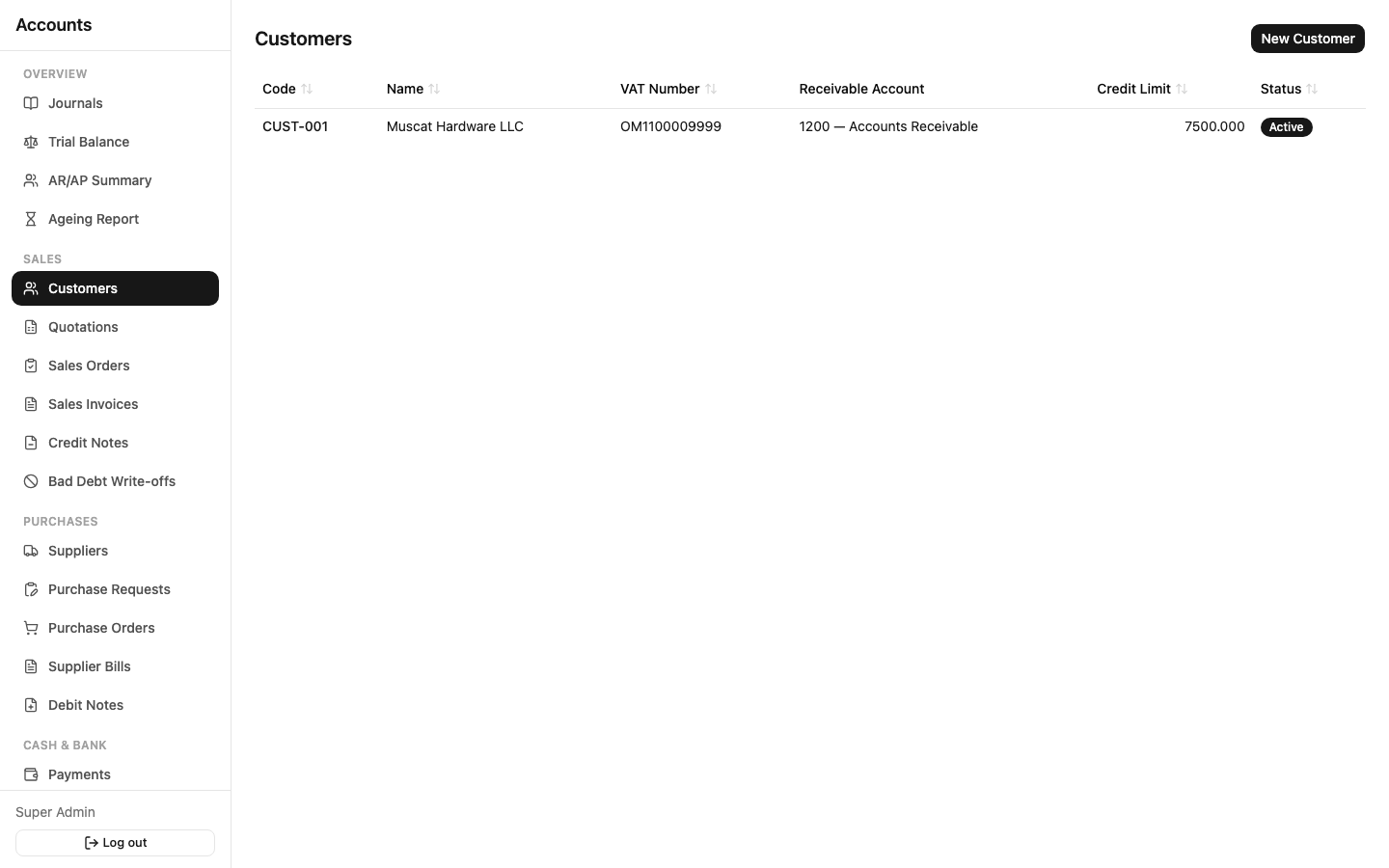
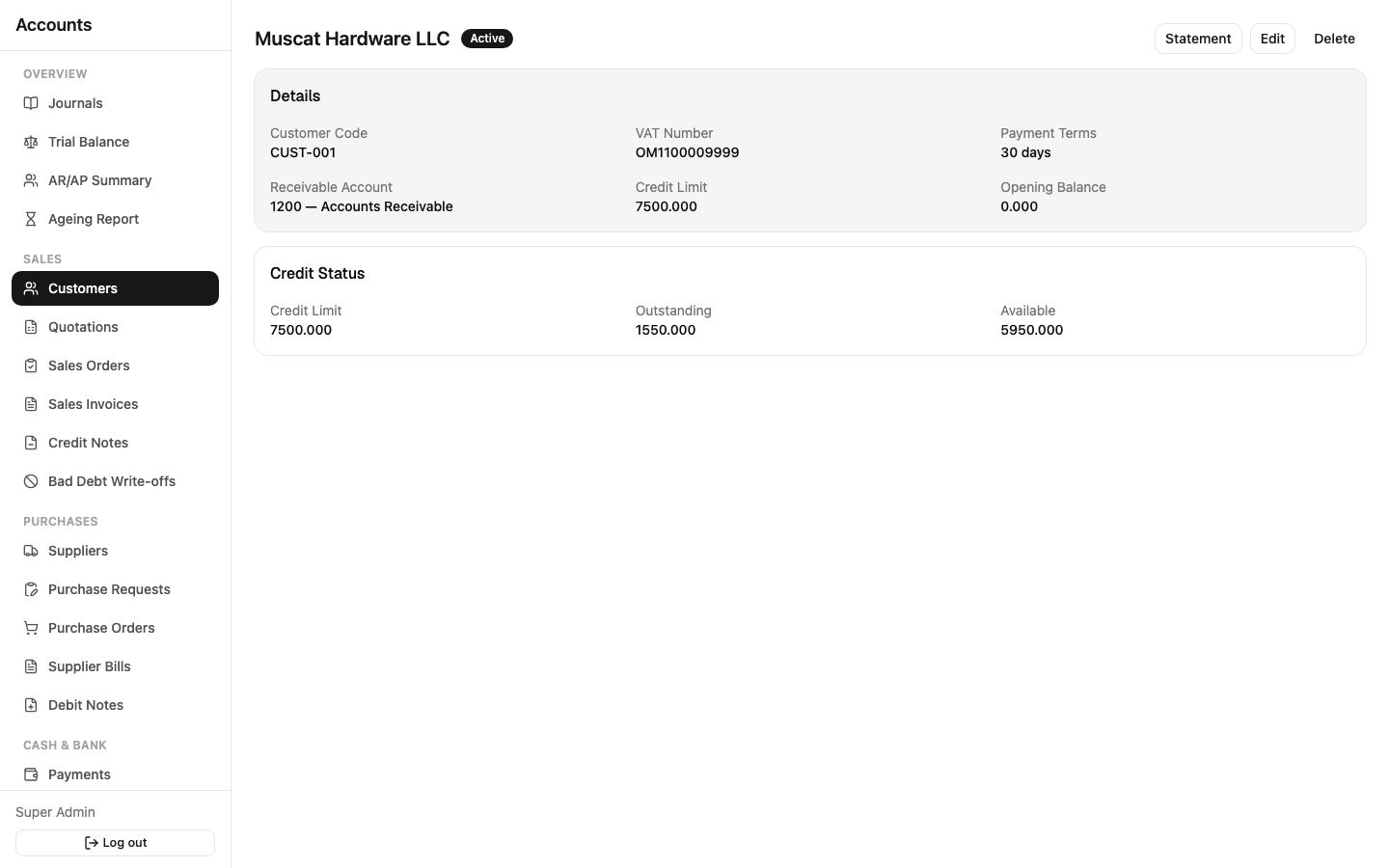
Sidebar: Sales → Customers.
The Customer record holds everything the accounting side needs: customer code, name, VAT number, credit limit, payment terms (in days), which GL account their invoices post to (Receivable Account), and an opening balance if you're bringing in an existing customer mid-year.
- New Customer — fill in the Details section (shaded in gray) and save. Customer Code and Name are required; everything else has a sensible default.
- Open a customer's detail page to see their Statement (a running ledger of every invoice, credit note, and payment) and Ageing (how much of their balance is current vs. 30/60/90+ days overdue).
- If a customer's outstanding balance would exceed their Credit Limit, the system warns you when you try to invoice them further — it doesn't block you outright, it's a warning for the person approving the sale.
Quotations
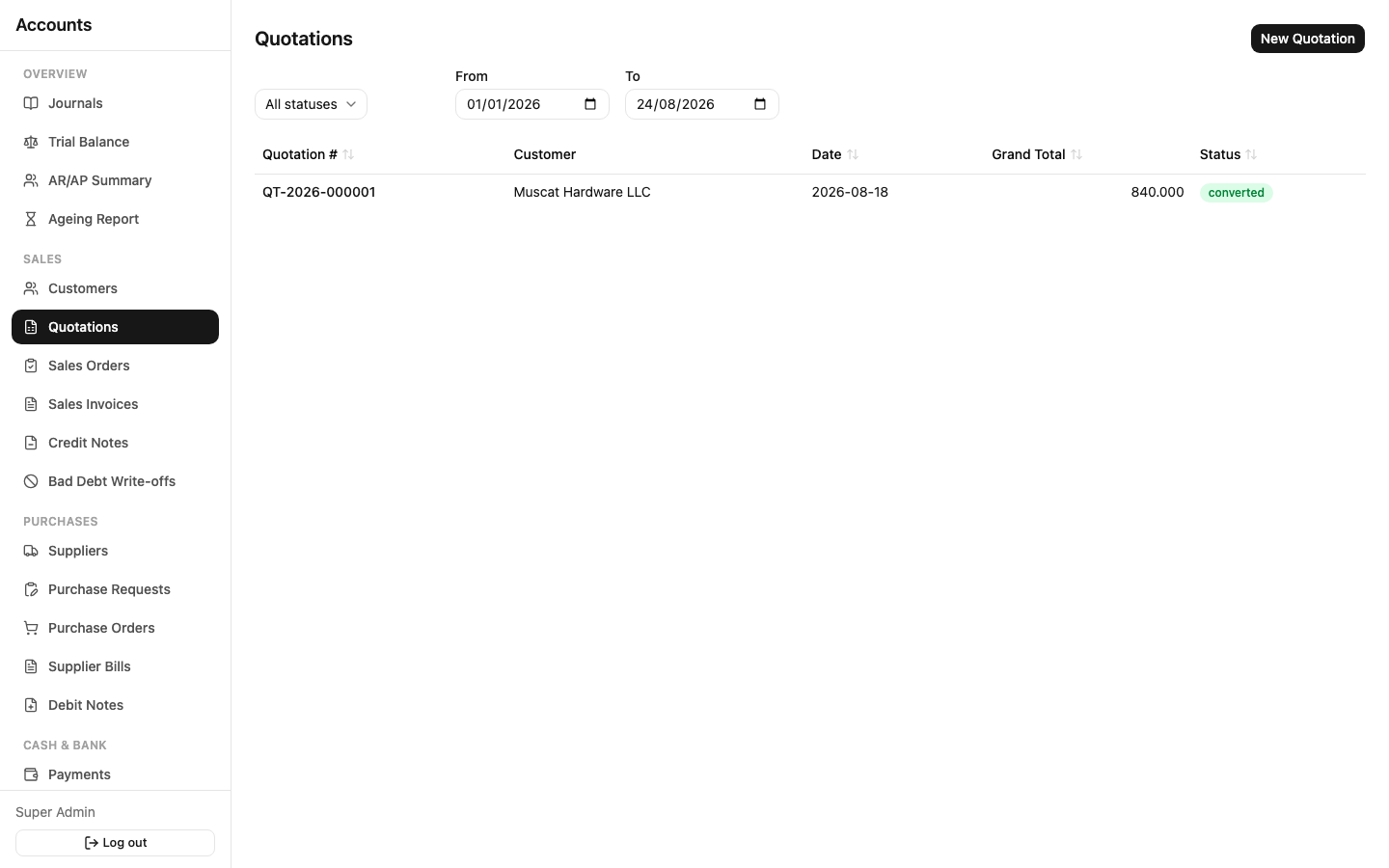
Sidebar: Sales → Quotations.
A Quotation never touches the accounts — it's a price you're offering a customer before anything is committed. Statuses: Draft → Sent → Accepted / Rejected / Expired → Converted.
- Create a quotation, add line items (product, quantity, unit price, discount, tax code).
- Send it once you're ready to share it with the customer.
- Mark it Accepted or Rejected based on the customer's response, or let it lapse to Expired past its expiry date.
- Convert an accepted quotation straight into a Sales Order — the lines carry over, you don't retype anything.
Sales Orders
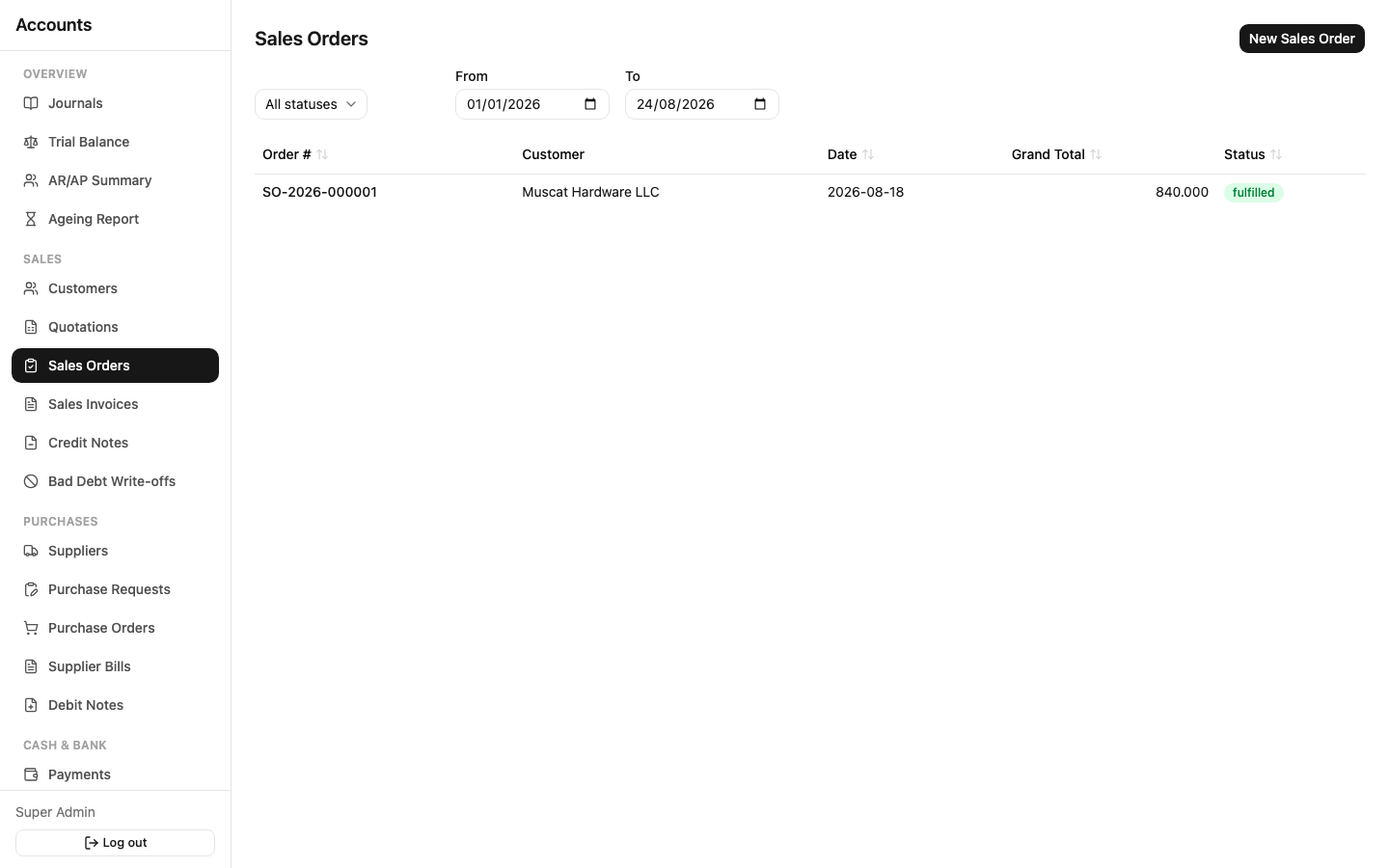
Sidebar: Sales → Sales Orders.
A Sales Order tracks what's been promised to a customer and how much of it has actually shipped and been invoiced — each line shows delivered quantity and invoiced quantity against the ordered quantity. Status is simply Open until every line is fully delivered/invoiced (or you cancel it), then Fulfilled.
You can invoice a Sales Order directly (for services, where nothing physically ships) or route it through a Delivery Note first (for goods).
Delivery Notes
Reached from a Sales Order (there's no standalone "Delivery Notes" list — you create one from the Order you're fulfilling). Confirming a Delivery Note records the goods leaving the warehouse and updates the Sales Order's delivered quantity. A Sales Order can be delivered across several partial Delivery Notes.
Sales Invoices
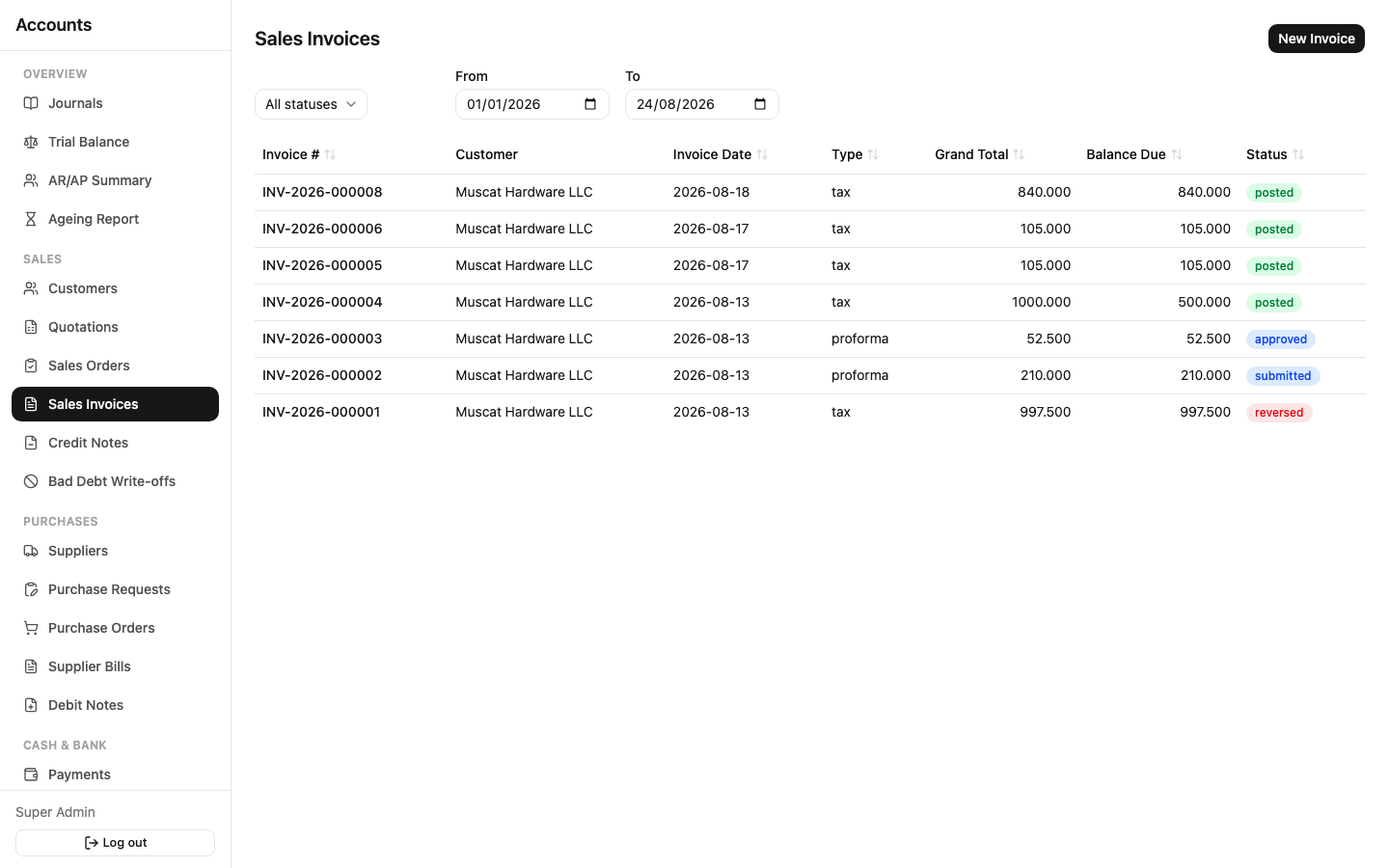
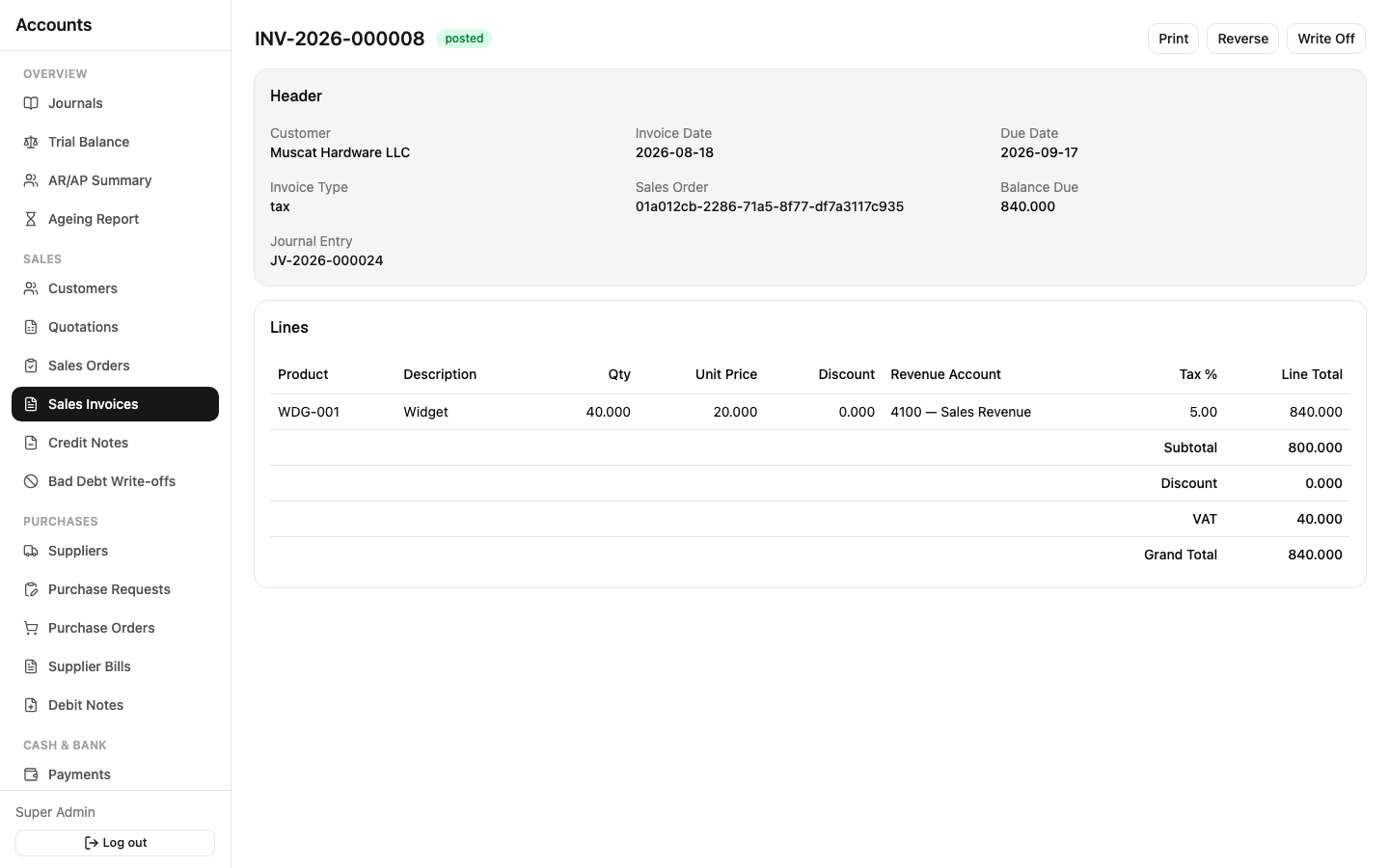
Sidebar: Sales → Sales Invoices. This is where the accounting actually happens.
Five invoice types, chosen when you create the invoice:
| Type | When to use it |
|---|---|
| Tax | The standard invoice — VAT-registered sale |
| Simplified | A simplified tax invoice for smaller transactions |
| Proforma | A price confirmation for the customer — never posts to the accounts, purely informational |
| Cash | A cash sale — invoice and receipt happen together |
| Credit | Standard credit sale — the customer pays later |
Every line needs a Revenue Account and a Tax Code — the system calculates the tax, subtotal, and grand total for you as you type quantities and prices. Choose Tax Exclusive or Tax Inclusive pricing at the top of the form depending on how the customer's prices were quoted.
The lifecycle: Draft → Submitted → Approved → Posted. Submitting locks the invoice from further editing; Approving and Posting are usually two separate people (see Approvals & Workflow for why). Once Posted, the invoice has a journal entry behind it and its figures are locked — a mistake gets corrected with a Reverse, not an edit.
Use Print/PDF on a posted invoice to generate a customer-facing document.
Credit Notes
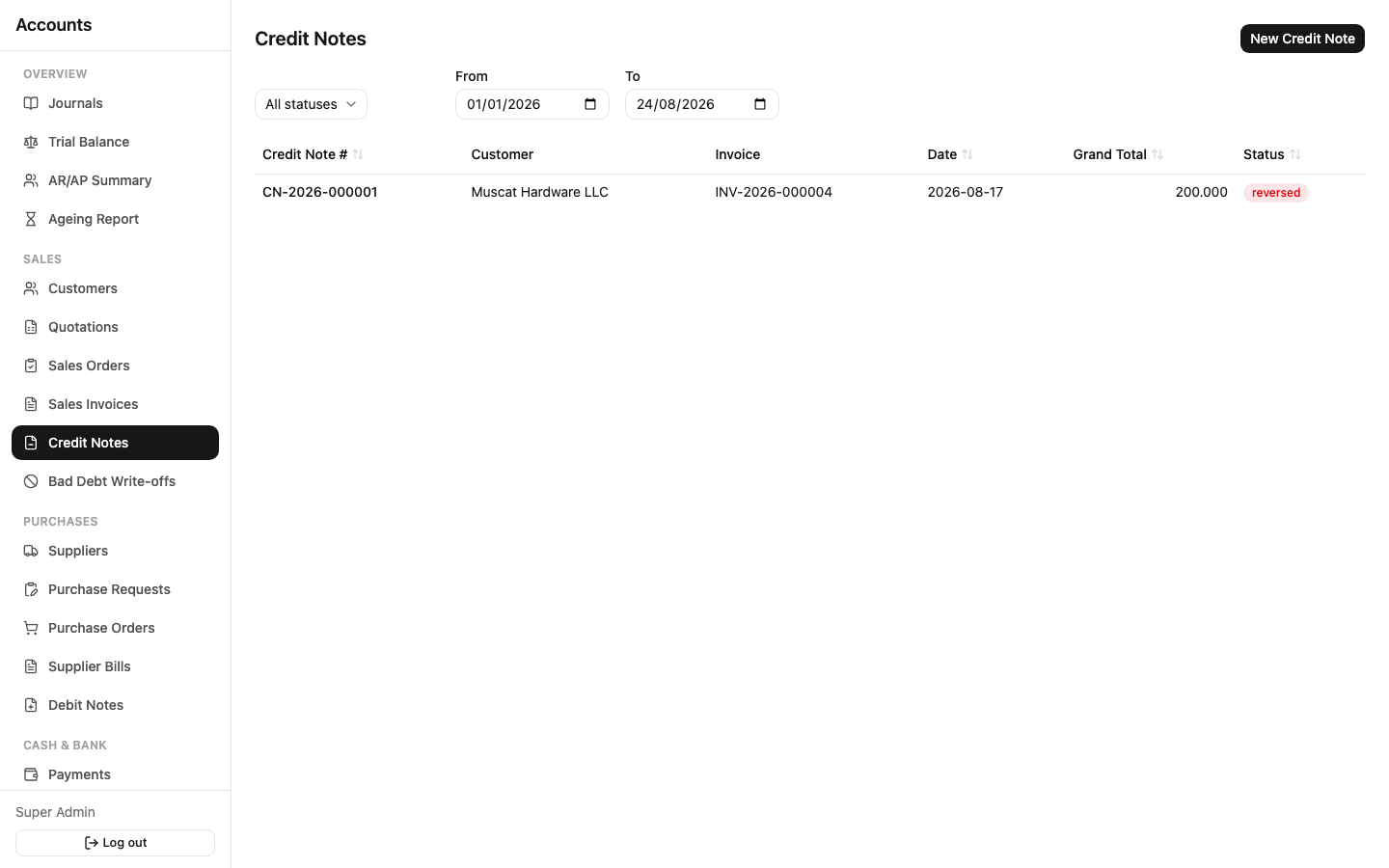
Sidebar: Sales → Credit Notes. Use these for returns, price adjustments, or any reduction against an already-posted Sales Invoice. A Credit Note follows the same Draft → Submitted → Approved → Posted lifecycle and reduces the customer's outstanding balance once posted.
Bad Debt Write-offs
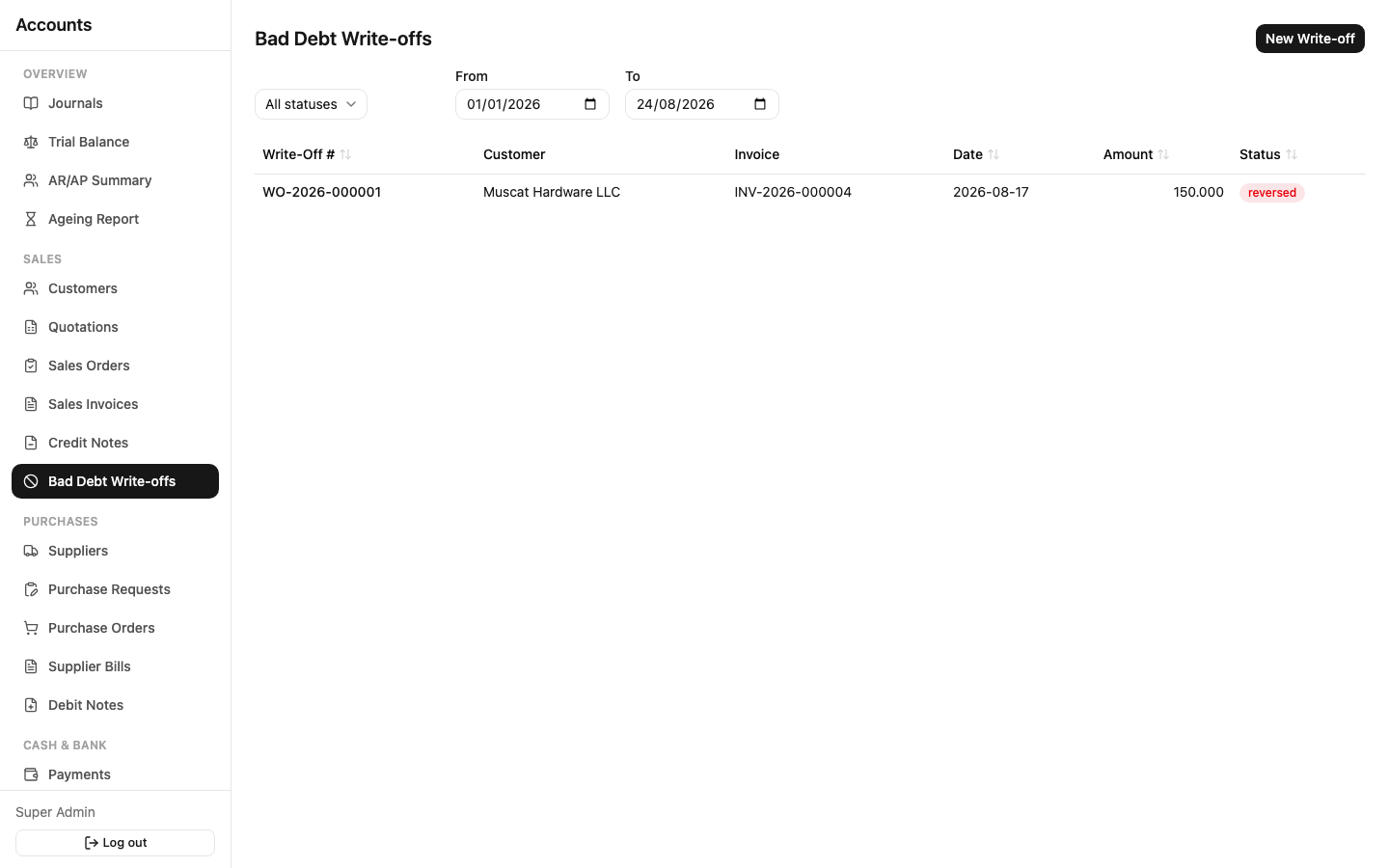
Sidebar: Sales → Bad Debt Write-offs. When a customer's invoice genuinely won't be collected, raise a write-off against it — this needs approval (it's a real accounting entry, moving the balance to Bad Debt Expense) and is separate from just letting an invoice sit overdue.
Ageing Report & AR Summary
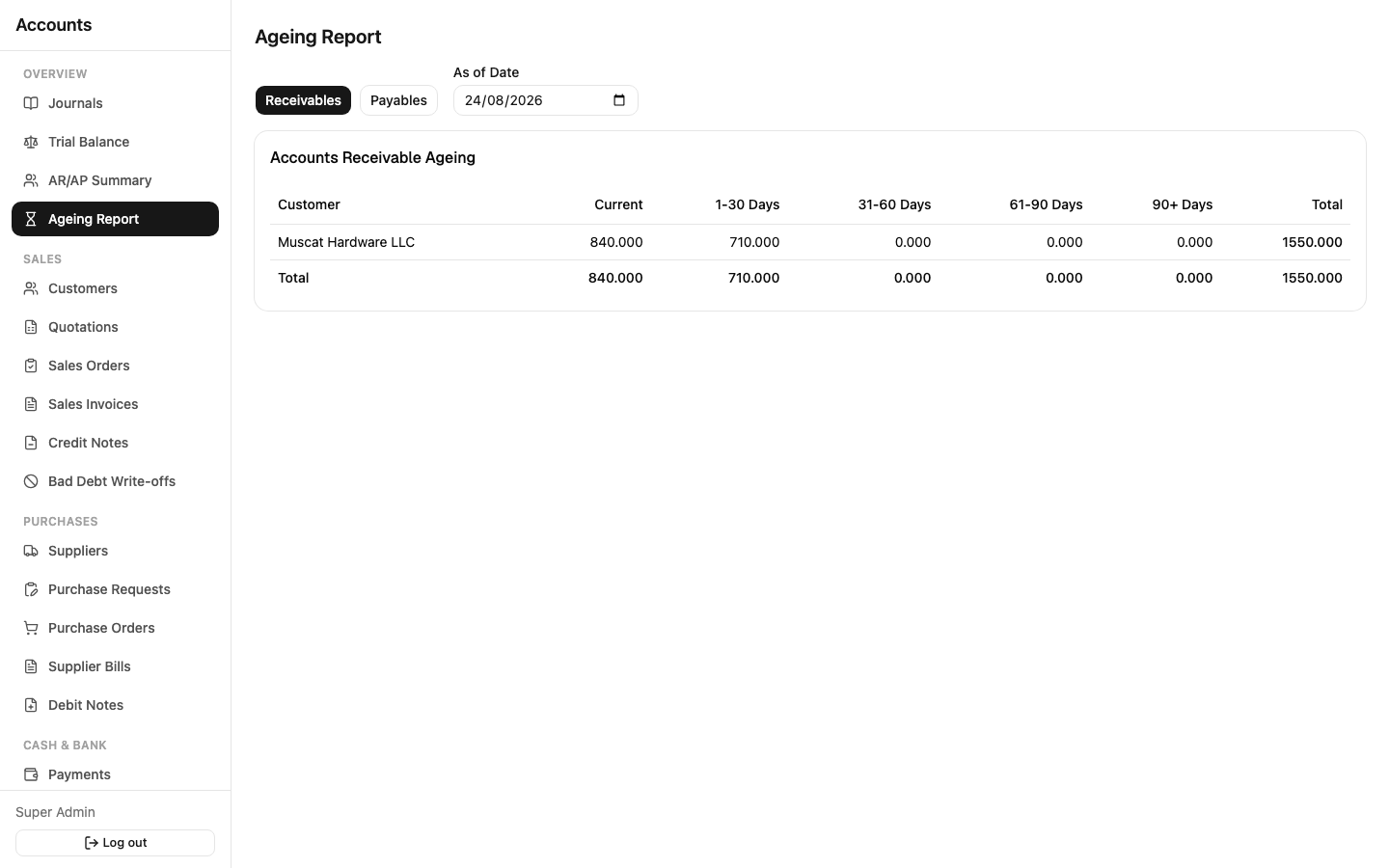
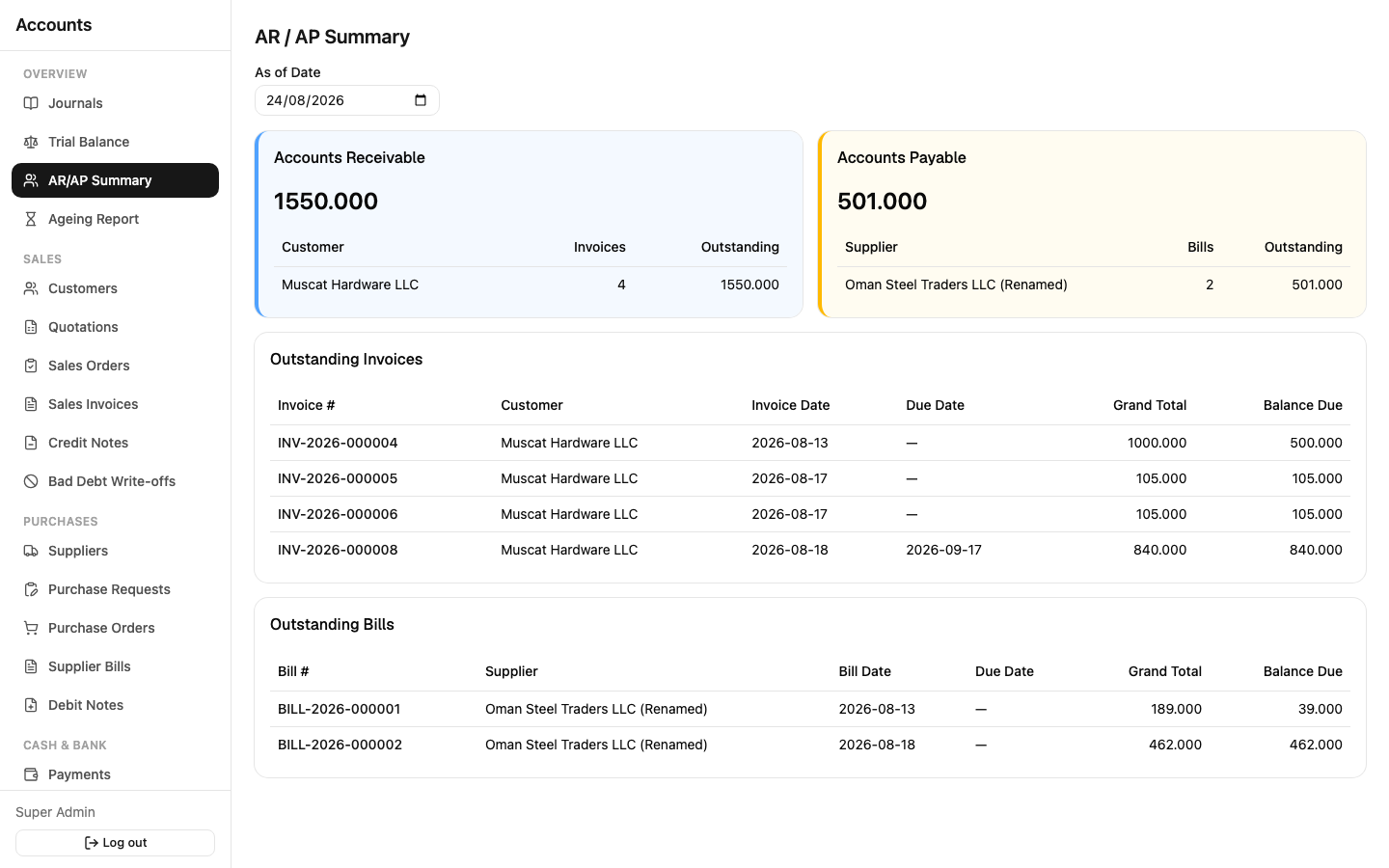
Sidebar: Overview → Ageing Report and Overview → AR/AP Summary. These are read-only reports, not documents you create — the Ageing Report buckets every customer's (and supplier's) outstanding balance into Current / 1–30 / 31–60 / 61–90 / 90+ days overdue as of a date you pick; AR/AP Summary gives you the total receivable and payable position with a list of every open invoice and bill, with overdue ones flagged in red.