
Appearance
EMR
Billing & Payments
Covers Billing, invoices, the daily closing report, and Customers (insurance/corporate accounts) — for billing staff and cashiers.
Billing a visit
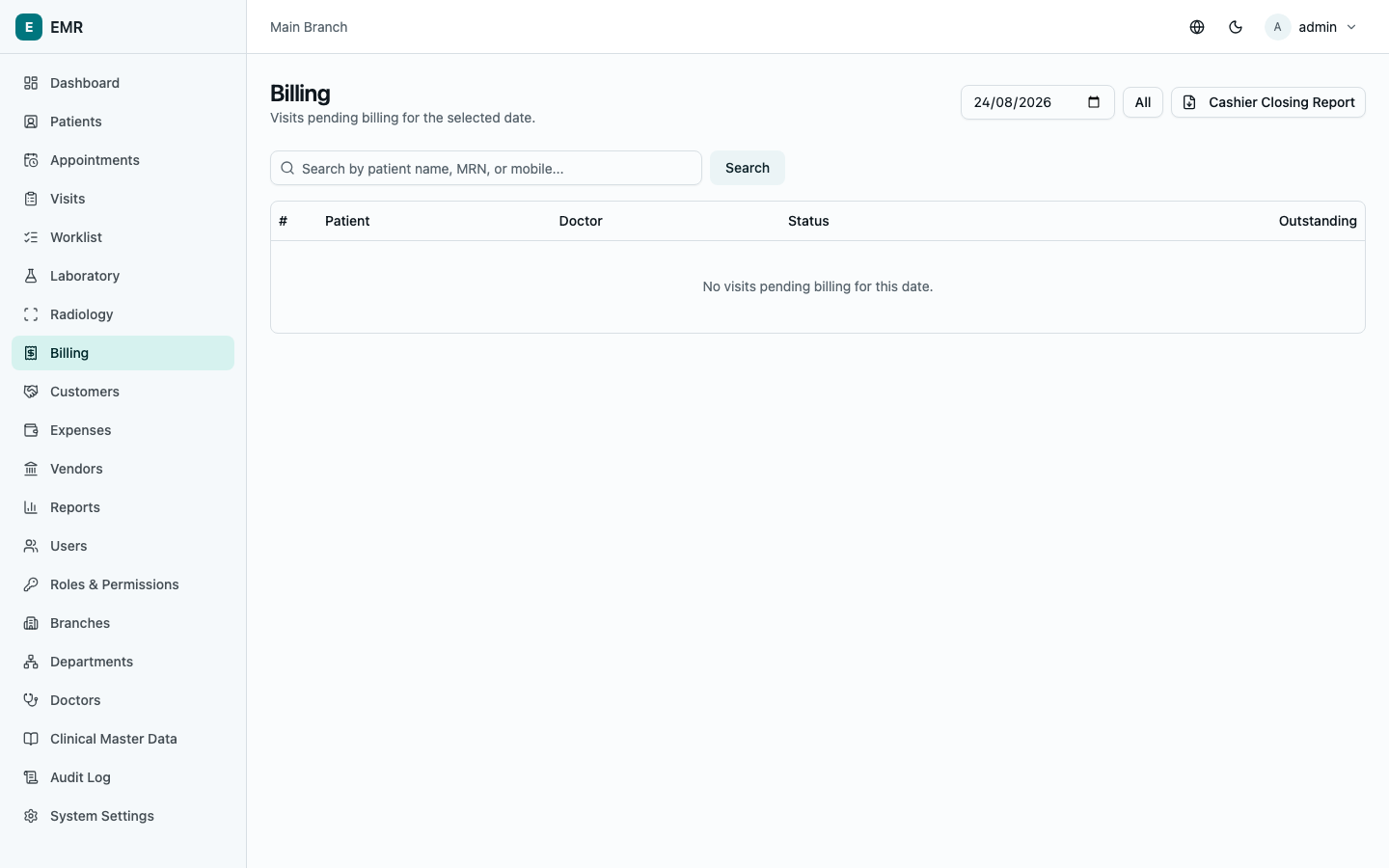
Go to Billing. It lists visits with something outstanding to bill, for the selected date — select All to see every pending visit regardless of date. Search by patient name, MRN, or mobile to jump straight to a specific patient's visits instead.
Selecting a visit opens Unbilled items — the consultation fee (if not already collected at check-in) and any priced orders from the consultation (lab tests, radiology studies, procedures) that haven't been billed yet. If the patient is linked to an insurance company or corporate employer, you'll see a Billed to: {name} badge — the invoice will automatically be billed to that payer instead of the patient directly.
Tick the items to include, adjust Discount/Tax if needed, check the Subtotal/Total at the bottom, and select Generate Invoice. You land on the new invoice.
Collecting payment
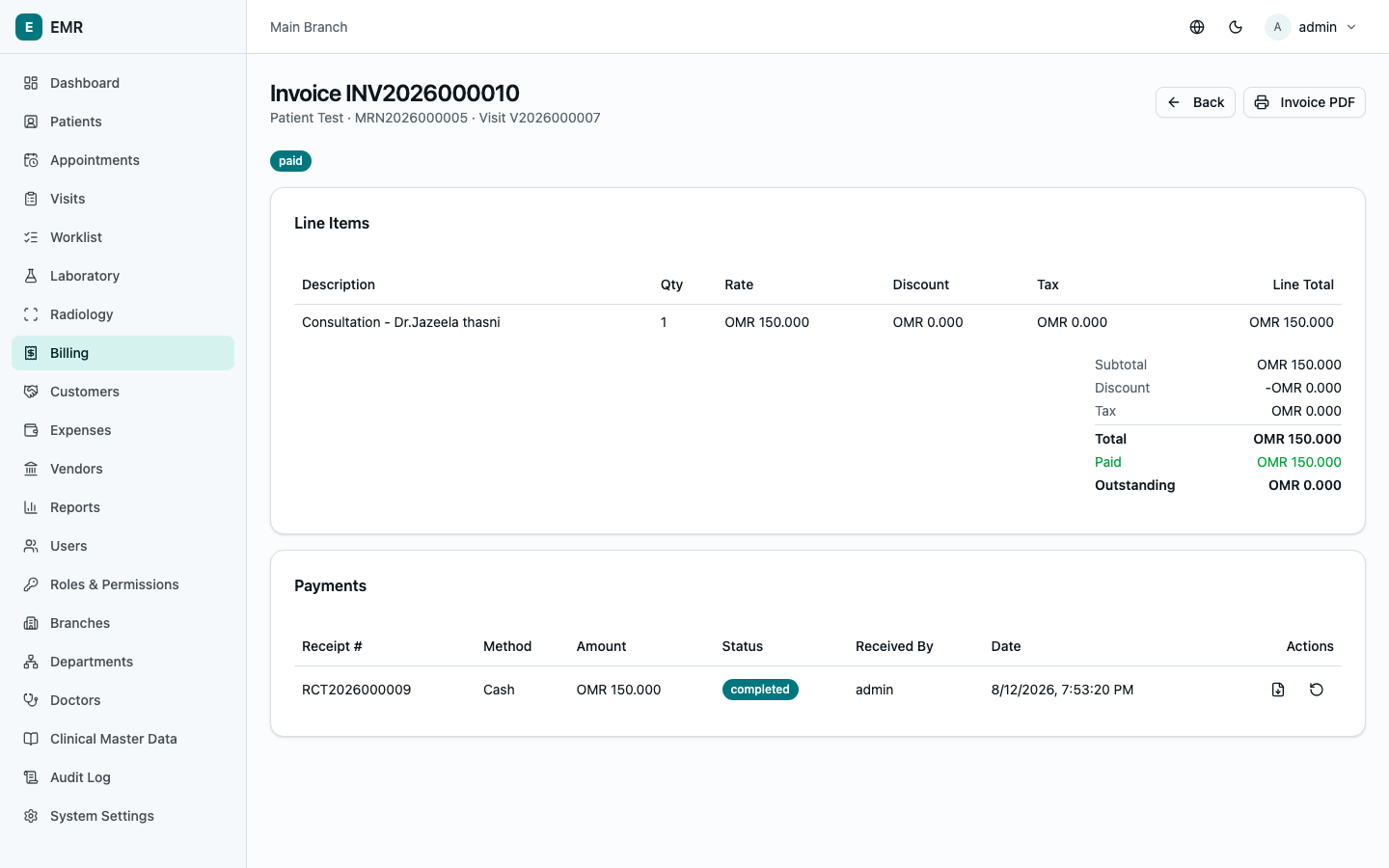
On an invoice, select Collect Payment, enter the Amount (can be less than the full outstanding balance — partial payments are fine and the invoice tracks what's still owed), pick a Method, add a Reference if relevant (transaction/cheque number), and select Record Payment. The invoice status updates automatically — issued → partially paid → paid.
Select Invoice PDF any time for a printable copy. Each payment has its own printable receipt from the Payments list on the invoice.
Cancelling an invoice or refunding a payment
Cancel Invoice is only available while nothing has been paid on it yet (refund everything first if needed) — enter a reason; this can't be undone, and reverts any billed orders back to unbilled so they can be re-billed correctly. To reverse a specific payment instead, use Refund on that payment (also requires a reason).
Daily cashier closing report
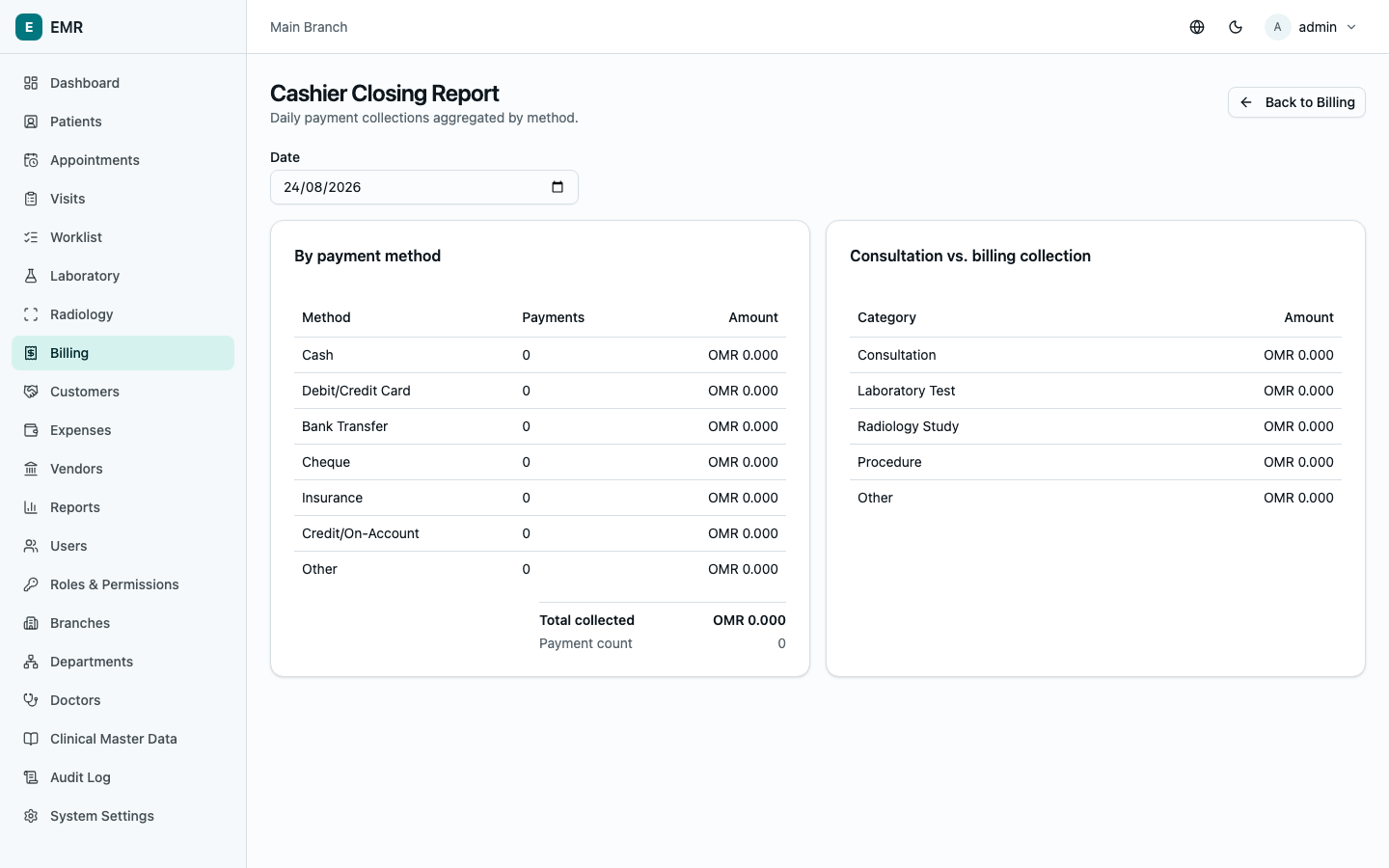
From Billing, select Cashier Closing Report, pick a Date, and you'll see Total collected and Payment count for the day, broken down By payment method (cash, card, bank transfer, ...) and Consultation vs. billing collection (how much came from consultation fees vs. lab/radiology/procedure charges). Use this to reconcile the cash drawer/POS terminal at end of shift.
Insurance & corporate customers
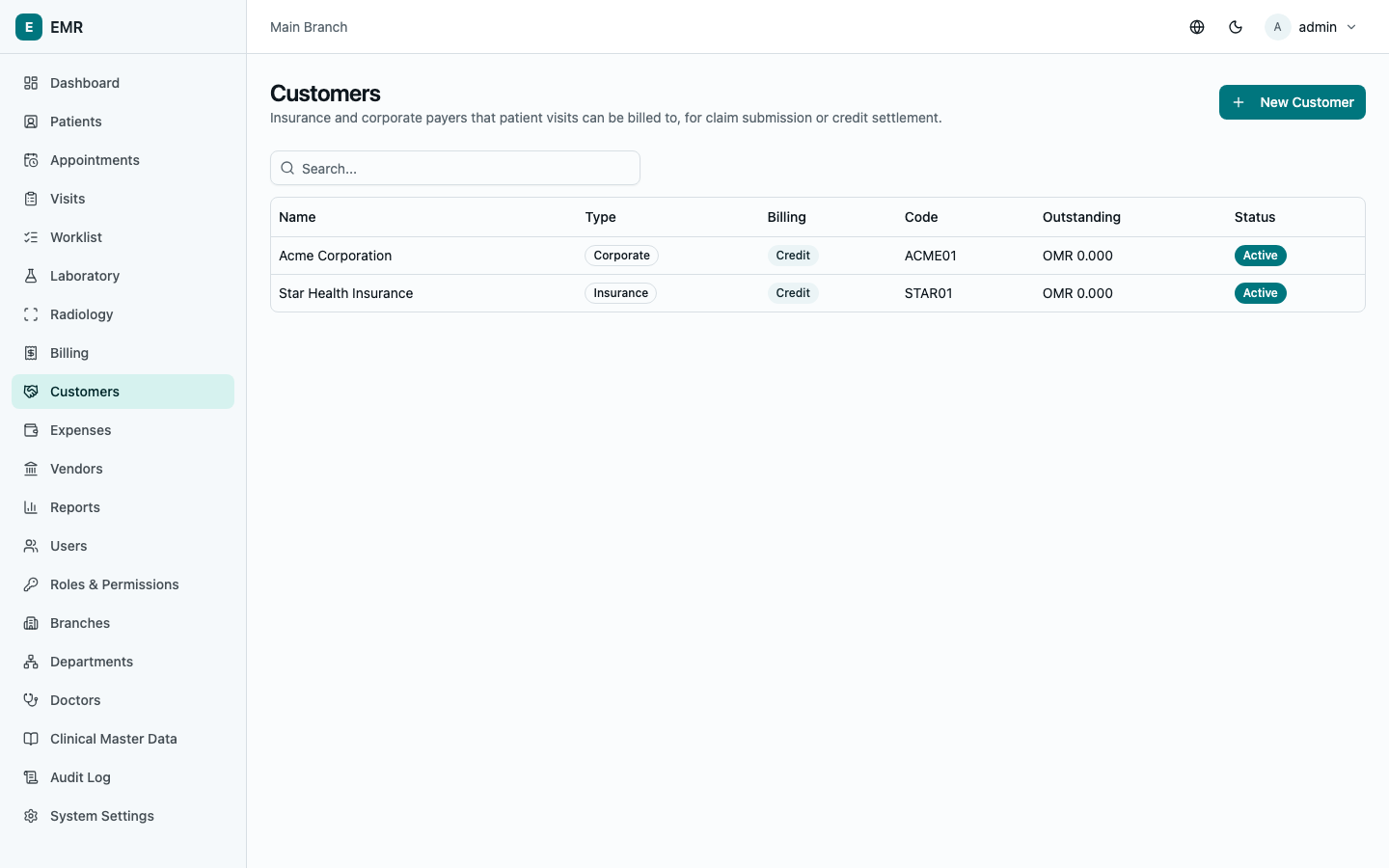
Customers are payers a patient can be billed to instead of paying directly — an insurance company or a corporate employer. Set them up once (name, type, and whether they pay cash-on-receipt or on credit — see Administration for who can create them), then link a patient to one from their patient record (Customer field
- their policy/employee ID) — every invoice for that patient automatically bills to that customer from then on, with the reference ID pre-filled.
Settling a customer's invoices
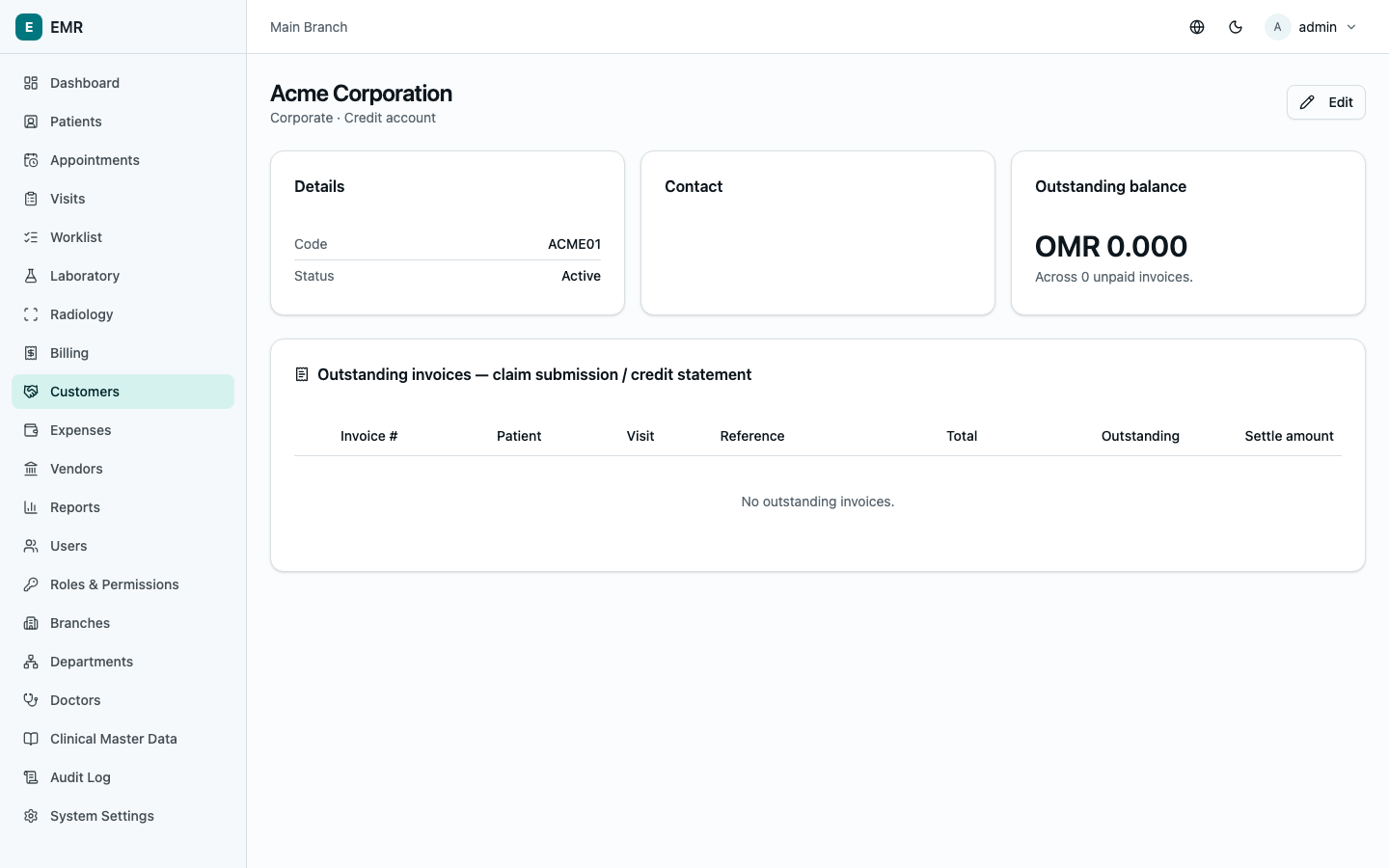
Open a Customer's record to see Outstanding invoices — everything currently billed to them and not yet paid. This is your claim submission list for an insurer, or the monthly statement for a corporate account. When a remittance or payment arrives (a cheque covering several claims, or a corporate account's monthly settlement), tick the invoices it covers, enter each invoice's settled amount (pre-filled with the full outstanding amount — adjust down if the insurer paid less than billed), a Reference number for the remittance/cheque, and a payment Method, then select Record settlement. This settles all the selected invoices in one step and updates each visit's billing status.