
Appearance
EMR
Doctor Workspace
Covers Worklist and the consultation screen it opens into — for doctors, and (for the Vitals/Orders parts) nurses supporting a consultation.
Your worklist
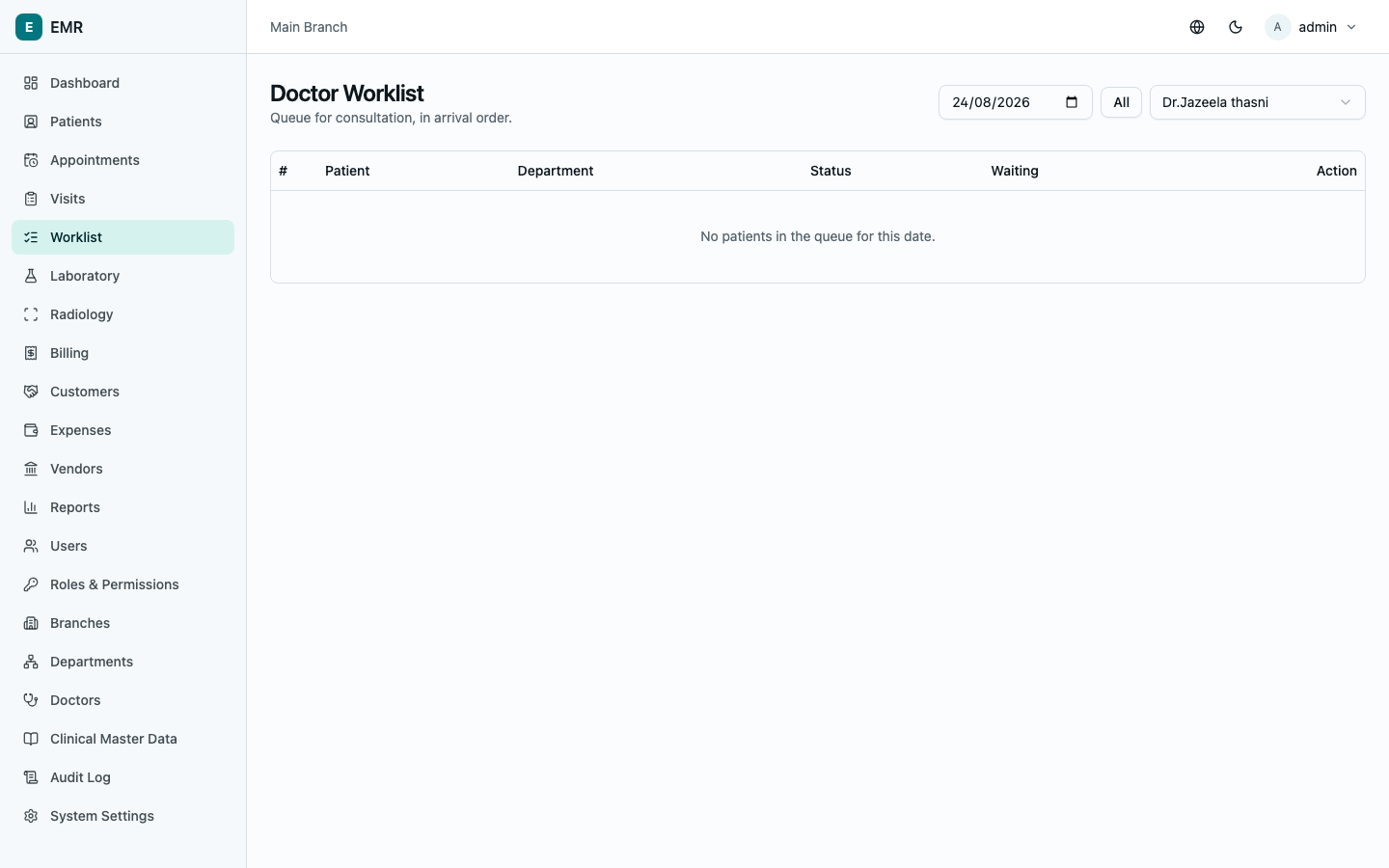
Go to Worklist. By default it shows your queue for today, in arrival order, with each patient's wait time. Select All to see your full queue across every date instead. Filter by doctor if you have visibility into more than one doctor's queue.
Each row shows the patient's name, MRN, age/gender, how long they've been waiting, and — if on file — their allergies, front and center so nothing gets missed. Select Start to begin a consultation, or Continue if one is already in progress for that patient.
The consultation screen
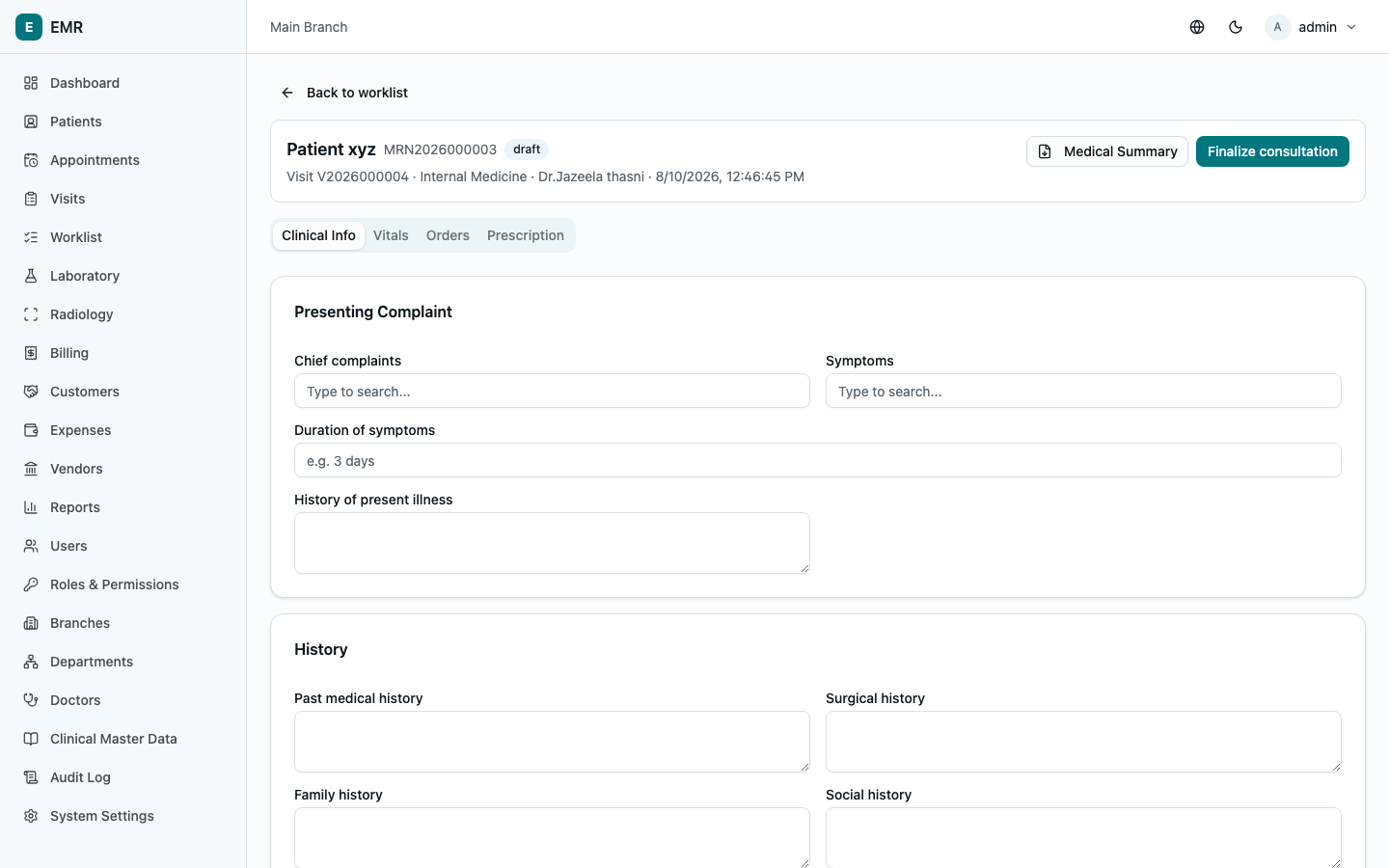
Opens with the patient's demographics and, if recorded, an Allergies/ Alerts banner at the top — always check this before prescribing. Four tabs:
- Clinical Info — chief complaints, symptoms, history (present illness, past medical, surgical, family, social), examination findings, clinical notes, diagnoses (provisional/differential/final — picked from your clinic's configured diagnosis list, or typed as free text if nothing matches), treatment plan, follow-up date, and patient instructions.
- Vitals — height, weight (BMI calculates automatically), temperature, blood pressure, pulse, respiratory rate, oxygen saturation, blood glucose, pain score. You can record vitals more than once per visit — each entry is timestamped, building a trend you (and the patient's history timeline) can review later.
- Orders — request lab tests, radiology studies, or procedures. Placing an order here is what makes it show up on the lab/radiology team's worklist — but only once it's been billed (see Billing & Payments); an order that hasn't been paid for yet won't appear in their queue.
- Prescription — medicines with strength, dosage, route, frequency, duration, and food instructions (before/after/with food). Each item can be individually stopped later without deleting its history.
Everything saves as you go. When the consultation is complete, select Finalize consultation — this locks the clinical notes (no further edits) and moves the visit to Follow-up Required or Ready for Discharge depending on whether you set a follow-up date. Select Medical Summary any time to generate a printable PDF (diagnosis, prescriptions, orders, your digital signature if one's on file) to hand to the patient or send with a referral.
Reviewing a patient's history
From the patient's record (Patients → open the patient) → Medical History tab shows every past visit for that patient with its diagnosis, treatment plan, prescriptions, and orders, most recent first — useful for context before or during a consultation. Select Open consultation on any past visit to jump straight into it.
A note on department access
If your role is scoped to a specific department (ask an administrator if you're not sure), your worklist and the patients you can act on are automatically limited to that department — you won't see or be able to act on visits from other departments, even ones your login could otherwise reach. See Administration for how this is configured.